The Attio integration allows Crono to sync your CRM data with Attio and log your team’s activity directly on the matching Attio records.
This includes:
Contacts
Companies
Deals
Notes
Tasks
Meetings
Before connecting Attio, please note that:
Crono works with one CRM at a time for the whole company.
The first connection must be completed by the subscription manager.
The integration can be set up from Settings → Integrations → CRM.
Each user must then connect their own Attio account from the same integration card.
You need an Attio account in your company workspace.
Each user should connect their own account so that their activities in Crono are correctly logged in Attio under their name.
To connect Attio:
Go to Settings → Integrations → CRM.
If no CRM is connected yet, the subscription manager can select Attio under the CRM integration options.
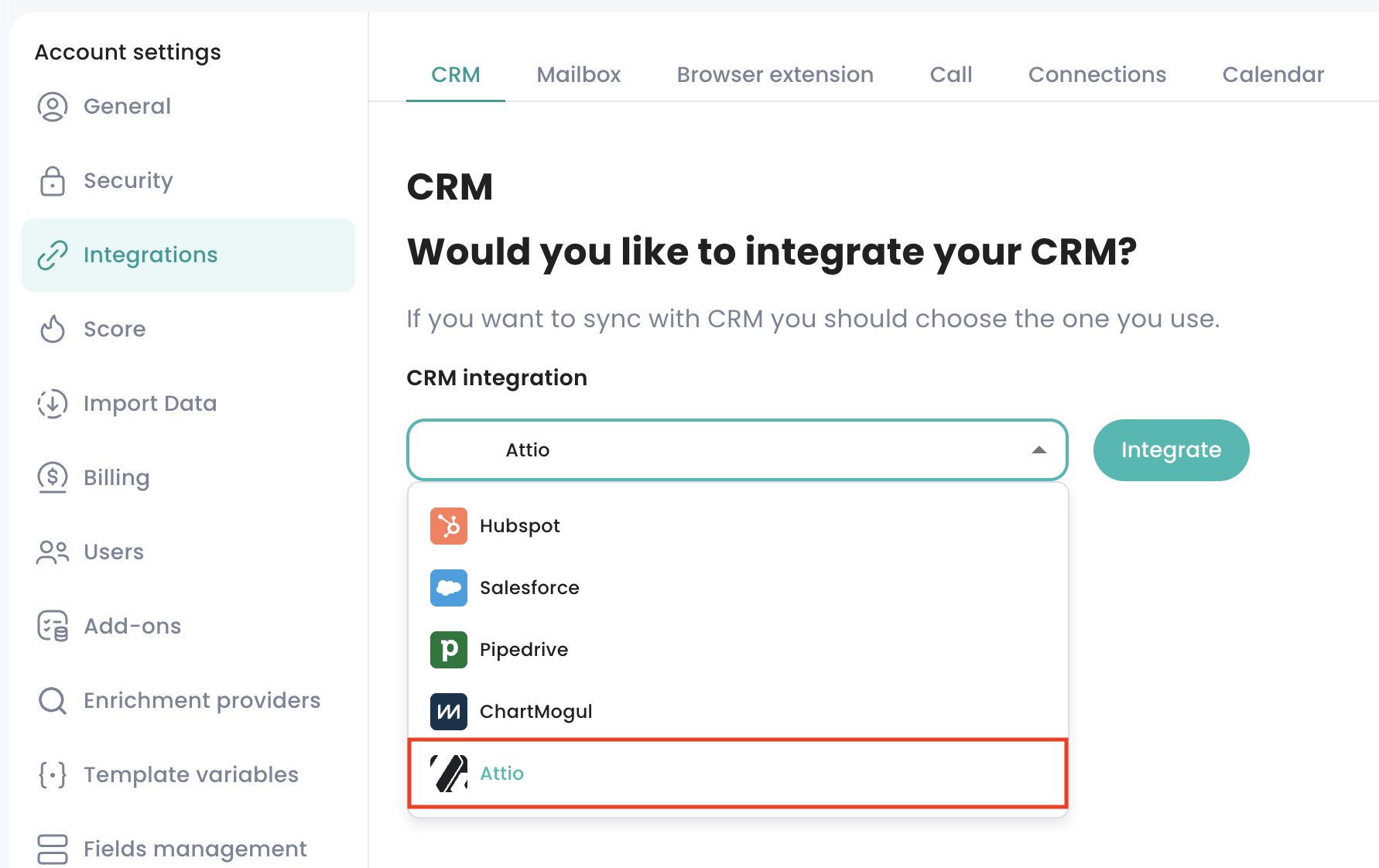
Crono will redirect you to Attio.
Review and approve the requested access.
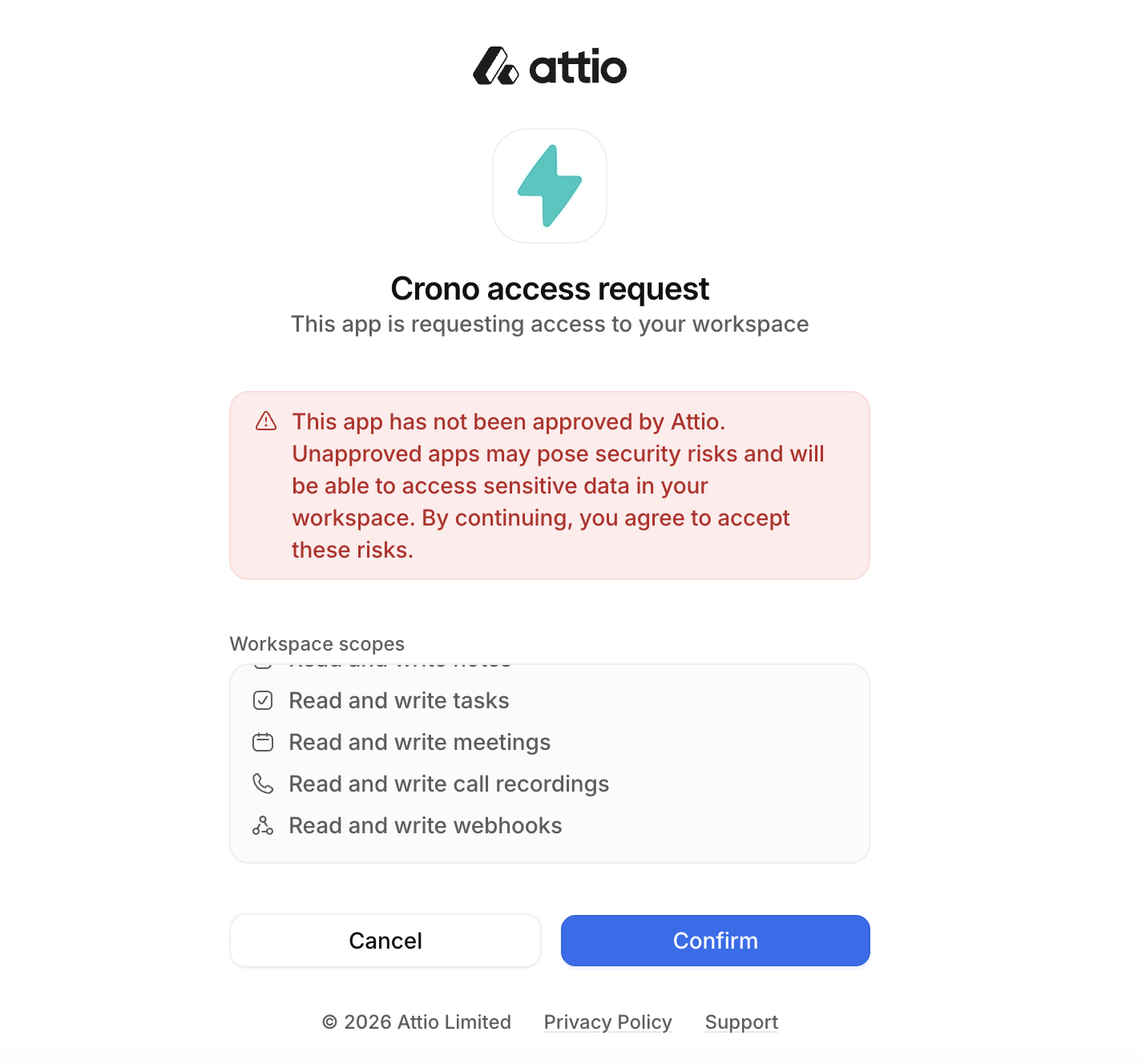
Once completed, you will be redirected back to Crono.
The Attio integration card will then show as connected.
After the manager has connected the integration, each team member can open the same Attio card and click Connect to link their own Attio account.
You can manage the sync settings from the same CRM integration page.
This setting controls how data is pushed from Crono to Attio.
You can choose between:
Always — contacts, companies, deals, and activities are pushed automatically.
Only manually — records are pushed only when you manually choose to sync them.
Trigger-based — records are pushed based on the rules you configure.
This setting controls how data is pulled from Attio into Crono.
You can choose between:
Always — contacts, companies, deals, and activities owned by a Crono user are pulled into Crono automatically.
Only manually — records are pulled only when manually updated from the CRM.
There is also a separate toggle that allows Crono to delete an object when the matching object is deleted in Attio.
If your pipelines are still managed in Crono, you can enable Synchronize Deals with CRM.
When enabled, Crono will sync:
Pipelines
Stages
Deals
Existing pipelines, stages, and deals will be moved into the CRM sync logic, and new deals created in Crono will be pushed to Attio automatically.
Deals are an optional object in Attio. If your Attio workspace does not use deals, Crono will continue managing deals on its own side.
Crono and Attio sync the following objects:
Attio People ↔ Crono Contacts
Attio Companies ↔ Crono Companies
Attio Deals ↔ Crono Deals
Activities created in Crono are logged on the matching Attio record, including:
Notes
Tasks
Meetings
If Attio includes attributes that do not have a matching field in Crono, they are shown as additional properties on the record.
From a contact, company, or deal in Crono, you can also open the matching record directly in Attio.
You can also use Update from CRM to pull the latest values from Attio for a specific record.
Once the subscription manager has connected Attio, Crono subscribes to changes in the Attio workspace.
This means that updates made in Attio can flow back into Crono automatically, depending on your sync settings.
If updates stop coming through, reconnecting the Attio integration from the same CRM card can re-establish the connection.
Click Connect again on the Attio integration card. The authorization may have expired and may need to be renewed.
Make sure the colleague has connected their own Attio account from the integration card.
Also check that CRM to Crono is not set to Only manually.
Only records owned by a Crono user are pulled into Crono automatically.
If a record is missing, check the record ownership in Attio and your CRM to Crono sync settings.
This may happen if:
The Attio workspace does not have the Deals object enabled.
Deal synchronization was not enabled in Crono.
Check the Crono to CRM setting.
If it is set to Always, Crono will automatically push contacts, companies, deals, and activities to Attio.
To have more control, switch to Trigger-based and configure your own sync rules.
