Crono now integrates with Microsoft Dynamics 365. Contacts, leads, companies, deals and activities sync in both directions, so your team can prospect in Crono while Dynamics stays your source of truth.
Dynamics 365 is available on the Ultra plan, like Salesforce. On other plans it appears greyed out with an Upgrade button.
Use a Microsoft work or school account with a Dynamics 365 license and a security role. Personal Microsoft accounts can't connect.
Your Microsoft admin may need to approve Crono once for your organization.
For automatic sync from Dynamics to Crono, the connection must be made by a Dynamics administrator. Other users can connect, but changes then reach Crono through periodic sync only.
Go to Settings → Integrations. Under "Would you like to integrate your CRM?", click Click here, select Microsoft Dynamics 365 and click Integrate. You can also pick it in the Choose CRM step of onboarding.
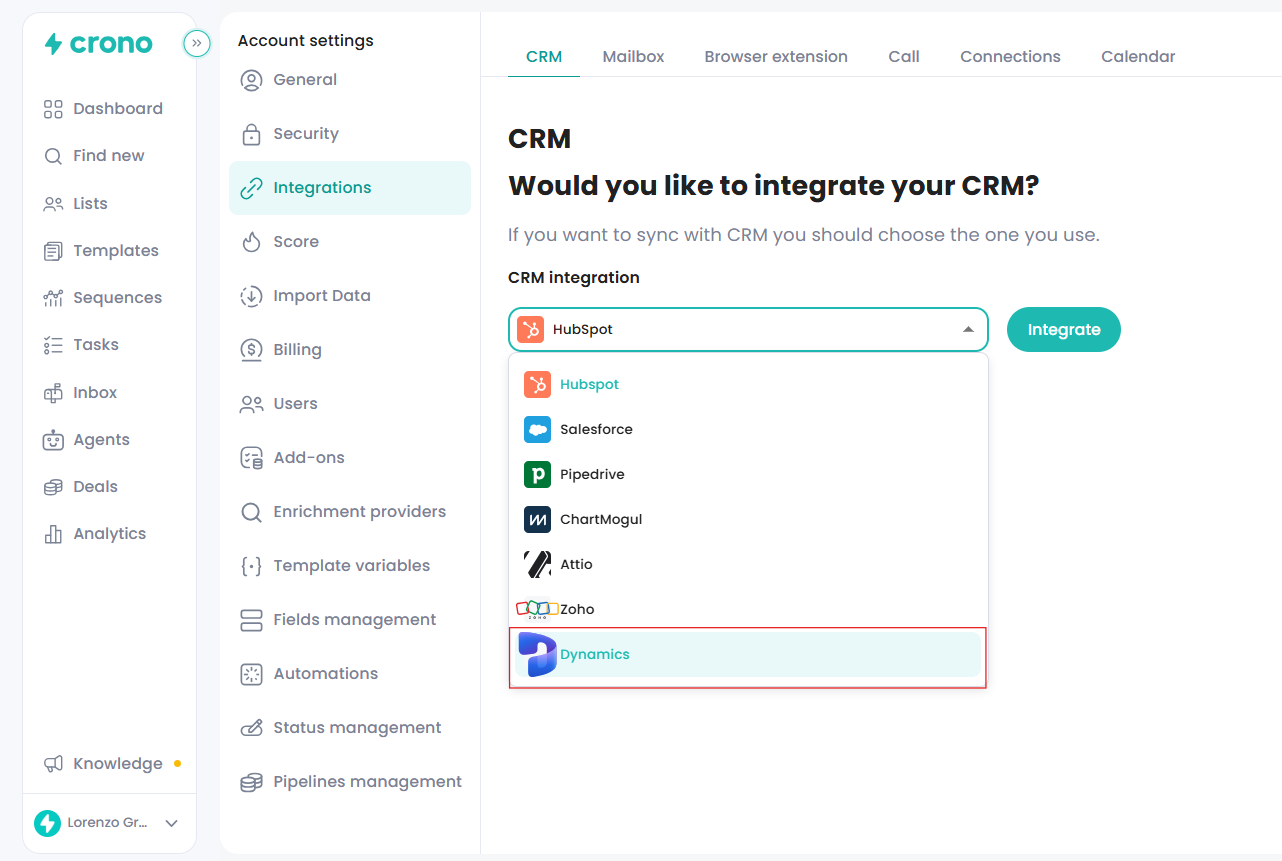
In Settings → Integrations, click Connect on the CRM card and sign in with Microsoft. Crono finds the Dynamics environments your account can access:
If there is one environment, Crono connects to it straight away.
If there are several, choose one in Choose your Dynamics 365 environment and click Connect.
Everyone in your workspace must use the same environment, and each environment can be linked to only one Crono workspace. When the connection works, the card shows Connected and the environment name.
In Advanced settings:
Lead & Contact management: treat everyone as a Contact (Contacts only), or keep Leads and Contacts separate (Contacts and Leads) and choose which type new records get.
Crono to CRM: Automatically, Manually, or Trigger based. Trigger based lets you set rules for when contacts and companies are pushed to Dynamics.
CRM to Crono: Automatically or Manually. You can also choose to delete a record in Crono when it's deleted in Dynamics.
Deals synchronization: click Synchronize Deals with CRM to sync deals.
Companies (Dynamics accounts), contacts, leads and deals (Dynamics opportunities).
Emails, calls, meetings, tasks and notes you log in Crono appear in Dynamics. LinkedIn activity (invitations, messages, InMails) is logged as a completed Task, because Dynamics has no LinkedIn activity type.
From Dynamics, Crono brings in open tasks, completed calls and emails, meetings and notes.
On the Lists page, click New → Import Microsoft Dynamics 365 list. Pick a Dynamics view (system or personal). Optionally add the records to a Crono list and, for contacts and leads, to a sequence. Then click Import. You'll get a notification when the import finishes.
On the connected Dynamics card in Settings → Integrations, use the dropdown next to the environment name to choose Default app or a specific Dynamics app. Every "View in Dynamics" link then opens in that app. Each user sets this for themselves.
The first time, open the Crono extension on a Dynamics page, click Enable access and approve Chrome's prompt. The page reloads. After that:
On a contact or lead: click Sync with Crono, and optionally add them to a list or sequence.
On an account: click Sync with Crono, and optionally add it to a list.
On a list view: select records and sync them all at once with Sync with Crono (N). For opportunities, use Sync N Opportunities; only the selected rows visible on the page are synced.
"Your Microsoft admin needs to approve Crono once…": ask your Microsoft admin to approve Crono, then connect again. You also see this message if you cancel the Microsoft sign-in.
"Crono couldn't find a Dynamics 365 environment for this account": sign in with the account your team uses for Dynamics.
"Your team uses a different Dynamics 365 environment": pick the same environment as your colleagues.
"Automatic sync is off. Reconnect with a Dynamics administrator account…": ask a Dynamics admin to click Reconnect on the CRM card.
To disconnect Dynamics, contact support.
