Email Warm-up helps improve your mailbox's sender reputation by gradually building a history of positive email interactions.
Through Crono's integration with Warmy, your mailbox exchanges emails with other inboxes that open, reply to, and move messages out of spam. This helps build a healthier sending reputation and improve the chances of your outreach emails reaching your prospects' inboxes.
Warm-up is available to all Crono workspaces and can be purchased for individual mailboxes.
Before enabling Warm-up, please note that:
You need one Warm-up mailbox slot for each mailbox you want to warm up.
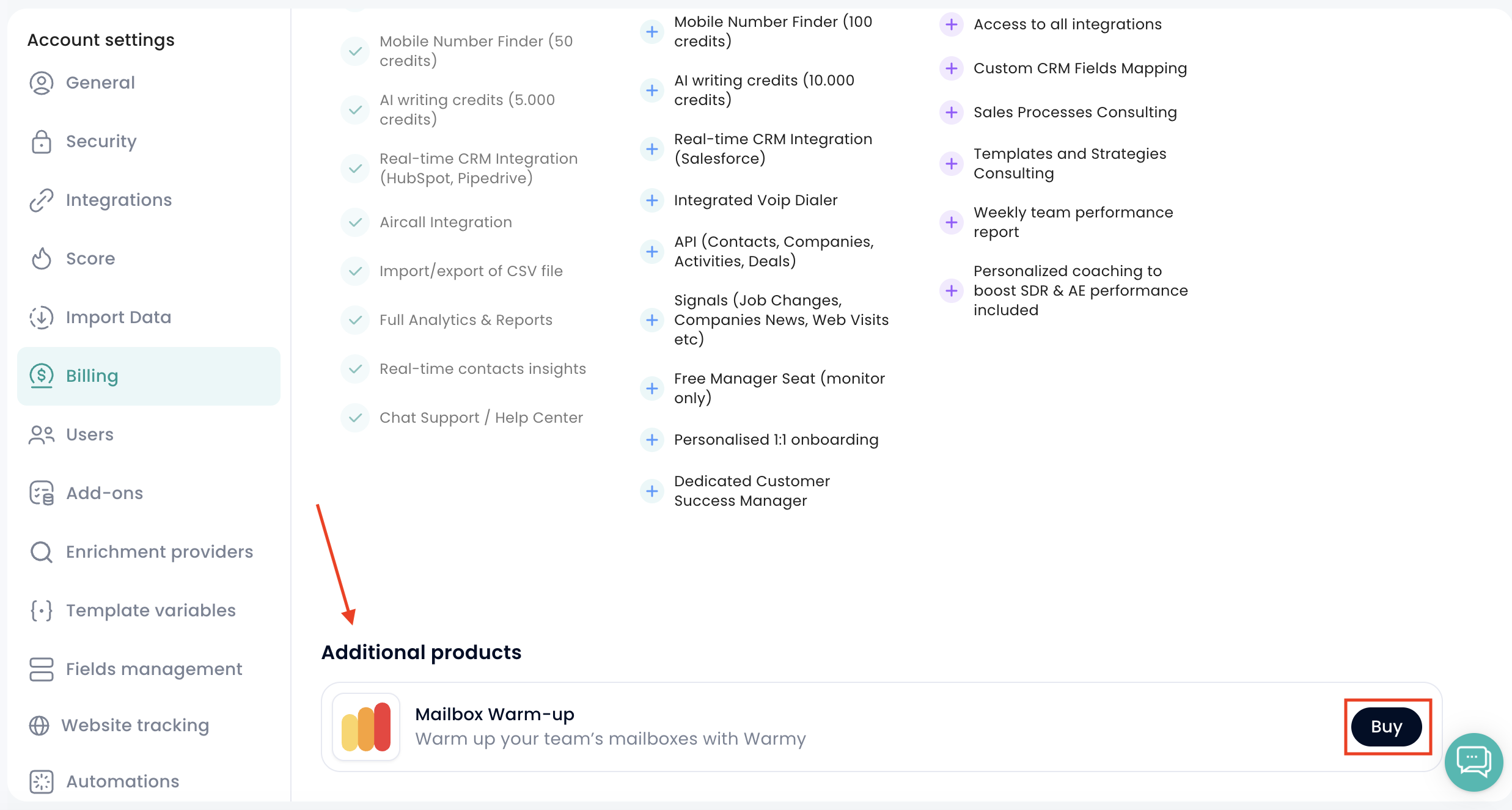
Only Subscription Managers can purchase Warm-up mailboxes from Settings → Billing.
The mailbox must already be connected to Crono through Gmail, Outlook, or SMTP/IMAP.
To purchase Warm-up mailboxes:
Go to Settings → Billing.
Under Additional products, find Mailbox Warm-up.
Click Buy.
Select the number of mailboxes you want to warm up and confirm your purchase.
If your subscription already uses card payments, the cost will be added to your existing subscription and prorated for the current billing period. Otherwise, you'll be redirected to a secure checkout to complete the purchase.
Warm-up mailboxes renew automatically with your Crono subscription, following the same billing cycle.
If you need additional mailboxes later, you can purchase them using Buy more from the Warm-up Hub or Mailbox settings. You can also adjust the number of mailboxes using Modify quantity in the Billing section.
If your workspace doesn't have any Warm-up slots yet, you'll see an Improve your email deliverability banner in Mailbox settings.
Managers can purchase slots directly from there, while other users will see No mailbox assigned and will need to contact their manager.
Subscription Managers can also decide how many Warm-up mailboxes each team member can use.
To do this, go to Settings → Billing → Mailbox Warm-up, click Assign, and select the number of slots to allocate to each user.
This step is optional.
If no specific assignments are configured, users can connect mailboxes to Warm-up until the workspace's total purchased slots are used.
Once Warm-up mailboxes have been purchased, you can activate the service on your connected mailboxes.
To do this:
Go to Settings → Integrations → Mailbox.
Find the mailbox you want to warm up.
Click the ⋯ menu next to it and select Connect to Warm-up.
Click Connect and follow the instructions for your email provider.
The connection process depends on your provider:
Gmail / Google Workspace: Sign in with Google to authorize the connection. Your Google Workspace administrator may need to approve the Warmy.io app before you can proceed. The connection window provides the instructions and App ID needed for approval.
Outlook / Microsoft 365: Sign in with your Microsoft account and authorize the connection.
Other providers (SMTP/IMAP): Confirm that Crono can share your mailbox credentials with Warmy. You won't need to enter them again.
Once connected, the mailbox will display a Warm-up badge in your Mailbox settings.
Please note: Warm-up may not start immediately after connecting a mailbox. During the initial setup, its status may temporarily appear as Paused, sometimes for up to 24 hours.
Warm-up will start automatically once the setup is complete, and the first performance data should become available after approximately 24 hours.
The Warm-up Hub allows you to monitor the performance and health of all your Warm-up mailboxes in one place.
To access it, go to Settings → Integrations → Mailbox and click the Warm-up Hub banner.
At the top of the page, you'll find an overview of your Warm-up performance, including:
Average deliverability: The percentage of Warm-up emails reaching the inbox.
Warm-up emails: The number of Warm-up emails sent during the day.
Mailbox health: The overall health of your connected mailboxes.
Domain health: The health of your sending domains.
Mailboxes are organized by domain, making it easier to monitor multiple email accounts belonging to the same company.
For each mailbox, you can check:
Temperature (0–100): Indicates how warmed up the mailbox is.
Inbox rate: Shows the percentage of Warm-up emails successfully reaching the inbox.
Each domain also displays a DNS score, which helps you understand whether your domain is correctly configured for email sending.
Click the score to review your domain's authentication records, including:
SPF
DKIM
DMARC
You can also run a DNS health check to verify your domain configuration.
The check can be performed once every 6 hours, and results may take a few hours to become available.
Since these settings apply at the domain level, fixing an authentication issue can benefit all mailboxes connected to that domain.
Click on a mailbox in the Warm-up Hub to open its detailed performance page.
From here, you can monitor:
Inbox vs Spam placement: A chart showing where your Warm-up emails are delivered, with weekly or monthly views.
Inbox placement by provider: A breakdown of how different email providers handle your messages.
Deliverability test score: The latest result from your mailbox's deliverability tests.
Performance data refreshes automatically approximately every 30 minutes.
You can also click Refresh data to request an update.
You can run a deliverability test to check how different email providers handle messages sent from your mailbox.
To do this:
Open the Warm-up Hub.
Select the mailbox you want to test.
Click Run deliverability test.
Crono will analyze email placement across different providers.
Results usually become available within a few minutes, although they may take up to one hour.
The test shows how many emails were delivered to:
Inbox
Promotions
Spam
Not received
This helps you identify potential deliverability issues and understand whether your emails are reaching the right folders.
You can also adjust how Warm-up works for each mailbox.
From the mailbox's detail page, open Warm-up settings.
Here, you can configure:
Daily Warm-up volume: Choose how many Warm-up emails should be sent each day, within the mailbox's sending limits.
Reply rate: Set the percentage of Warm-up emails that should receive a reply, between 1% and 35%.
Language: Select the language used for Warm-up emails.
Click Save to apply changes to the daily volume and reply rate.
Changes to the language are saved automatically.
You can manage Warm-up at any time from the mailbox menu in the Warm-up Hub.
Available options include:
Pause Warm-up: Temporarily stop Warm-up activity for the mailbox.
Resume Warm-up: Restart Warm-up after it has been paused.
Disconnect from Warm-up: Completely remove the mailbox from the Warm-up service.
You can also disconnect a mailbox from Warm-up directly from Settings → Integrations → Mailbox.
Important: Disconnecting a mailbox from Warm-up permanently removes its Warm-up progress, including its temperature, inbox placement history, and previous deliverability tests.
However, the mailbox will remain connected to Crono, and your existing sequences will continue working normally.
Please note that disconnecting a mailbox from Crono does not automatically stop Warm-up. Deleting the mailbox does.
The Warm-up connection needs to be restored.
Click Connect and sign in again to reconnect your mailbox.
Check your mailbox settings for any filters, forwarding rules, or storage limitations that may prevent incoming messages from being received.
You've reached the maximum number of Warm-up mailboxes available to your user or workspace.
Contact your Subscription Manager to request an additional assignment or purchase more slots.
The mailbox is already connected to Warm-up by another user in your workspace.
That user must disconnect it from Warm-up before you can connect it again.
Check that your SPF, DKIM, and DMARC records are correctly configured with your domain provider.
For more information, see Check Email Deliverability and Domain Configuration in Crono.
Warm-up emails are automatically filtered out of your inbox, so they won't interfere with your regular email conversations.
They also don't affect your sequences or Crono analytics, allowing you to warm up your mailboxes while keeping your outreach activity separate.
