
The Metrics section gives you a real-time view of how a sequence is performing: how contacts are moving through it, how many responded, and what those responses were like.
The six sequence metrics
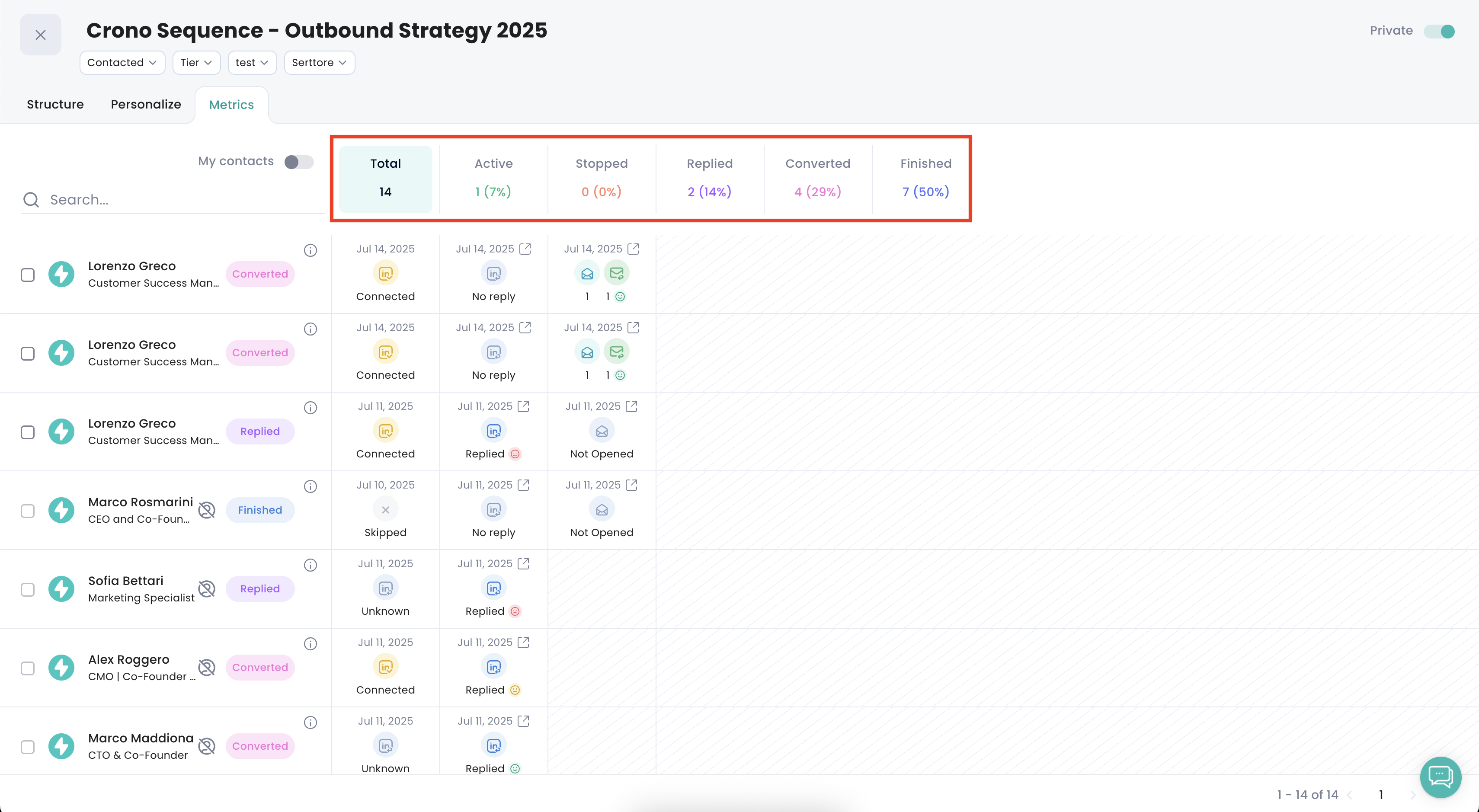
Crono groups the contacts in a sequence into six categories. Each one tells you where a contact stands, or how they interacted with your outreach.
Total: every contact enrolled in the sequence, whatever their current status.
Active: contacts still moving through the sequence, with steps scheduled and not yet executed.
Stopped: contacts whose sequence has stopped, whether you stopped it yourself or an event or automation did. They stay in the sequence and receive no further steps unless you reactivate them. See Why did my sequence stop? for the full list of reasons, and How to stop or remove contacts from a sequence for how to do it yourself.
Replied: contacts who responded with a negative sentiment — they showed disinterest, or declined your proposal.
Converted: contacts who responded with a positive or neutral sentiment. Neutral means it was not a clear yes, but not a rejection either; positive means real interest or willingness to engage.
Finished: contacts who reached the end of the sequence without responding. Every step ran, and the sequence is complete for them.
How Crono decides: every reply is classified by sentiment analysis as Positive, Neutral or Negative. Replied and Converted together cover everyone who responded — the sentiment is what decides which of the two a contact lands in.
Filtering contacts by metric
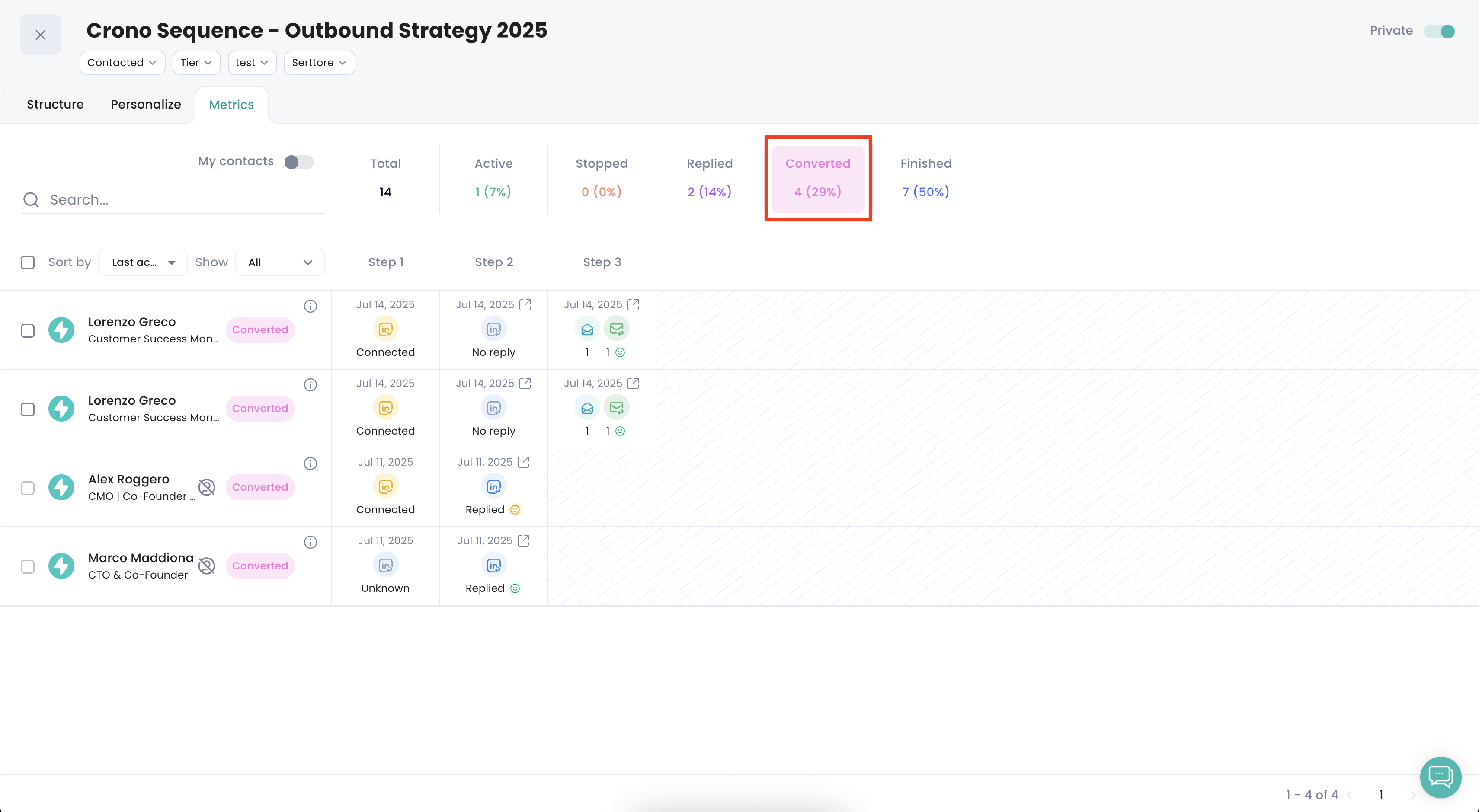
Click any metric to filter the view to just those contacts.
Example: clicking Converted shows only the contacts who replied positively or neutrally — the warm leads worth following up first.
Viewing replies and interactions
You can open any interaction that happened during the sequence:
Click an email, a LinkedIn message or any individual interaction in the table
A panel opens on the right with the full conversation
Crono shows the detected sentiment for that reply (Positive, Neutral or Negative)
From that panel, click Open Inbox to carry the conversation on from inside Crono.
Tracking email engagement
If your sequence includes email steps, the Metrics section also tracks engagement:
Opens: how many contacts opened the email
Clicks: how many clicked a link inside it
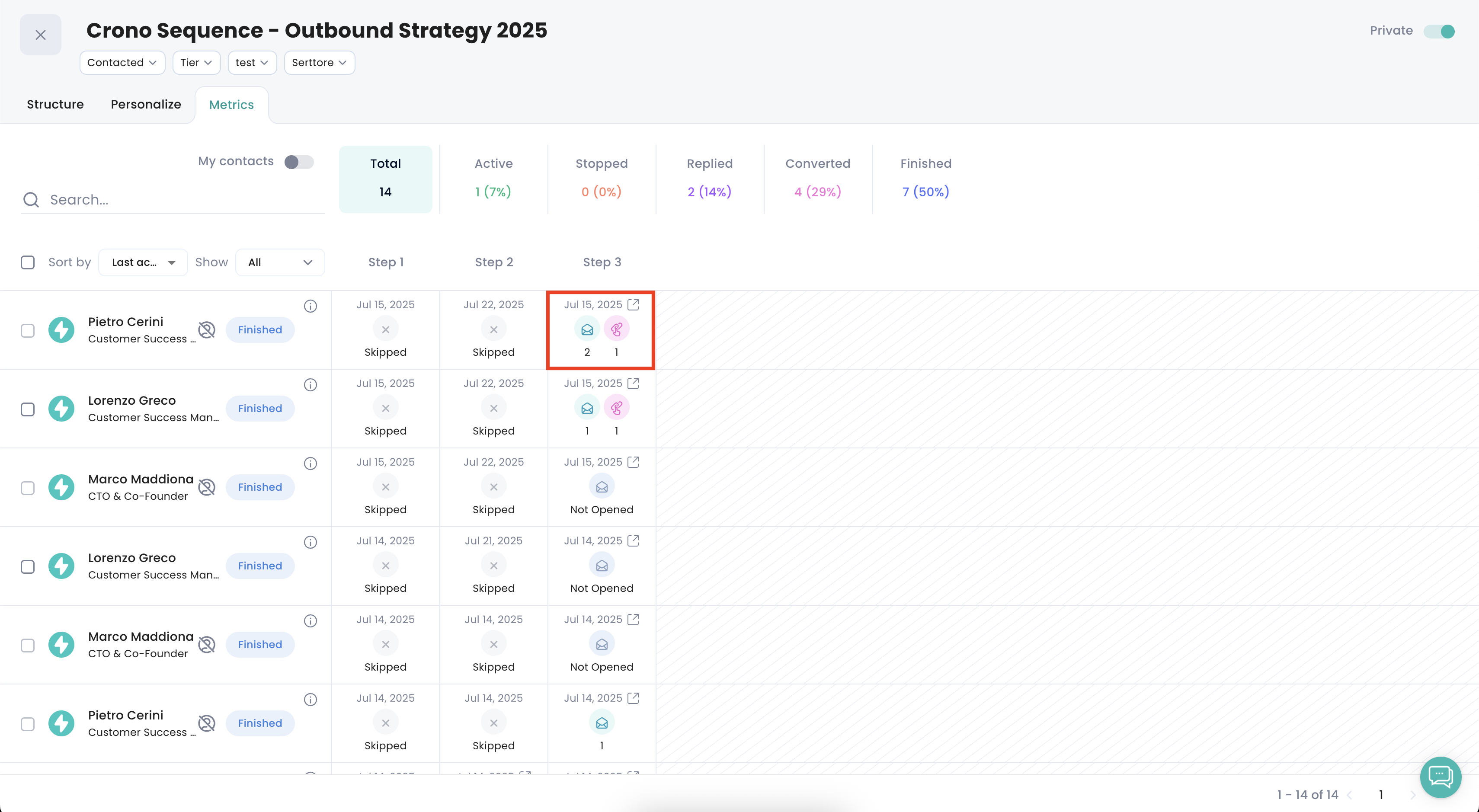
These tell you whether your subject lines and calls to action are landing, before you judge the sequence on replies alone.