
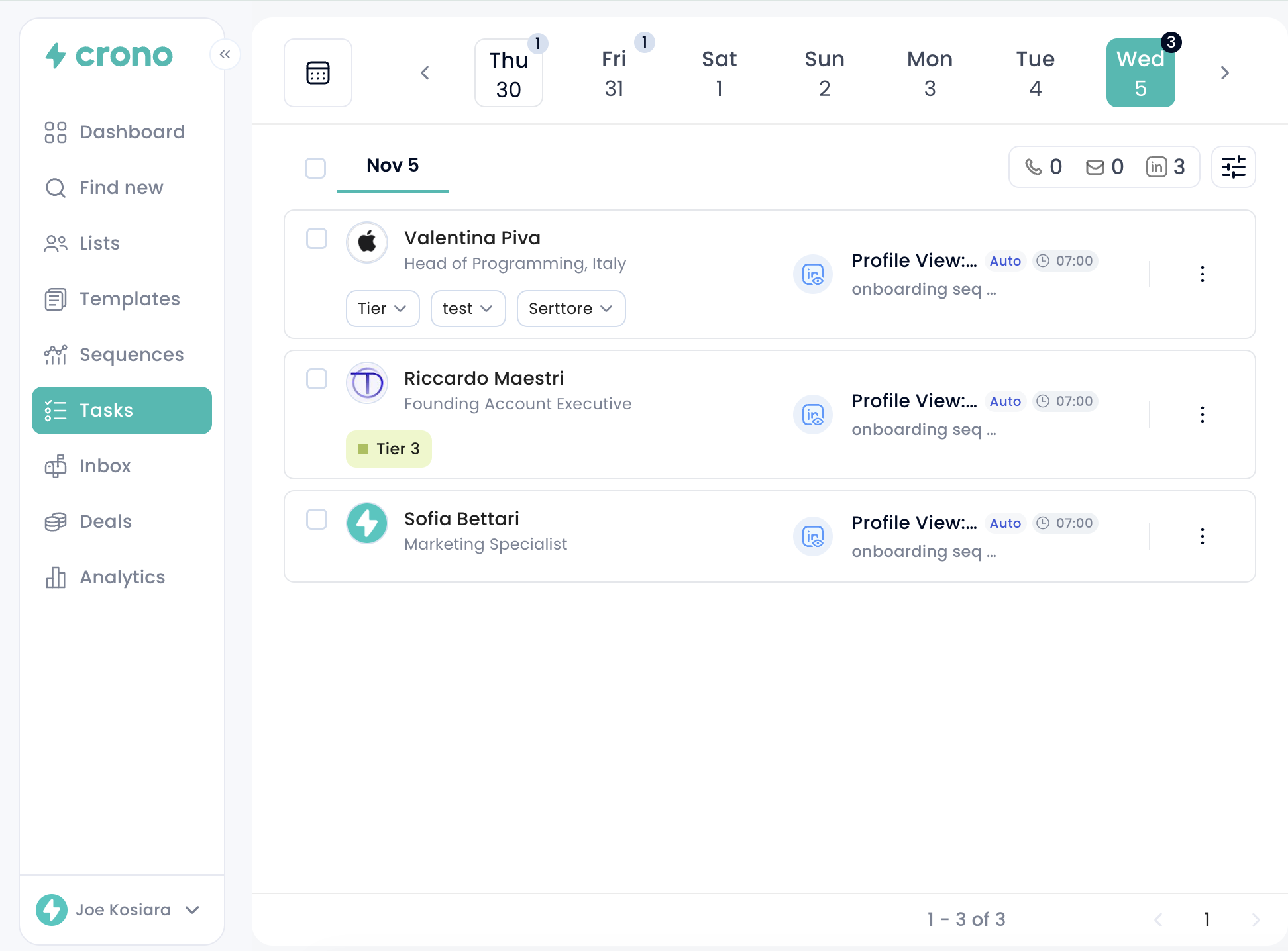
In the Tasks section you'll find all your tasks laid out across the weekly calendar — both the automated ones Crono handles for you, and the manual ones that need your action.
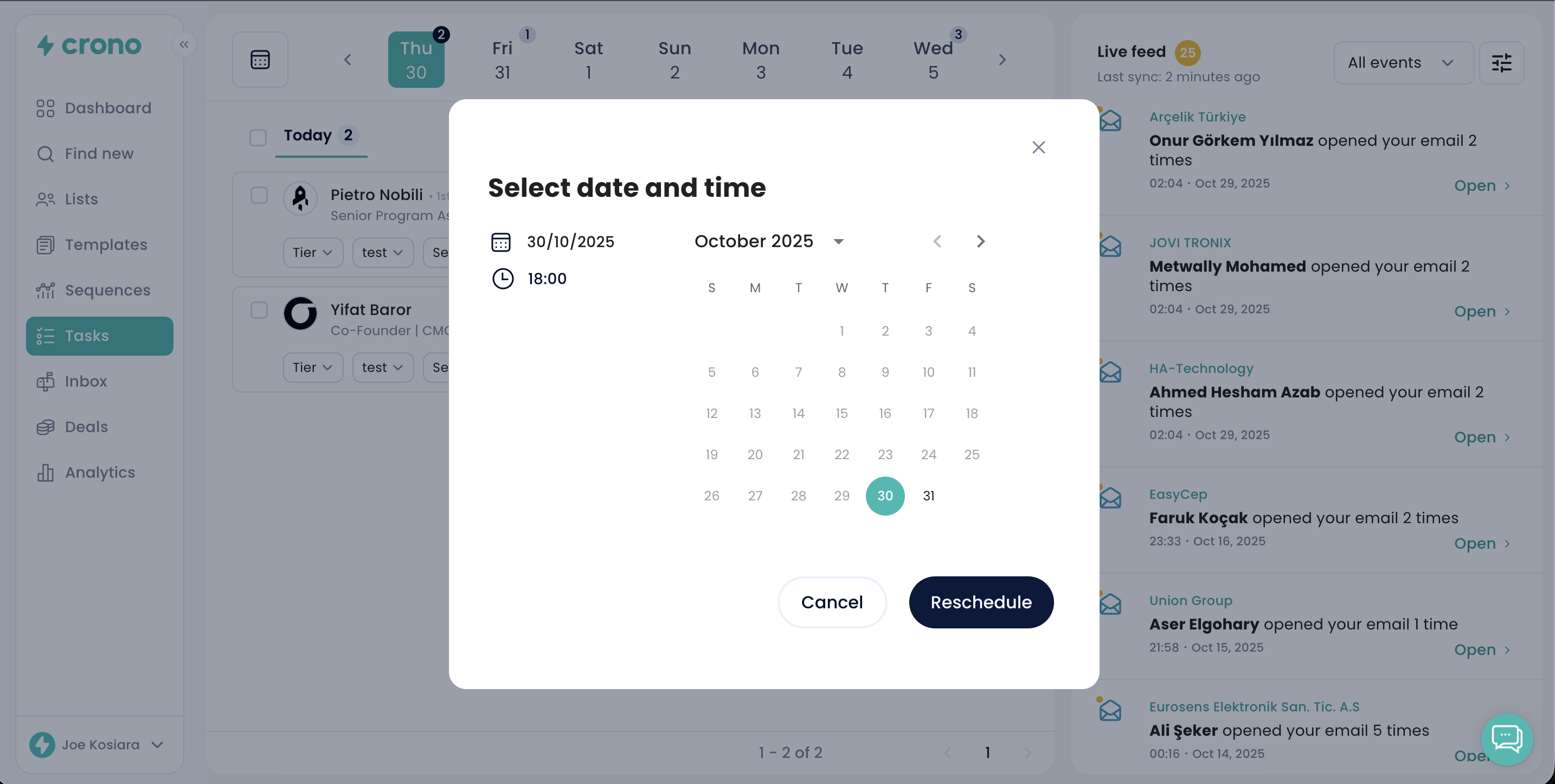
Automated tasks carry a small "Auto" tag and look visually distinct from manual ones. You cannot open an automated task to edit it, but you can still select it to reschedule or skip it.

Tasks either come from steps in your sequences, or are one-off tasks you create for a specific prospect.
Creating a one-off task
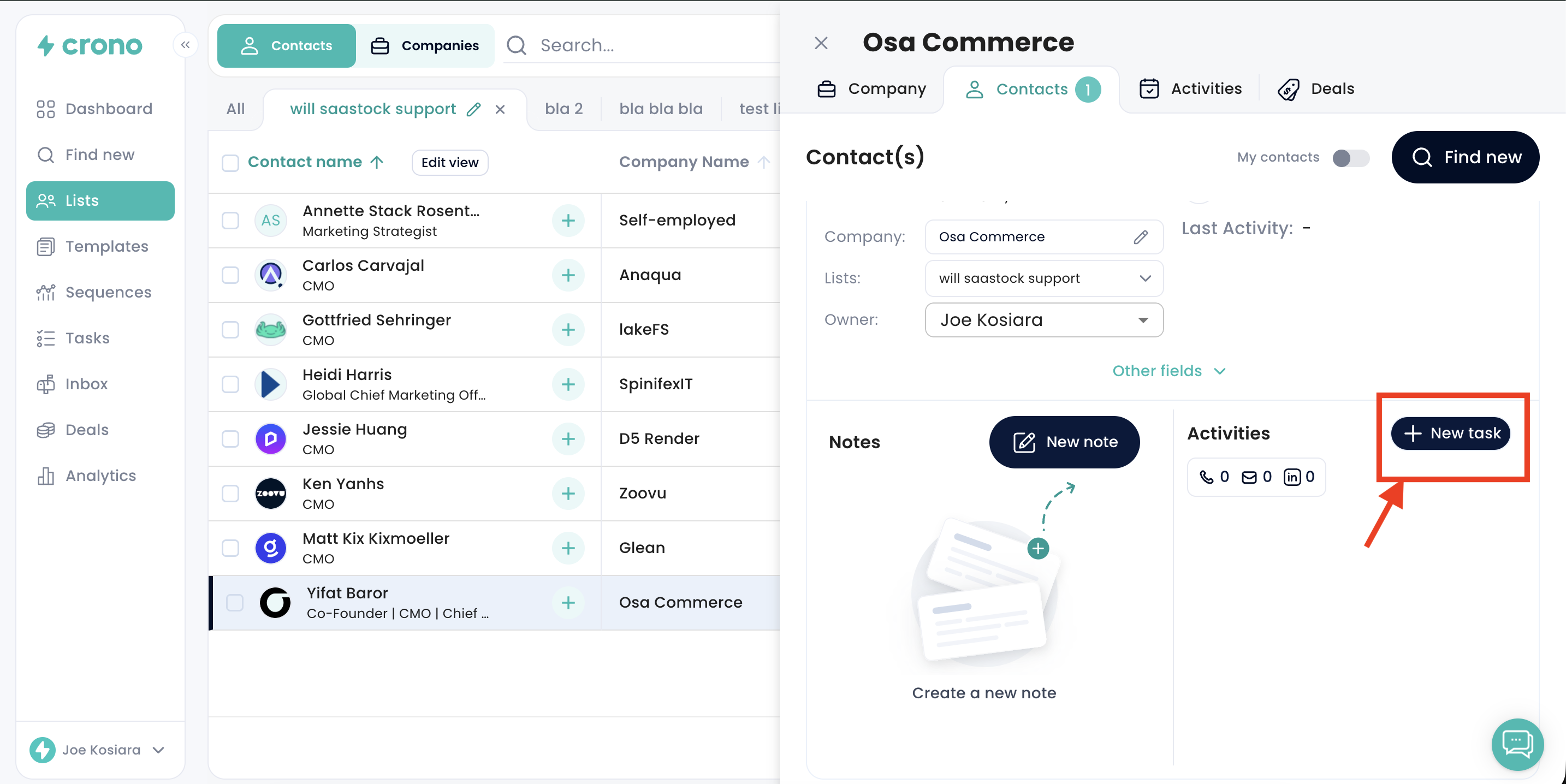
Open the prospect's contact card and click New Task.
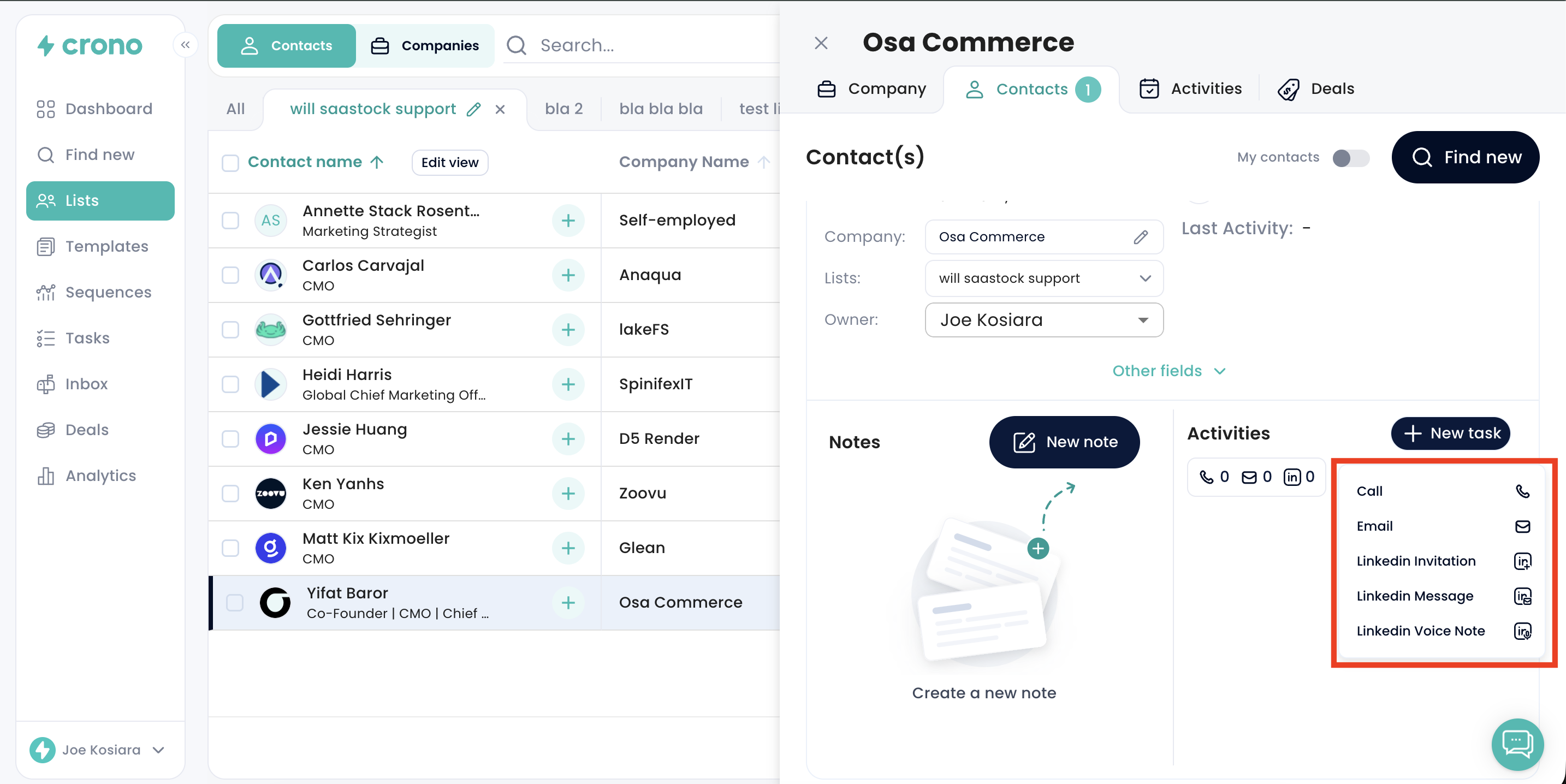
Choose the type of task you want to create:
Email
Call
LinkedIn Invitation
LinkedIn Message
LinkedIn InMail — requires an active Sales Navigator licence
LinkedIn Voice Note
LinkedIn Profile View
LinkedIn Like Last Post
To-do — an internal reminder that sends nothing to the contact
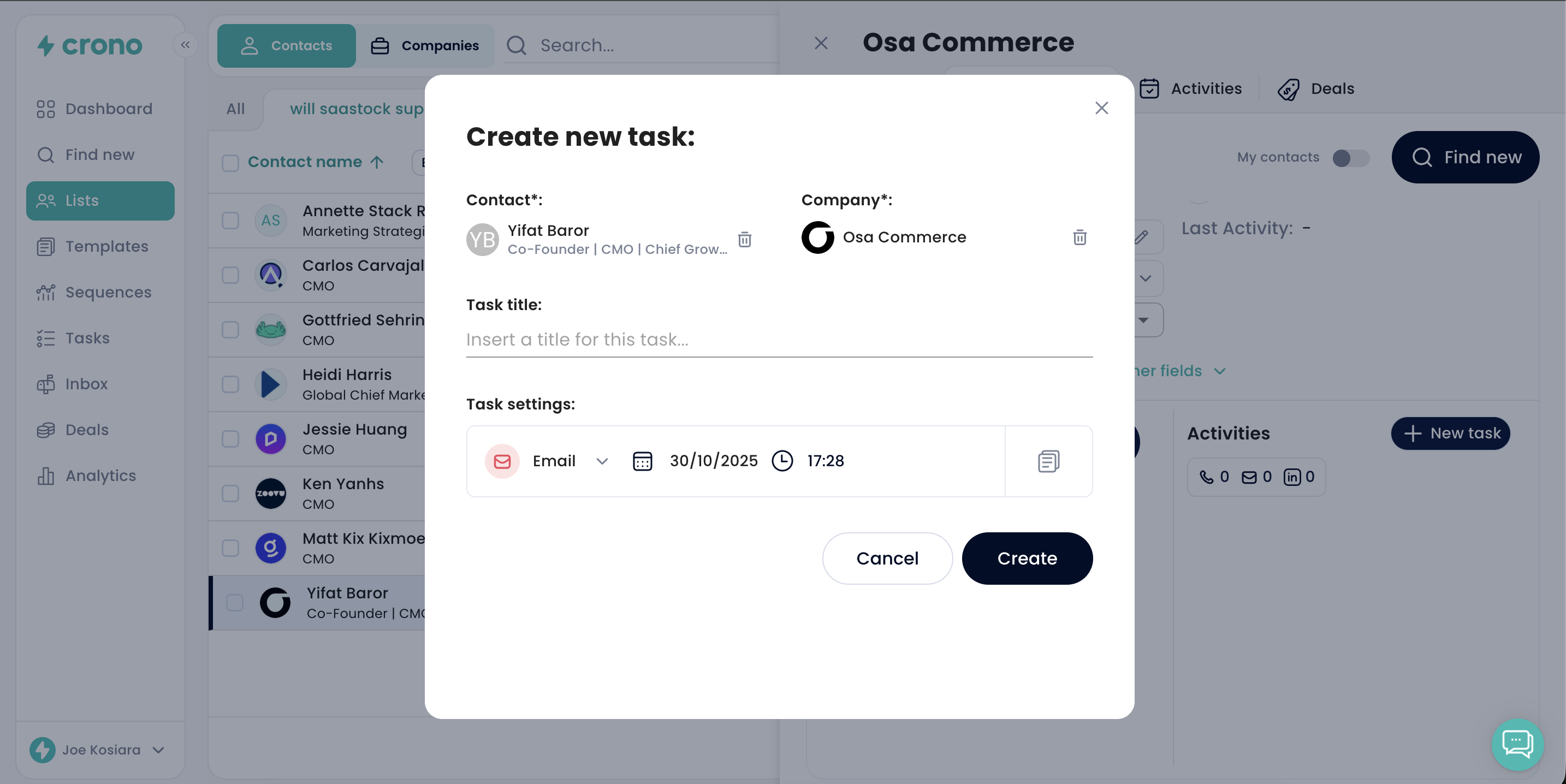
Then set the date and time, and optionally pick a template.
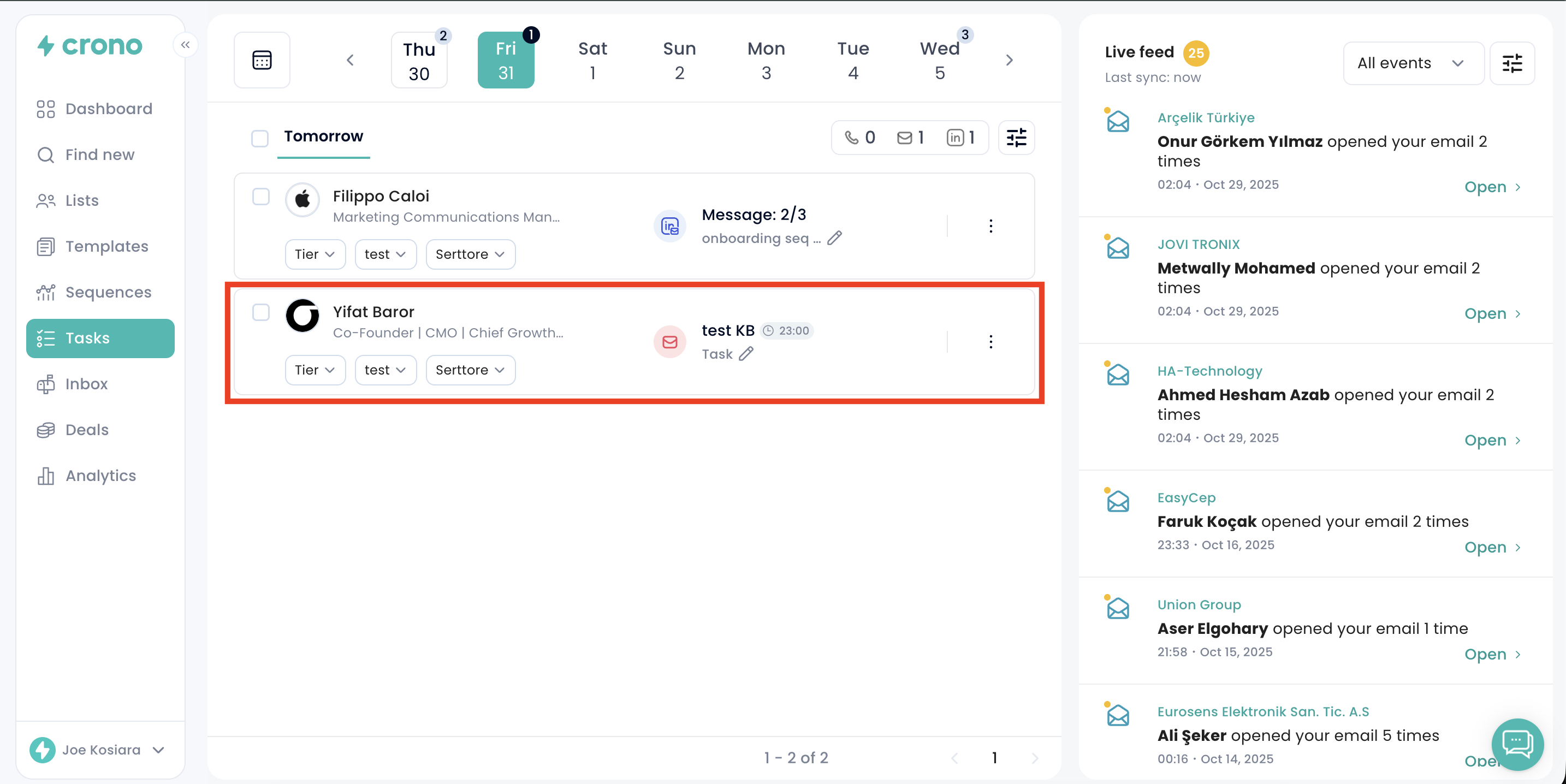
Give it a name and click Create. The task appears on your Tasks page on the day you chose.
A one-off task is manual by default.
NB: if you do not complete a one-off task by its scheduled day, it moves to the Overdue section as a reminder rather than disappearing.
Automated tasks
These are executed by Crono at the scheduled time, with no action from you. You can still select them to reschedule or skip.
Manual tasks
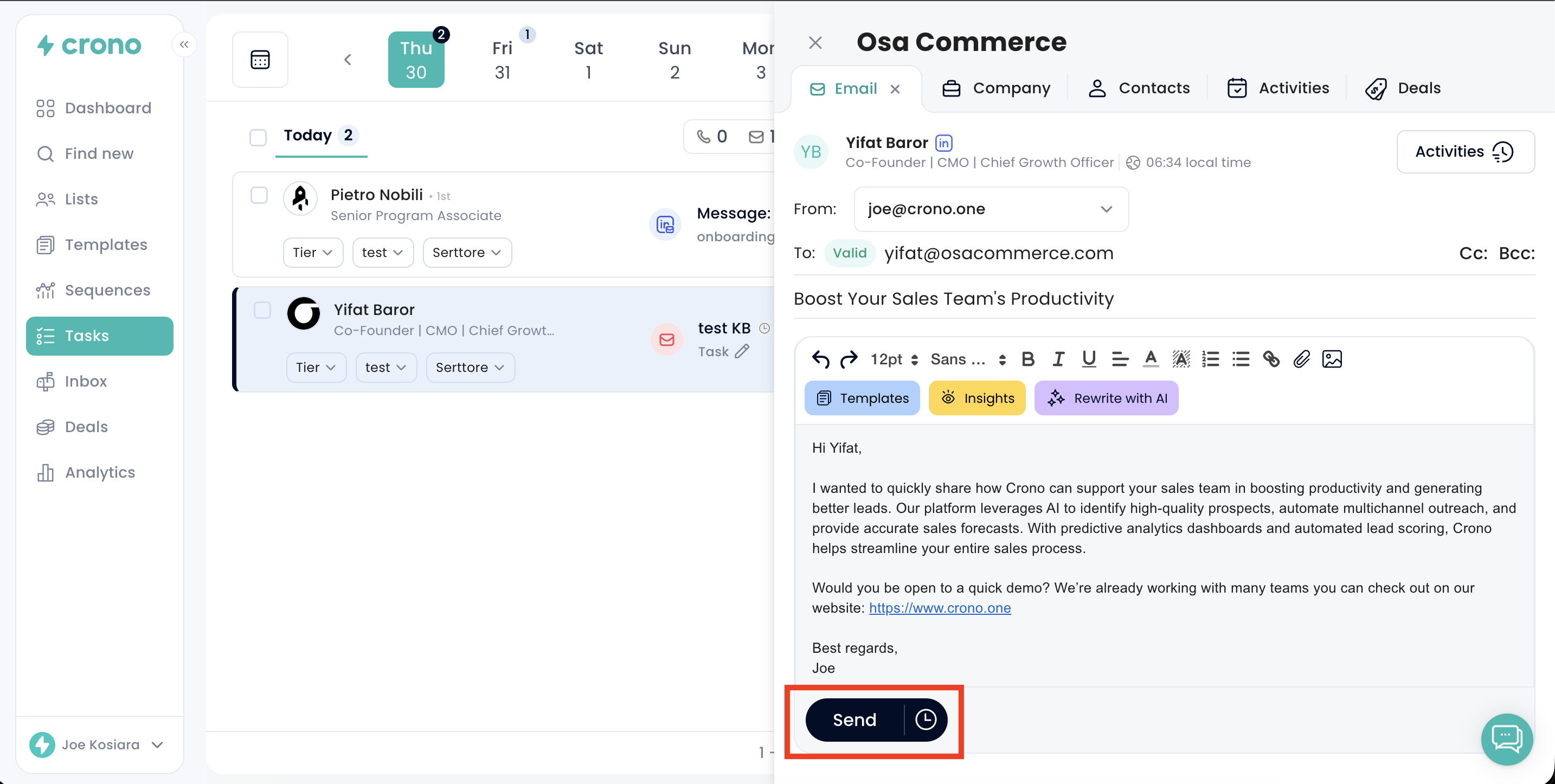
Click a manual task to open it. For an email task you can insert or change the template, edit the text, add recipients, and include people in Cc and Bcc.
Click Send and the email goes out from your own inbox.
LinkedIn tasks work the same way: open the task, choose or change the template, and click Send to send the invitation, message, InMail or voice note from your own LinkedIn profile.
If a task was due and nothing happened, see A task did not run: what to check.