
Crono comes together with its Chrome or Edge extension that allows user to interact with third-party applications like CRMs, Gmail and LinkedIn.
To start the installation process (if you did not install the extension when you first logged into Crono), access your Account Settings by clicking your name and surname on the bottom-left corner and then, in the Integrations section, go to Browser extension:

Proceed by clicking Install and then, a small window pops up appears, click on Install again.
Once you are redirected to the extensions manager, click on Add to Chrome (if you are using Chrome). Note that the extension can be downloaded in Chrome or Edge.
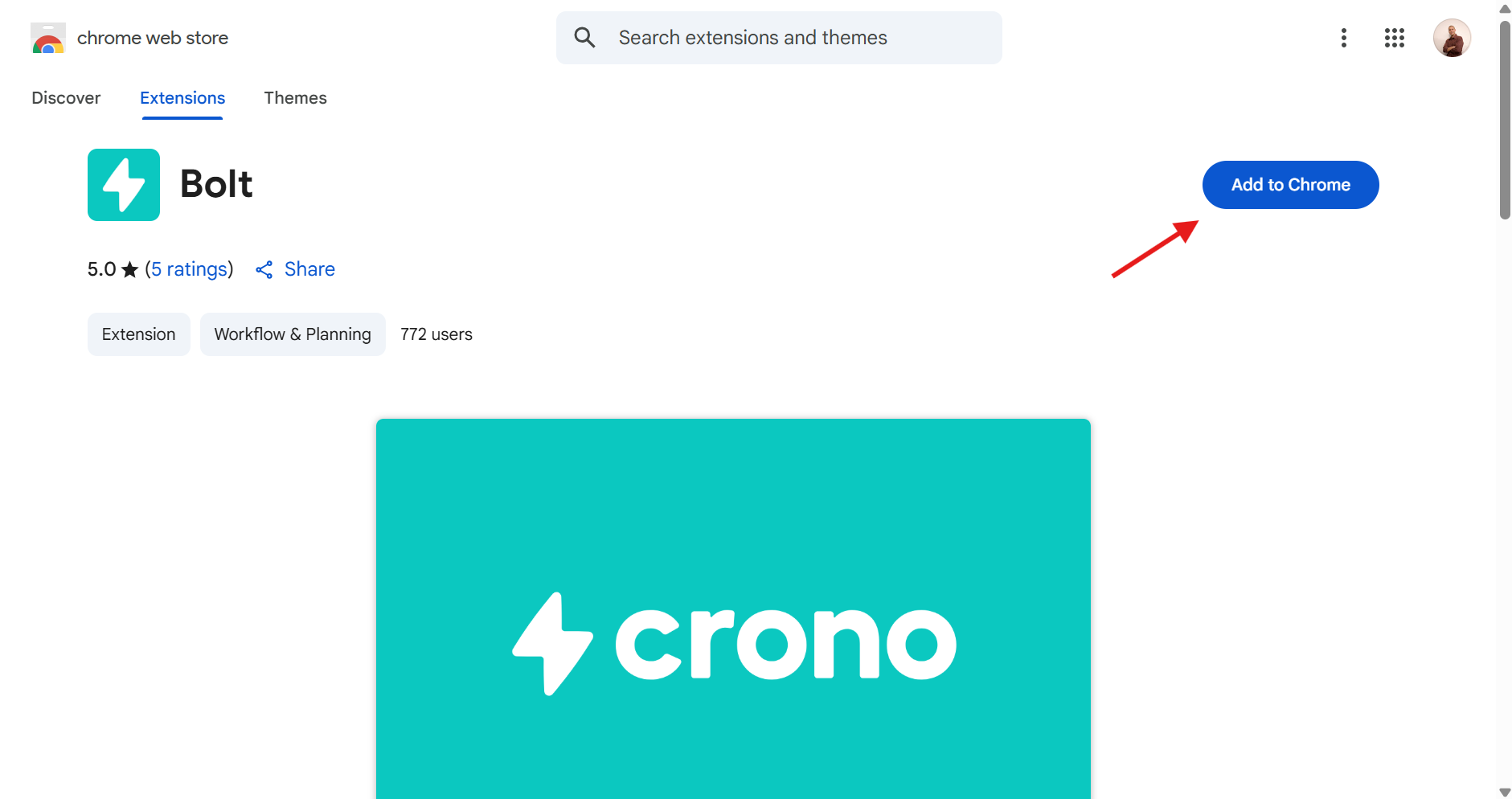
Confirm by clicking “Add extension” when the pop up appears.
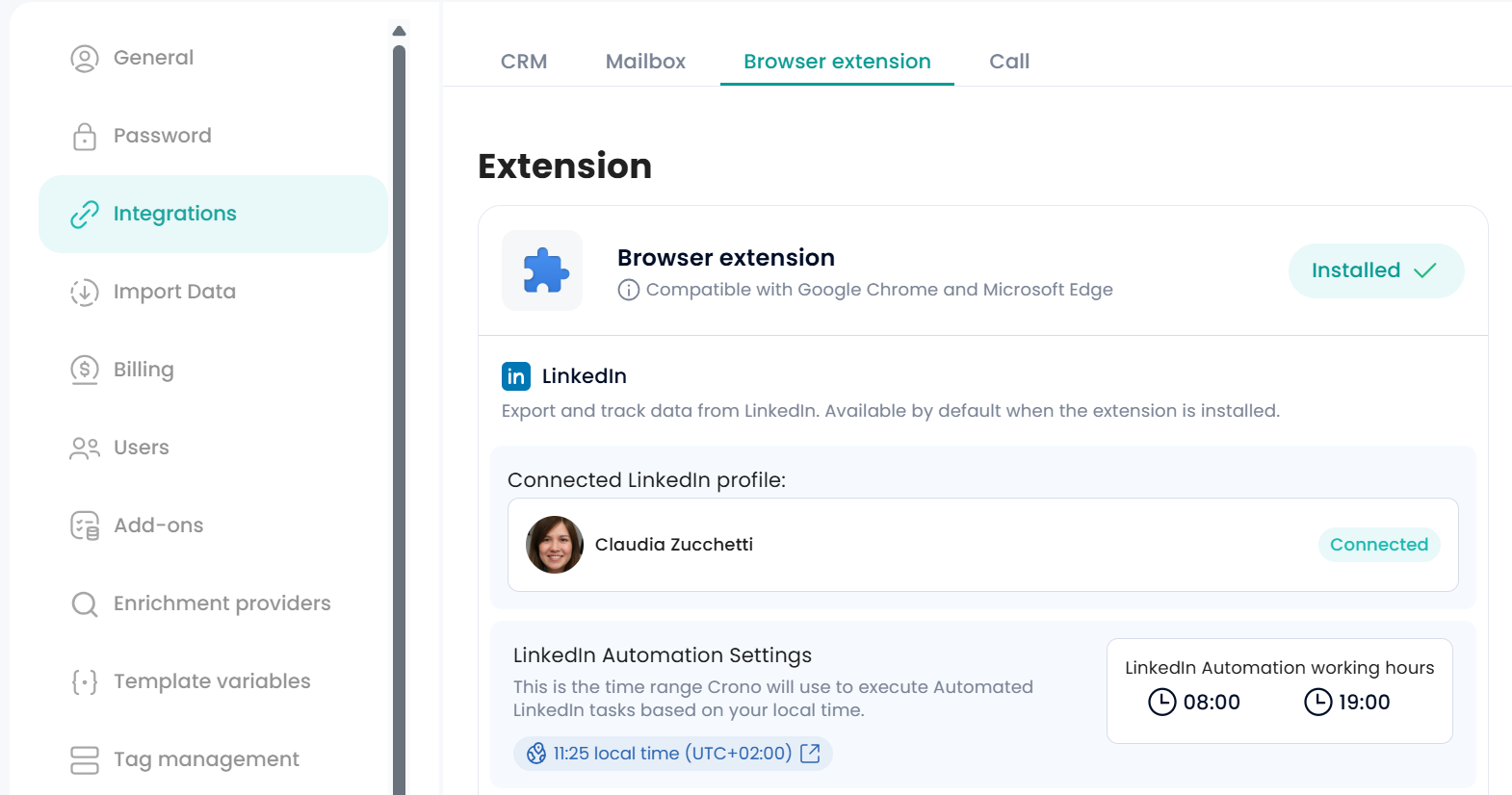
Finally, go back to Crono and open your LinkedIn account in the same session. If everything is installed correctly, this is how it will look like:
Troubleshooting
If the extension is not working, Crono reports one of the following. You can fix all of them at Settings → Integrations → browser extension.
The browser is not Chrome or Edge. The extension works on Chrome and Edge only.
The extension is not installed, or it is installed but not enabled.
The extension is installed, but no LinkedIn session is detected. Log in to LinkedIn.
You are logged into a LinkedIn profile other than the default one. This stops all automations. Log back into the default profile, or set the current one as default.
The extension version is outdated. Use the update button in Crono to update it.