
Crono allows you to integrate your Outlook corporate account to send and track emails directly from the platform.
On your first access you will be asked to log into your Outlook account and accept the integration with Crono. Click on the Outlook icon to continue.
If you want to integrate your Outlook email at a later stage after your initial Crono setup, access your Account Settings (by clicking on your name in the bottom-left corner of your screen), then go to Integrations → Mailbox.

Click on the Connect new Mailbox button to continue and select Outlook - Connect.
Once you have chosen your account, you will need to enable all the available options before proceeding to the integration, to make sure Crono works properly.
Is Outlook blocking you from proceeding with the integration?
With Outlook, if you are not the admin of the workspace, you will need your admin's permission to allow Crono to integrate with your email.
In some organisations users are not even allowed to request that permission, so there are two steps to follow.
Step 1 — your admin allows users to request access. This is done once, by a Global Administrator:
Sign in to the Azure portal as a Global Administrator.
Go to Enterprise Applications → User settings.
Enable "Users can request admin consent to apps they are unable to consent to".
Add at least one trusted user with a mailbox as a reviewer, using the "+ Add users" button.
Save.
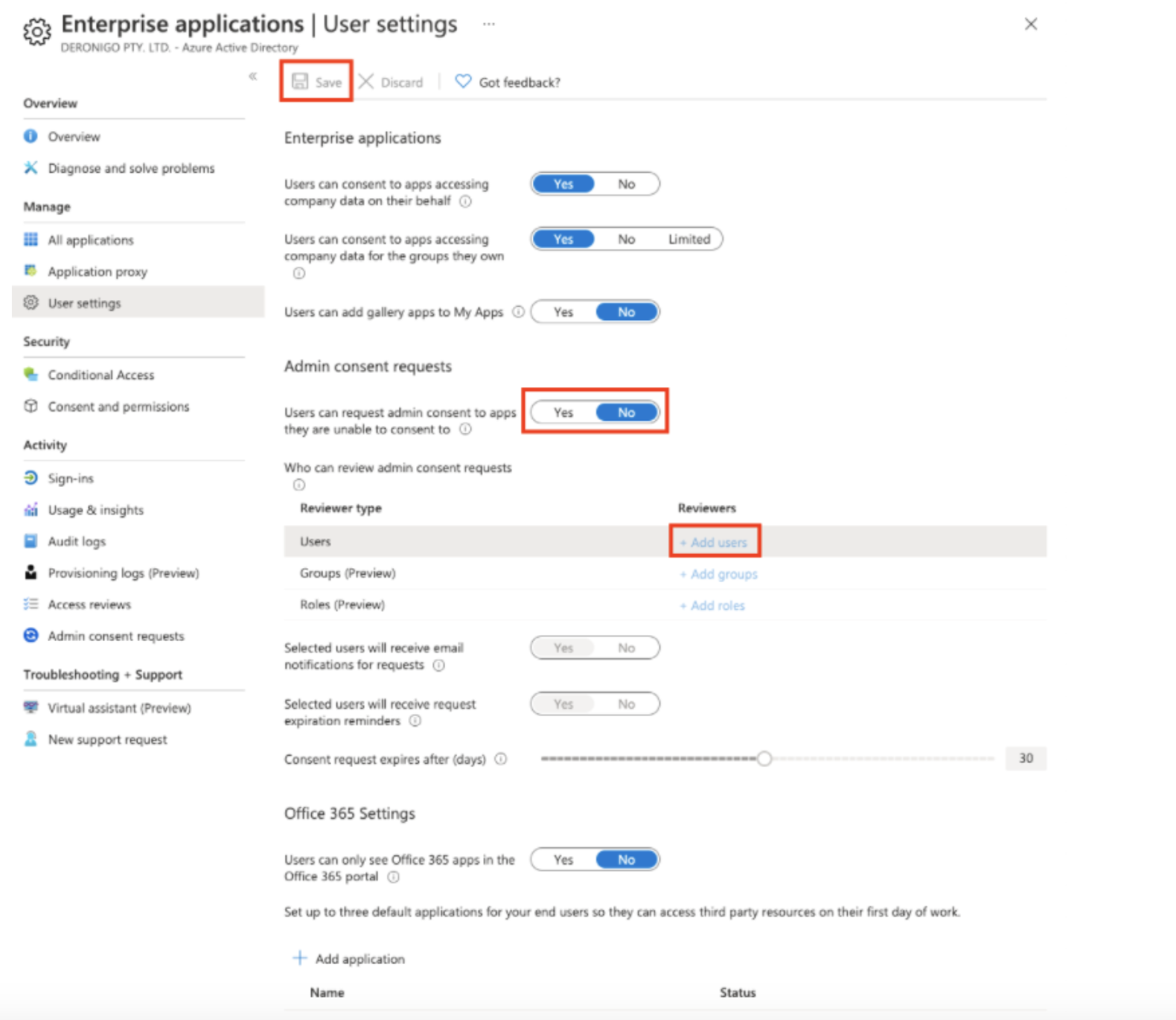
Step 2 — each user requests permission from inside Crono:
In Crono, start connecting the mailbox and enter your Outlook credentials.
Depending on the permissions your email administrator has granted, you may see the notification below.
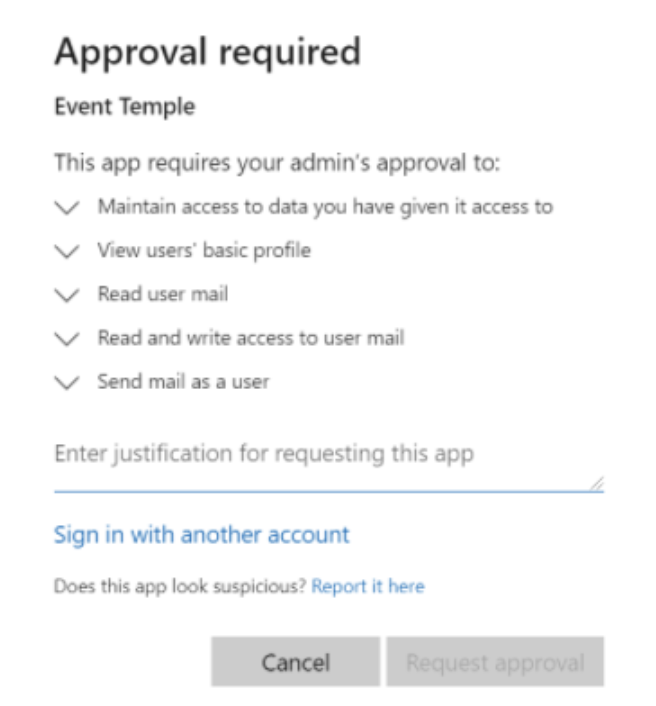
When you reach the "Need admin approval" page, request approval from there.
Microsoft sends an email to your email administrator. Once they click Approve in that email, you are authorised to connect your mailbox to Crono.
Go back to Crono and authorise your mailbox again, now that approval has been given.
If approvals have to be handled manually, or the approval email never arrives, your administrator can review and approve pending requests directly. Microsoft documents that procedure here: Review admin consent requests.