
API Keys connect Crono with external tools and automations. Every integration that talks to the Crono External API needs them.
Availability
API Keys are available on Ultra and Enterprise. If you are on another plan and need API access, get in touch — it can be enabled for an individual workspace on request.
The Connections page is visible only to workspace Managers. Anyone without that role cannot view or generate keys.
Where to generate them
Open Crono.
Go to Account Settings → Integrations → Connections.
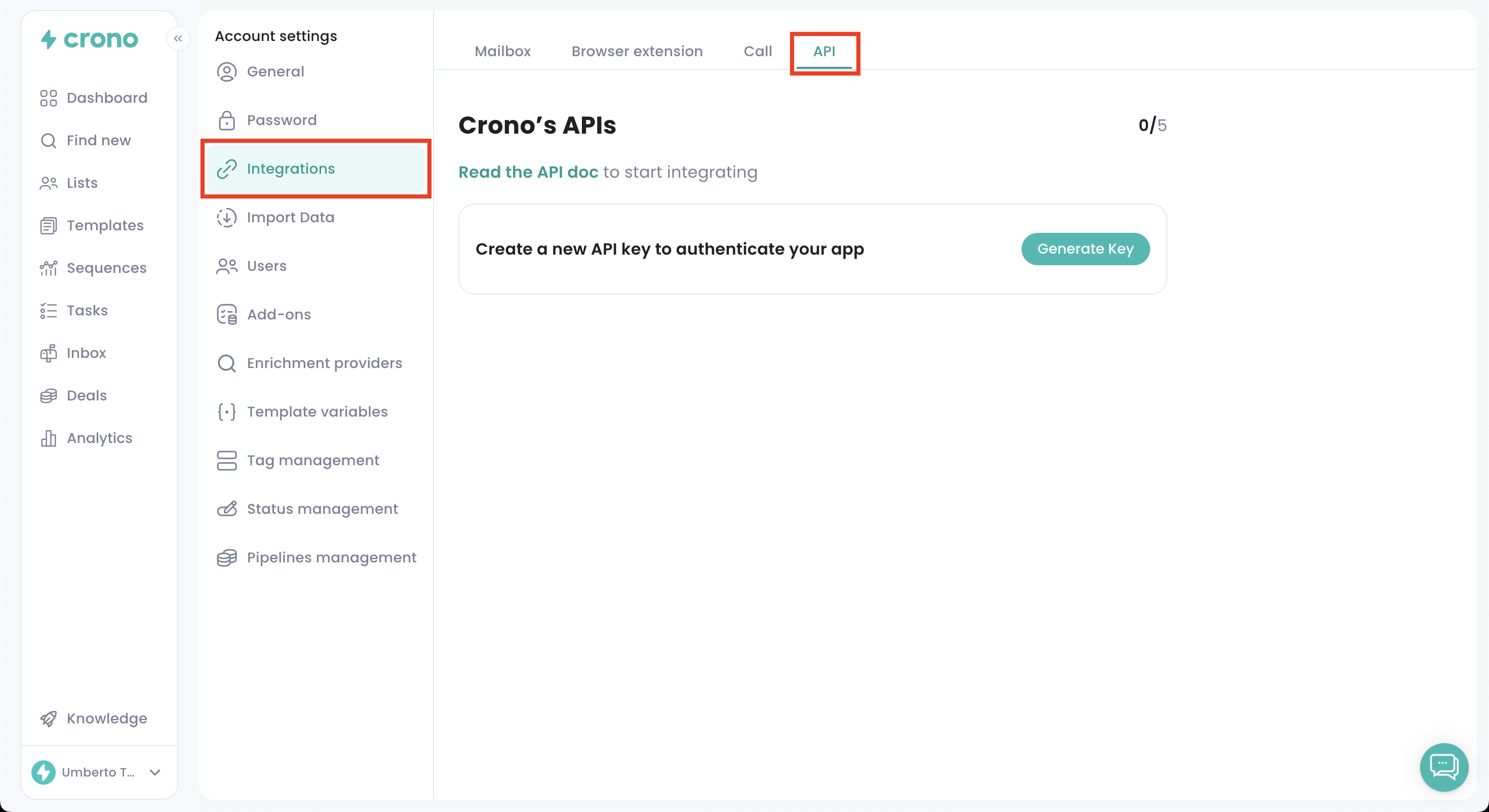
If you cannot find Connections, check two things: that your workspace has API access, and that your role is Manager. See API access requirements.
Creating a key
Click Generate API Key.
Give it a name in the modal — something that identifies what it is for, so you know which is which later.
Click Generate.
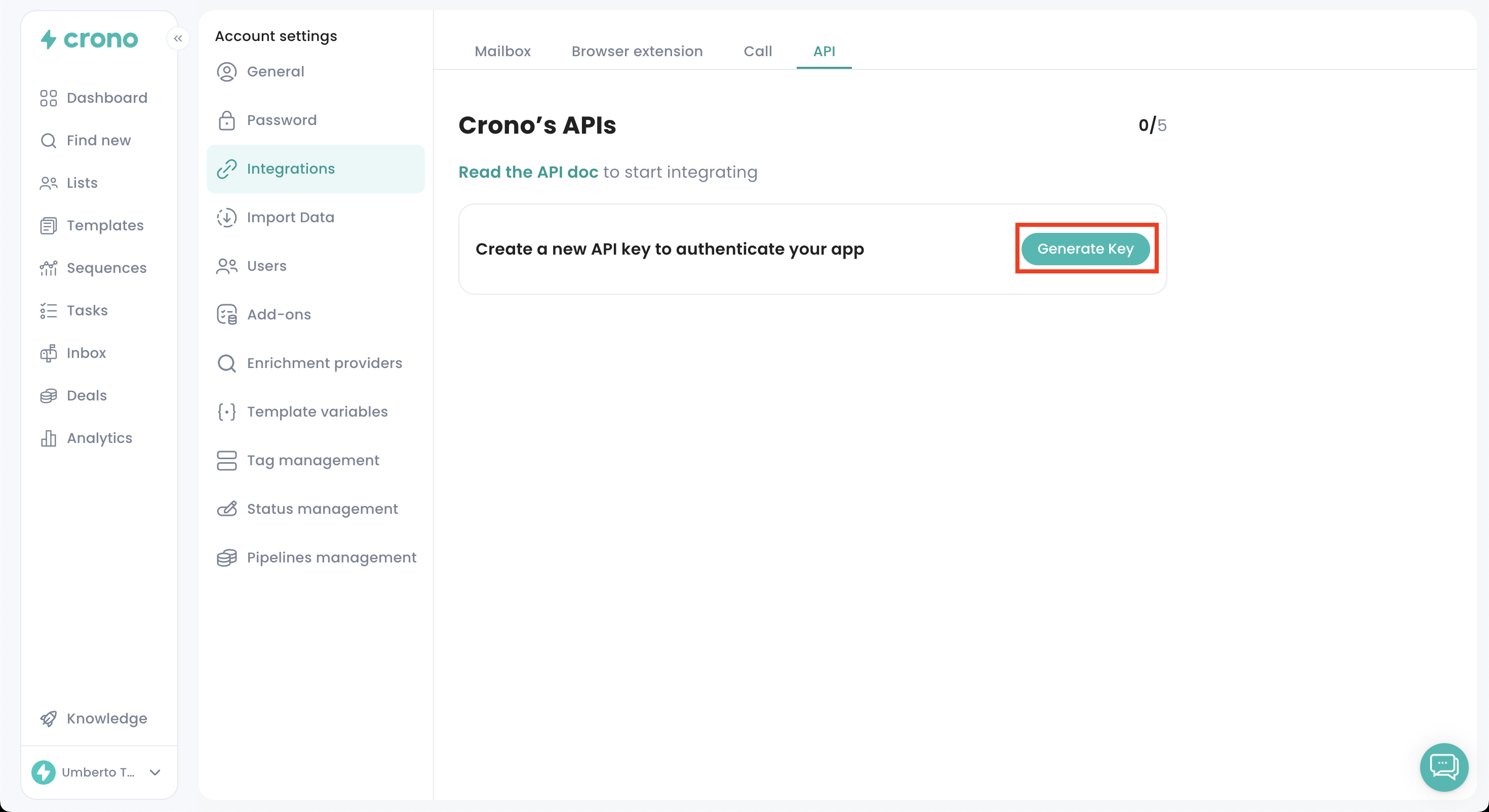
Crono creates a Public API Key and a Private API Key. Both are required on every authenticated request.
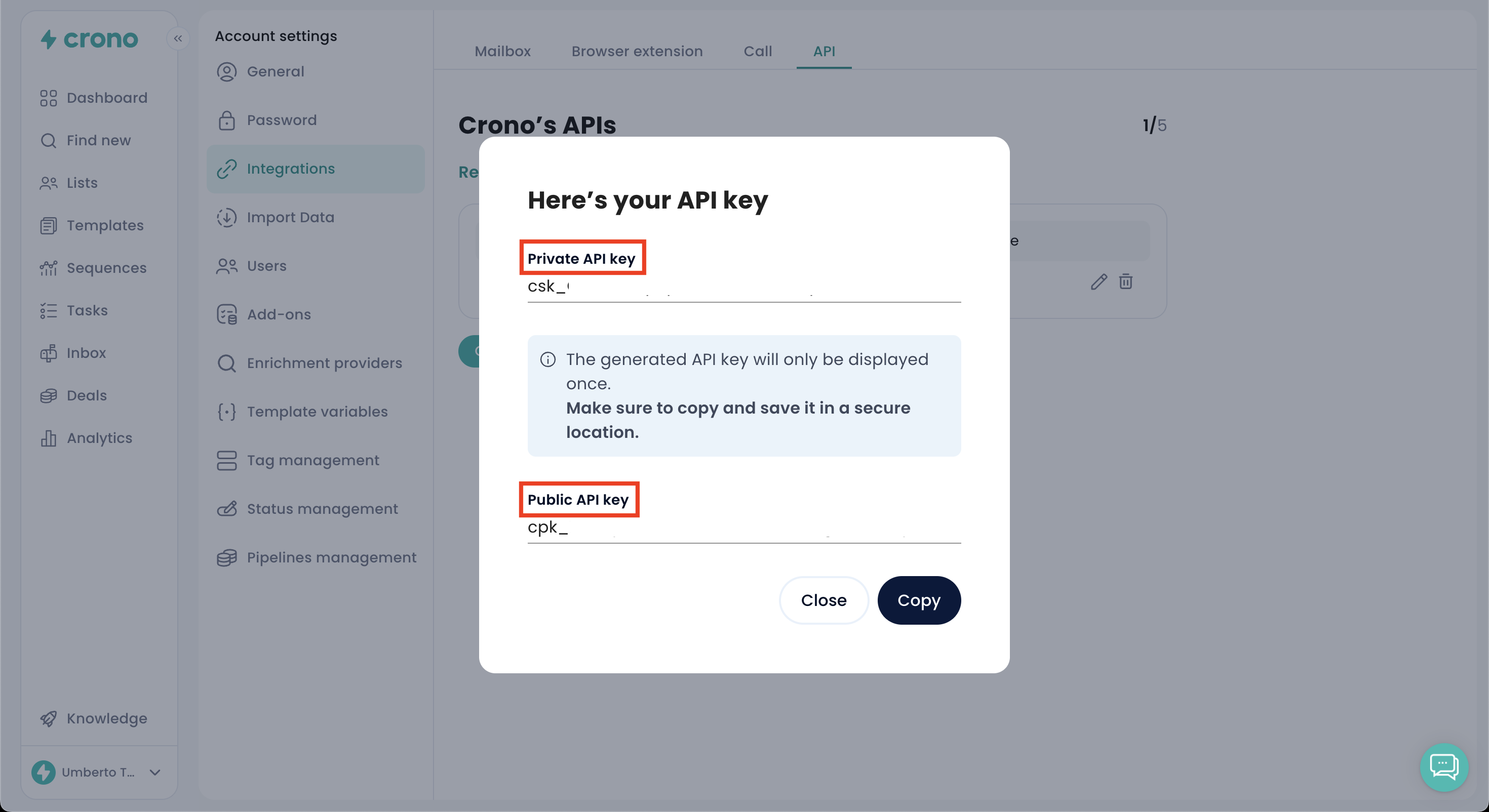
Copying and managing keys
Use the copy icon next to each key. Keys stay visible on the Connections page — Crono does not mask them after generation, so you can re-copy them whenever you need.
You can hold up to 5 active keys per workspace. To create another, delete one you no longer use.
Security
Because keys remain readable on the Connections page, any Manager in your workspace can retrieve them at any time. Keep that in mind when someone changes role or leaves the company.
Treat the Private API Key like a password.
Never put a key in a public repository or in client-side code.
If a key is exposed, delete it and generate a new one — there is no way to revoke it otherwise.
Rotate keys periodically for anything sensitive, and when a Manager leaves the workspace.
What you can connect
Any platform that can send HTTP requests. Commonly: n8n, Zapier, Make, Unify, Freckle, Clay, Attio, Folk, Monday, and your own scripts or backend services.
One thing to know before you start building: the API uses different names for some objects than the interface does — a Company is an Account, a Contact is a Prospect. See Crono object names: interface vs API.