Crono Webhooks let you subscribe to events in Crono and receive them on your own HTTP endpoint. They are useful for automations, integrations and keeping other systems in step with what happens in Crono.
Typical uses:
Triggering workflows in a tool such as n8n
Notifying your own backend when data changes in Crono
Synchronising Crono activity with a CRM, a BI pipeline or an internal service
Webhooks are available on Ultra and Enterprise. If you are on another plan and need them, get in touch — they can be enabled for an individual workspace on request.
You will find them under Settings → Integrations → Connections: app.crono.one/settings/integrations/api
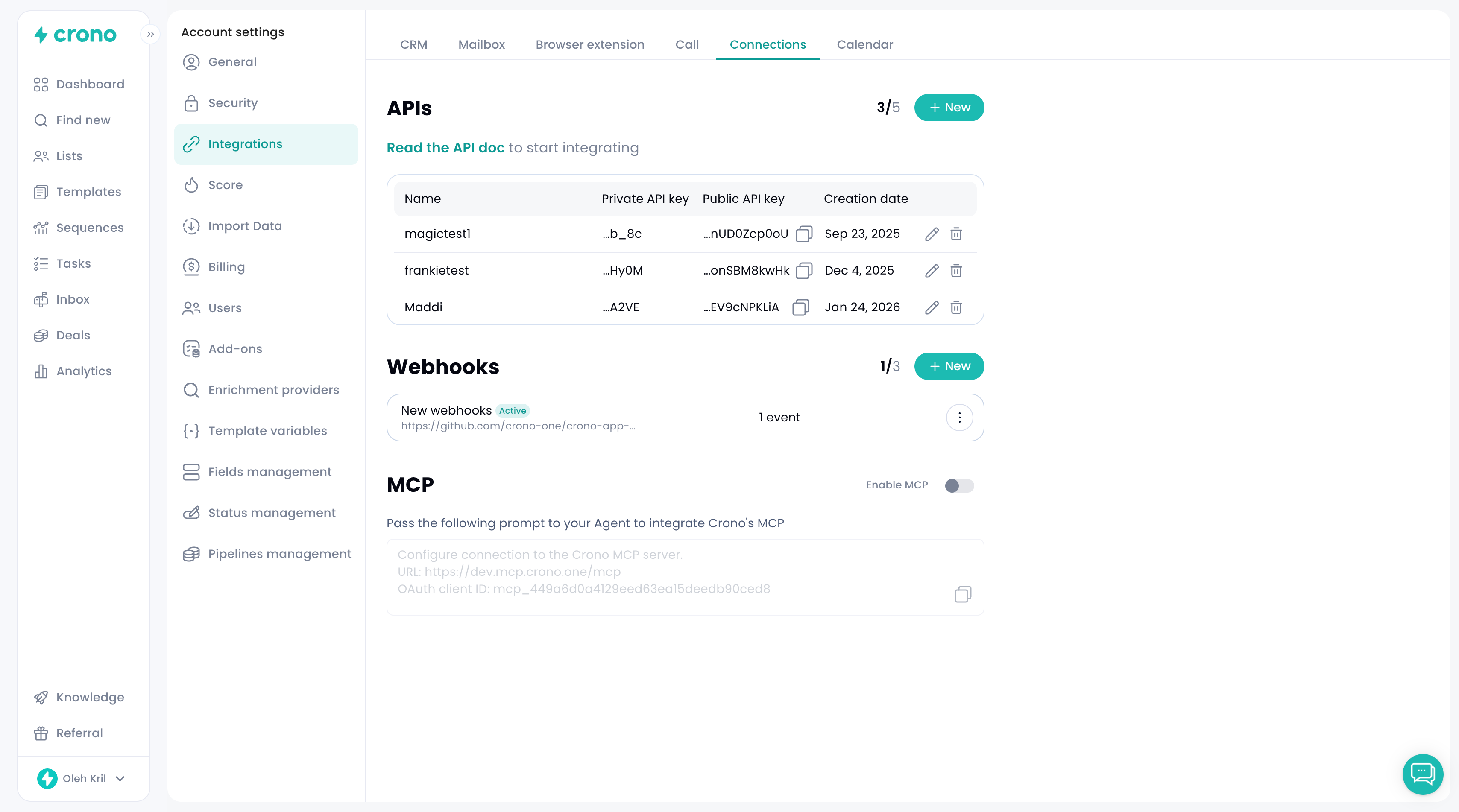
Webhooks are configured at subscription level. Users with Manager permissions and above can create them, edit them, disable and re-enable them, and delete them.
Each subscription can have up to 3 webhooks. A single webhook can subscribe to many events, so you rarely need one per event.
When you create one you configure a name, a destination URL, one or more events, and a throttling value: create a new webhook
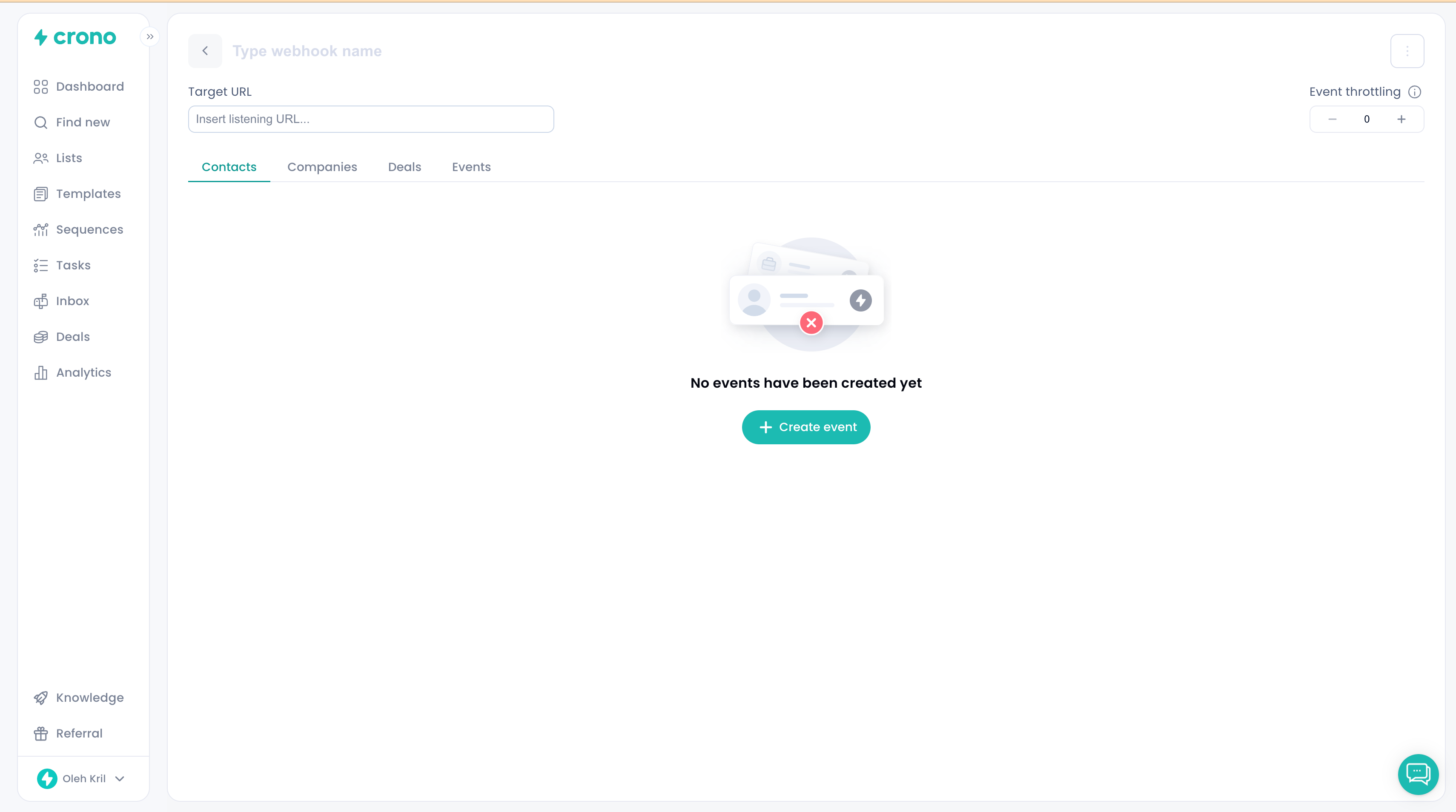
Use something that makes the purpose obvious later — "n8n automation", "CRM sync", "Opportunity updates".
The endpoint Crono calls when one of your chosen events happens — for example https://api.yourcompany.com/webhooks/crono or an n8n webhook URL.
It must accept HTTP POST with a JSON payload.
Straight into an automation platform. Crono sends the event to your n8n endpoint, n8n receives the payload, and the workflow triggers whatever follows — notifications, data updates, calls to other APIs.
Into your own backend, processed asynchronously. Crono posts to your service, which validates and accepts the request, stores it or puts it on a queue, and lets background workers do the actual work. Worth the extra effort when processing is slow or several downstream systems depend on the same events.
Each webhook can subscribe to one or more of the following.
Before you read the list: event names use the API's object names, not the ones in the Crono interface. A Company is an Account, a Contact is a Prospect, a Deal is an Opportunity, and a Sequence is a Strategy. See Crono object names: interface vs API.
Account created, updated, deleted
Prospect created, updated, deleted
Opportunity created, updated, deleted
Lead created, updated and deleted fire only if your workspace is integrated with Salesforce. There is no Lead object in the Crono interface, so if you are not on Salesforce you can ignore these entirely.
Strategy completed
Strategy prospect replied
Role changed, company changed, website visit, hiring
Interested open, interested click
Email replied, opened, clicked
LinkedIn replied, invitation accepted, InMail replied, voice note replied
For update events Crono also tells you which fields changed, in the propertiesUpdated array. Useful when your integration only cares about certain fields rather than every edit.
Throttling controls how Crono groups events before sending them. Instead of one request per event, it can batch several into a single delivery.
You can set it from 0 to 10. 0 means no batching — events go out individually. 10 means up to ten events can share one delivery.
Events are never held indefinitely waiting for a batch to fill. If the batch reaches your threshold it is sent; if it does not, Crono sends what it has collected after 5 minutes.
Go lower when you need near real-time processing, each event should be handled immediately, or your endpoint expects one event at a time.
Go higher when volume is high, your receiver can handle batches, or you want fewer inbound HTTP requests.
Crono retries failed deliveries up to 5 attempts, with increasing delays:
Attempt 1 — immediate
Attempt 2 — after 1 minute
Attempt 3 — after 5 minutes
Attempt 4 — after 30 minutes
Attempt 5 — after 2 hours
Crono retries on temporary failures: a timeout or network error, an HTTP 429, or any 5xx.
Crono does not retry on any other 4xx — 400, 401, 403, 404, 405, 409 and 422 are all treated as permanent failures. If your endpoint rejects a delivery with one of those, that event is gone; it will not come back.
Return a 2xx as soon as you have received the delivery. Accept it, store or queue it, and process it afterwards — rather than holding the request open while you work.
Every delivery is an HTTP POST carrying a JSON payload. Your endpoint needs to accept POST, parse JSON, and return 2xx on success.
Each delivery carries two headers you can use to identify and validate it.
x-crono-delivery-idx-crono-delivery-id: 35dfc8b5-bf2e-41df-8706-758aaa42a8b1The unique identifier of the delivery batch. Use it for tracing in your logs, deduplication, idempotency and troubleshooting. It stays the same across retry attempts, which is what makes it useful for idempotency.
x-crono-webhook-secretx-crono-webhook-secret: 2c246a0412e1b092d37a3b388821970650f40e1a0fa81db64fd3f07088fbb545The secret associated with that webhook. Check it on arrival to confirm the request genuinely came from Crono rather than from someone who found your endpoint URL.
Deliveries arrive inside a batch wrapper, so the body is never a bare event object. Even a single event uses the same batch structure — design for that from the start.
batchId — unique identifier for the delivery, shared across all retry attempts. Use it to correlate logs and detect duplicates.
eventCount — how many events are in this payload.
isBatch — whether the delivery contains more than one event.
timestamp — UTC timestamp of when the payload was assembled.
events — the array of events.
eventType — what happened: created, updated, deleted, or a named event.
objectType — the object involved: Account, Prospect, Opportunity, Lead, Strategy, Signal or Notification.
data — the object data for that event. Fields depend on the object type.
propertiesUpdated — for updates, which fields changed. Empty or null for creates and deletes.
occurredAt — UTC timestamp of when the event happened.
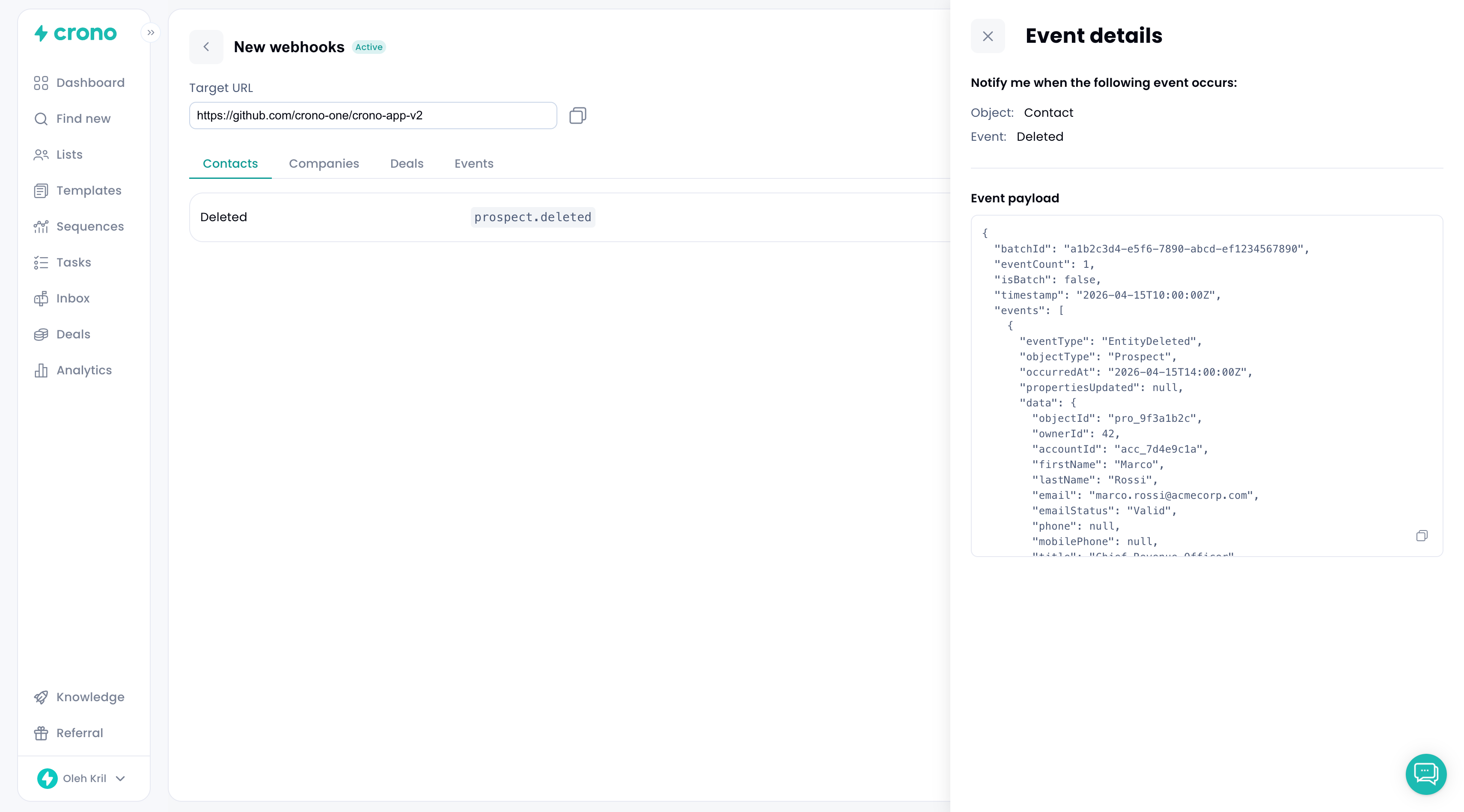
Crono shows you an example payload for each event you subscribe to. Click the event inside the webhook after creating it and the example opens in a side panel.
{
  "batchId": "35dfc8b5-bf2e-41df-8706-758aaa42a8b1",
  "eventCount": 1,
  "isBatch": false,
  "timestamp": "2026-04-23T10:15:00Z",
  "events": [
    {
      "eventType": "EntityCreated",
      "objectType": "Prospect",
      "data": {
        "objectId": "prospect_123",
        "email": "[email protected]",
        "firstName": "Jane",
        "lastName": "Doe"
      },
      "propertiesUpdated": null,
      "occurredAt": "2026-04-23T10:14:10Z"
    }
  ]
}{
"batchId": "e72e6c4a-8c46-47c1-8d4d-6f6f79b4f1b2",
"eventCount": 2,
"isBatch": true,
"timestamp": "2026-04-23T10:20:00Z",
"events": [
{
"eventType": "EntityUpdated",
"objectType": "Account",
"data": {
"objectId": "account_1001",
"name": "Acme Inc"
},
"propertiesUpdated": ["name"],
"occurredAt": "2026-04-23T10:19:10Z"
},
{
"eventType": "NotificationEmailReplied",
"objectType": "Notification",
"data": {
"objectId": "notification_2001"
},
"propertiesUpdated": null,
"occurredAt": "2026-04-23T10:19:25Z"
}
]
}Handle batches from day one. Even with throttling at 0 or 1, expect an array of events.
Return 2xx quickly. Receive, validate, store or enqueue, respond, then process. Do not keep the request open through long operations.
Use the delivery ID for idempotency. It is stable across retries, so it is your defence against processing the same delivery twice.
Subscribe only to what you need. Fewer events means less noise and less to reason about when something goes wrong.
Crono Webhooks push Crono events to your own systems as HTTP POSTs with JSON payloads. To use them well:
Create them under Settings → Integrations → Connections
Give each one a clear name and a valid destination URL
Subscribe only to the events you actually need
Set throttling to match your volume and latency requirements
Return 2xx on receipt, and support batch payloads rather than single events
Use the delivery ID and the webhook secret for validation and troubleshooting
