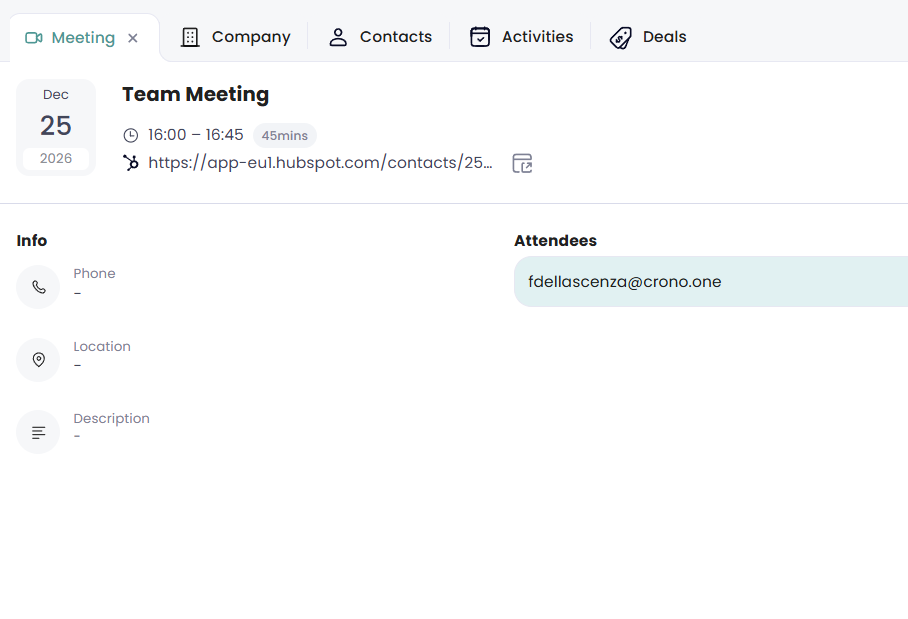
In Crono, you can now connect your Gmail or Outlook calendar to automatically log meetings and keep your activities up to date.
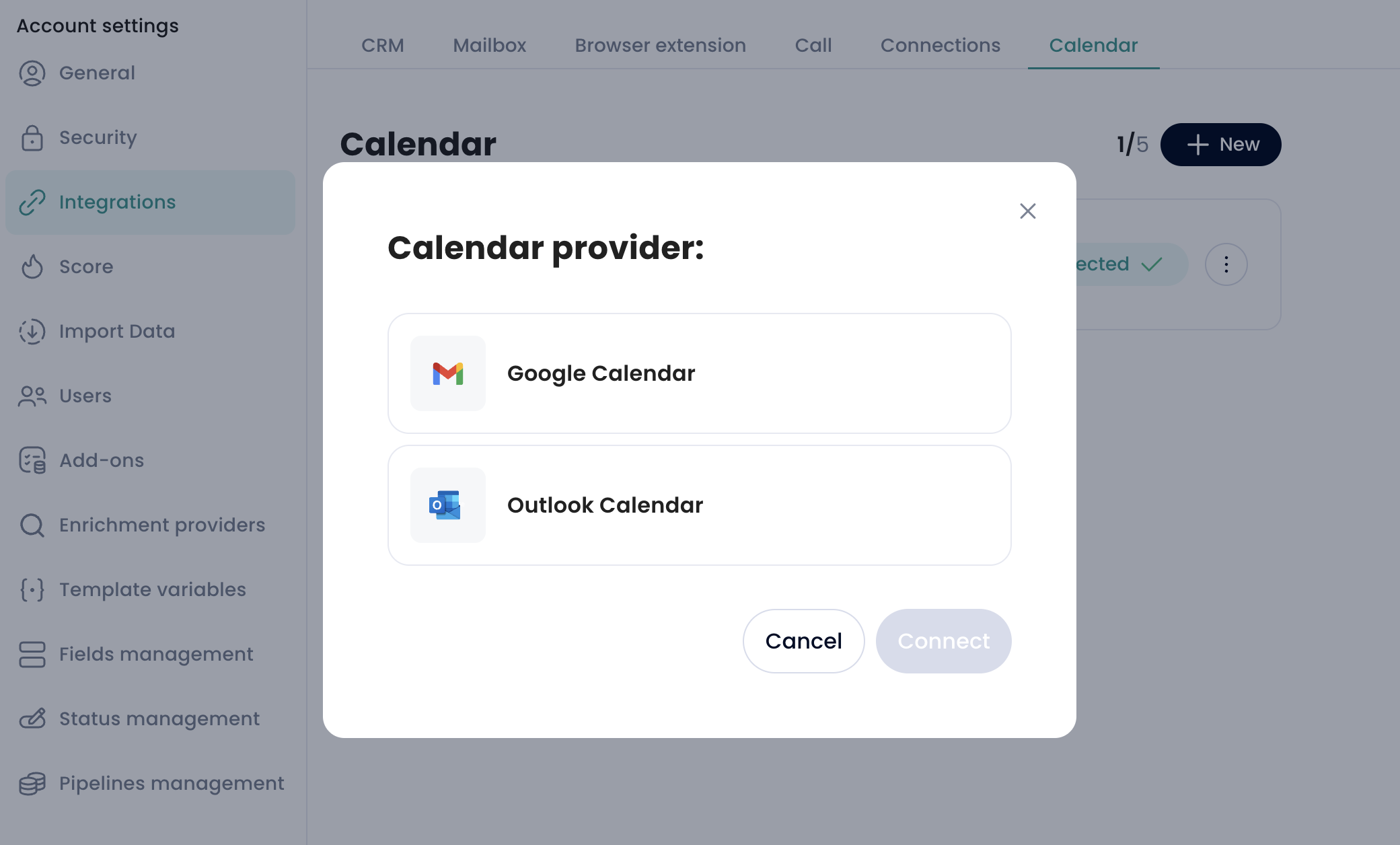
Go to Settings → Integrations → Calendar
Click + New
Select your provider (Gmail or Outlook)
Click Connect
Select the account you want to link
Once completed, your calendar will be connected to Crono.
On first connection, Crono:
Syncs events from that moment forward
Imports events up to 365 days in the future
Does NOT import past events
This process runs in the background and usually takes less than 1 minute, but it may take up to ~5 minutes if you have:
Outlook as provider
Large number of calendar events
After the initial sync:
New meetings and updates are synced in real time
Crono only imports meetings that meet the following conditions:
At least one attendee matches a known prospect in Crono (by email): meetings not related to known prospects are ignored
The calendar owner is not considered for matching: only the other attendees are used to determine if a meeting should be imported
All other attendees (including the organizer, if they are a prospect) are matched normally
Recurring events are ignored
If an event is deleted from the calendar, it is also removed from Crono
Disconnecting or deleting a calendar does not delete existing events, it only stops sync
If the calendar password changes, the connection is invalidated and must be re-authenticated
Each meeting is linked to one prospect and one company
If multiple attendees match prospects:
Crono assigns the meeting to the first matched prospect
That prospect (and their company) becomes the primary owner of the meeting
When multiple attendees are all prospects in Crono:
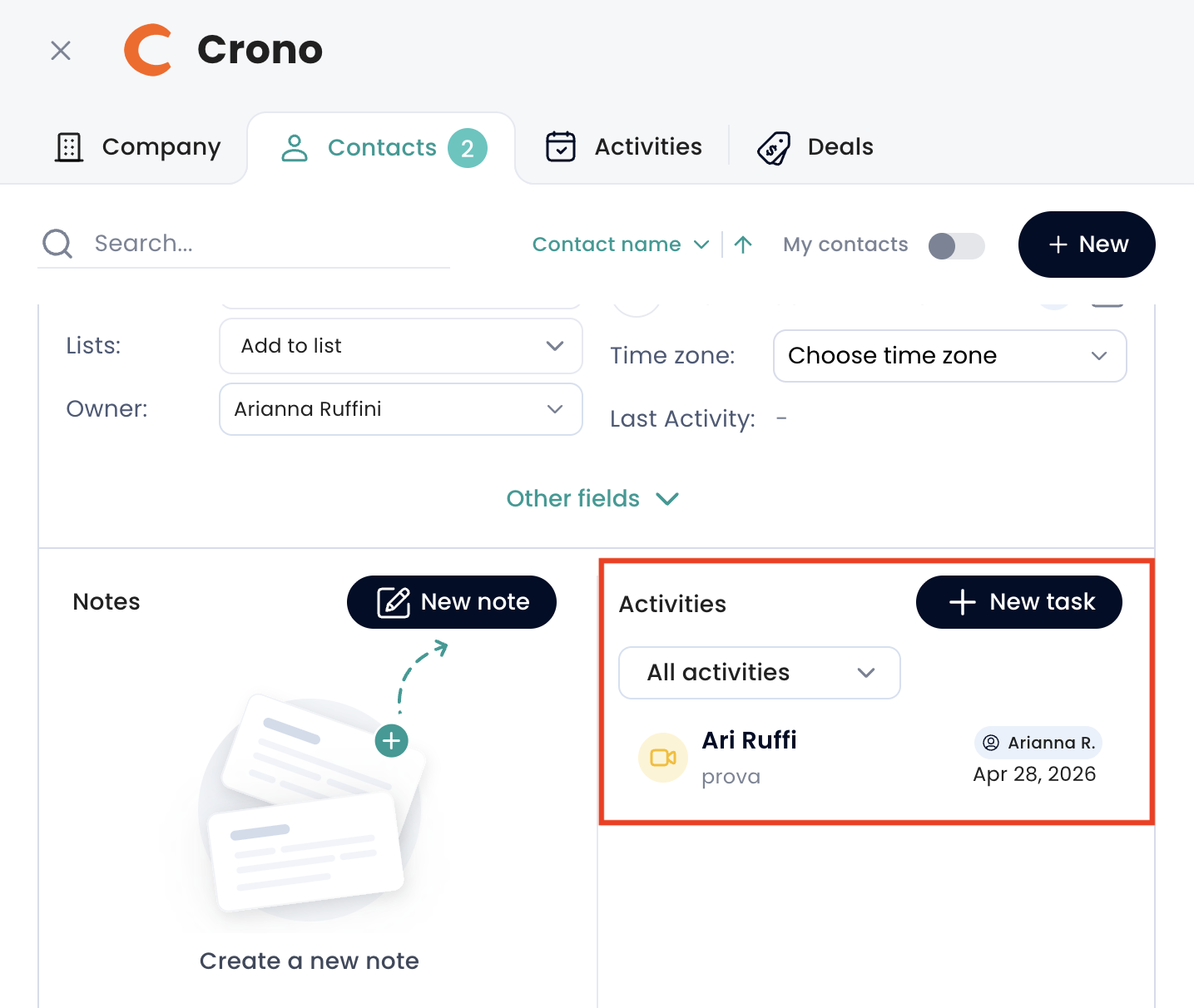
Only for the primary (first matched) prospect you will see the meeting in their Contact Activities panel
For other attending prospects you will NOT see the meeting in their own Contact view
If you need to find a meeting involving a secondary attendee, the best place to look is the Company Activities tab, since the meeting will always appear there as long as they share the same company
Other attendee emails are still stored within the meeting data
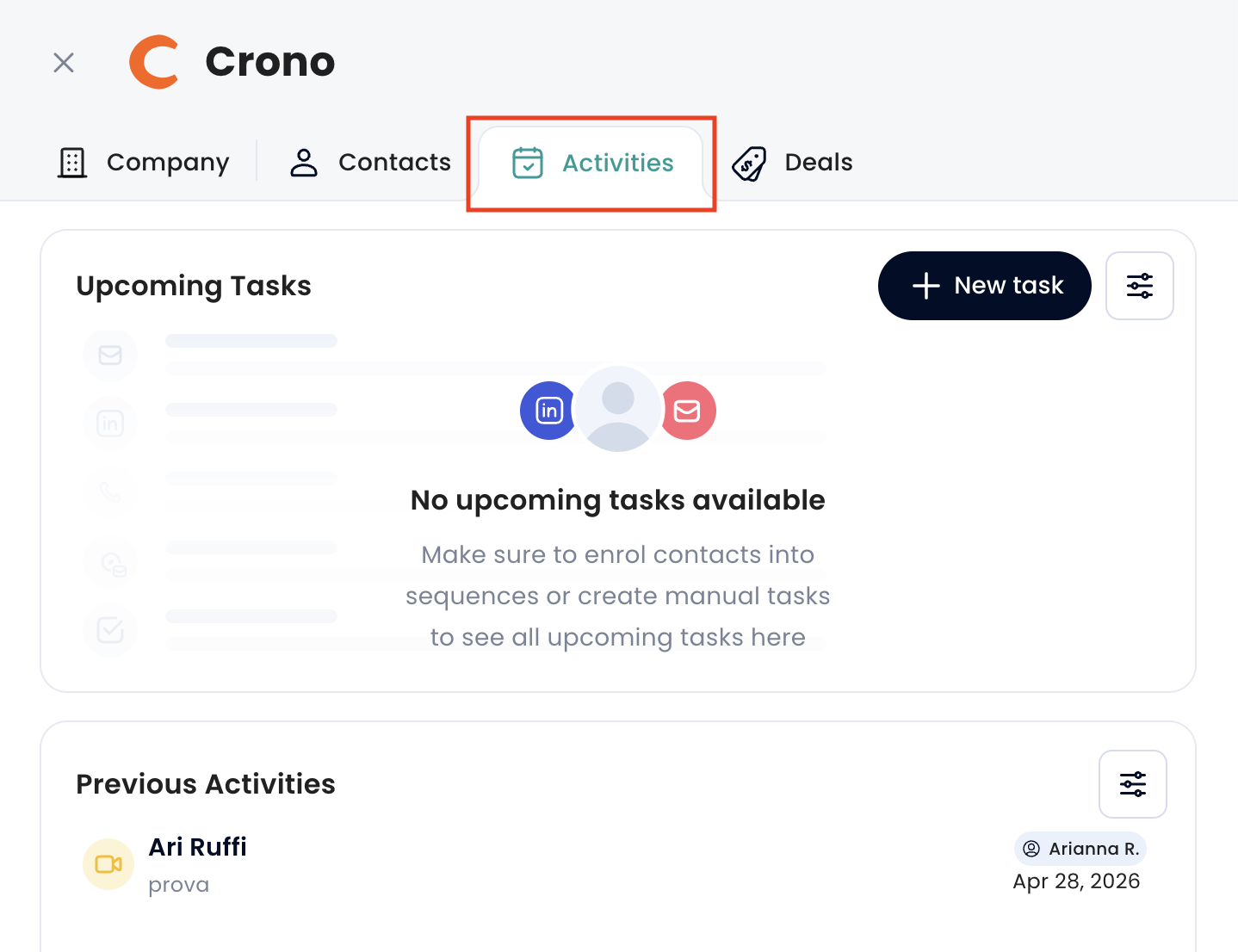
Meetings are visible in the following sections (following the rules specified before in the article):
Company card → Activities tab (A)
Contact card → Activities panel (B)
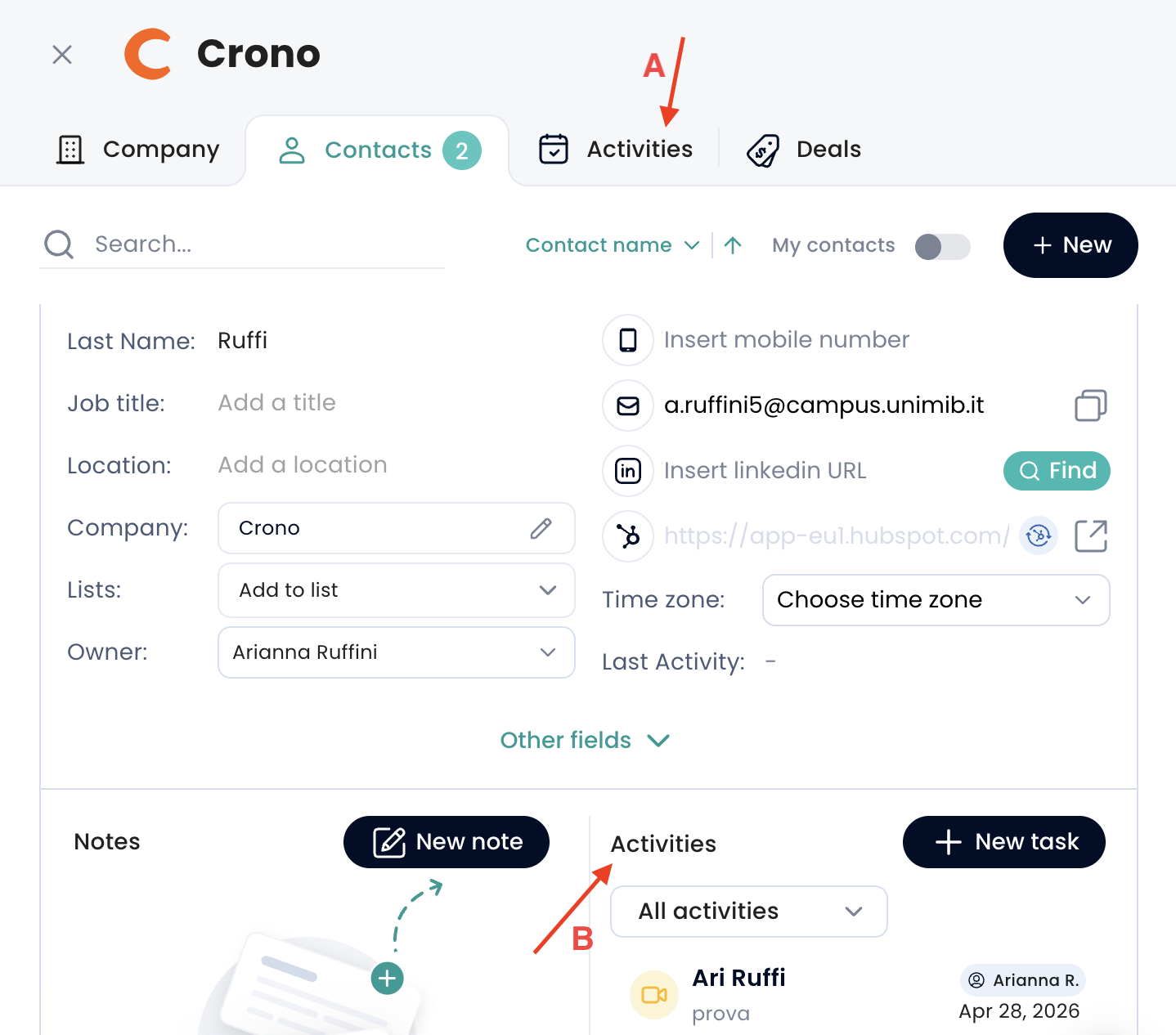
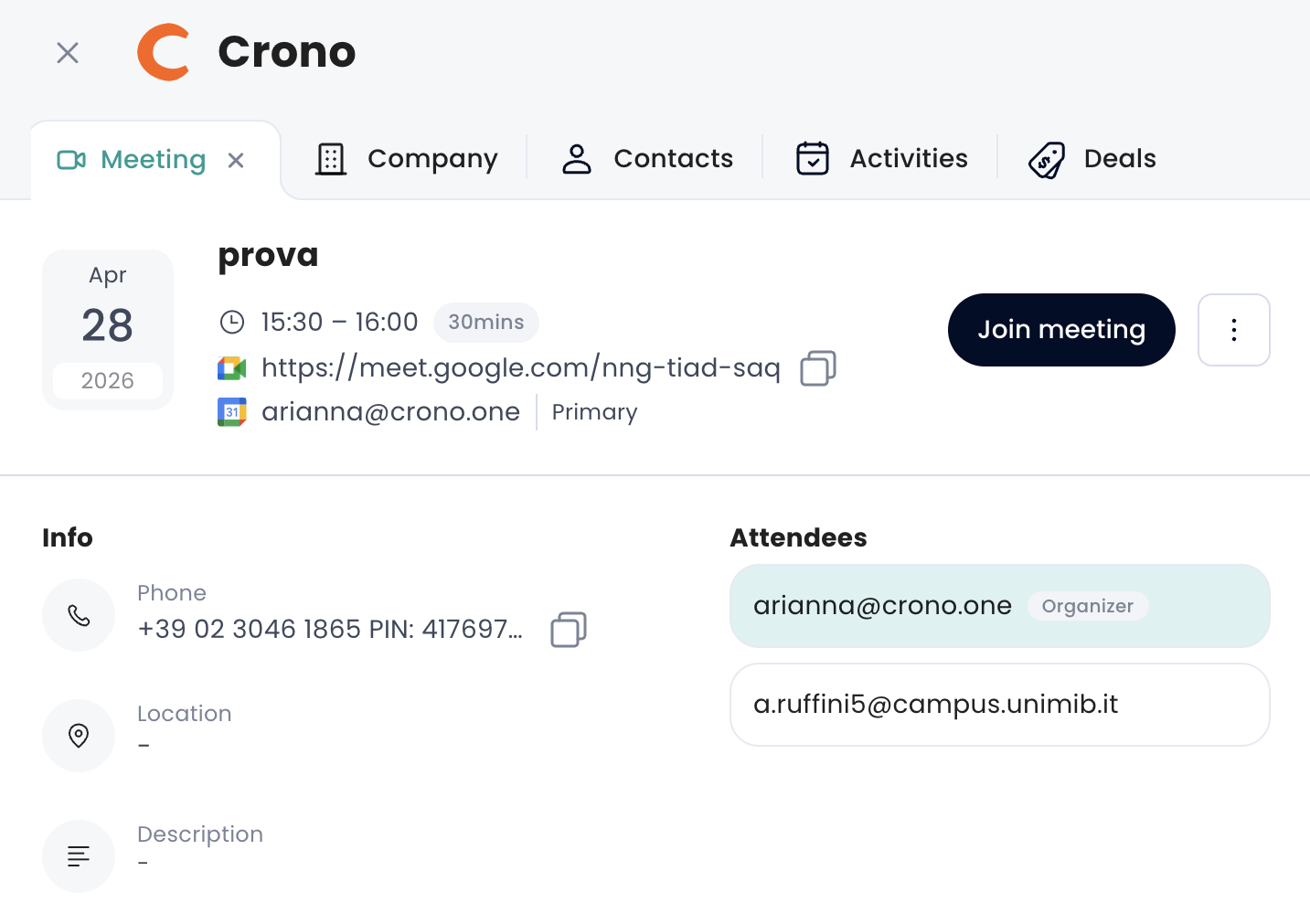
Clicking on a meeting opens the detail view, where you can perform several actions depending on your role in the meeting:
Join the meeting directly
Reschedule it
Delete it
Meetings synced from the CRM follow the same matching and visibility rules described above.
However, compared to meetings imported directly from Calendar integrations:
They may include fewer details
The meeting detail view is read-only
Actions such as joining, rescheduling, or deleting the meeting are not available
You can still click the meeting to open it directly in the CRM system where it was created