Team Division
Crono allows you to create teams within a subscription to better organize users inside your workspace.
Teams help structure your organization and are available throughout the product for filtering and analysis.
How to create a team (Managers only)
To create a new team:
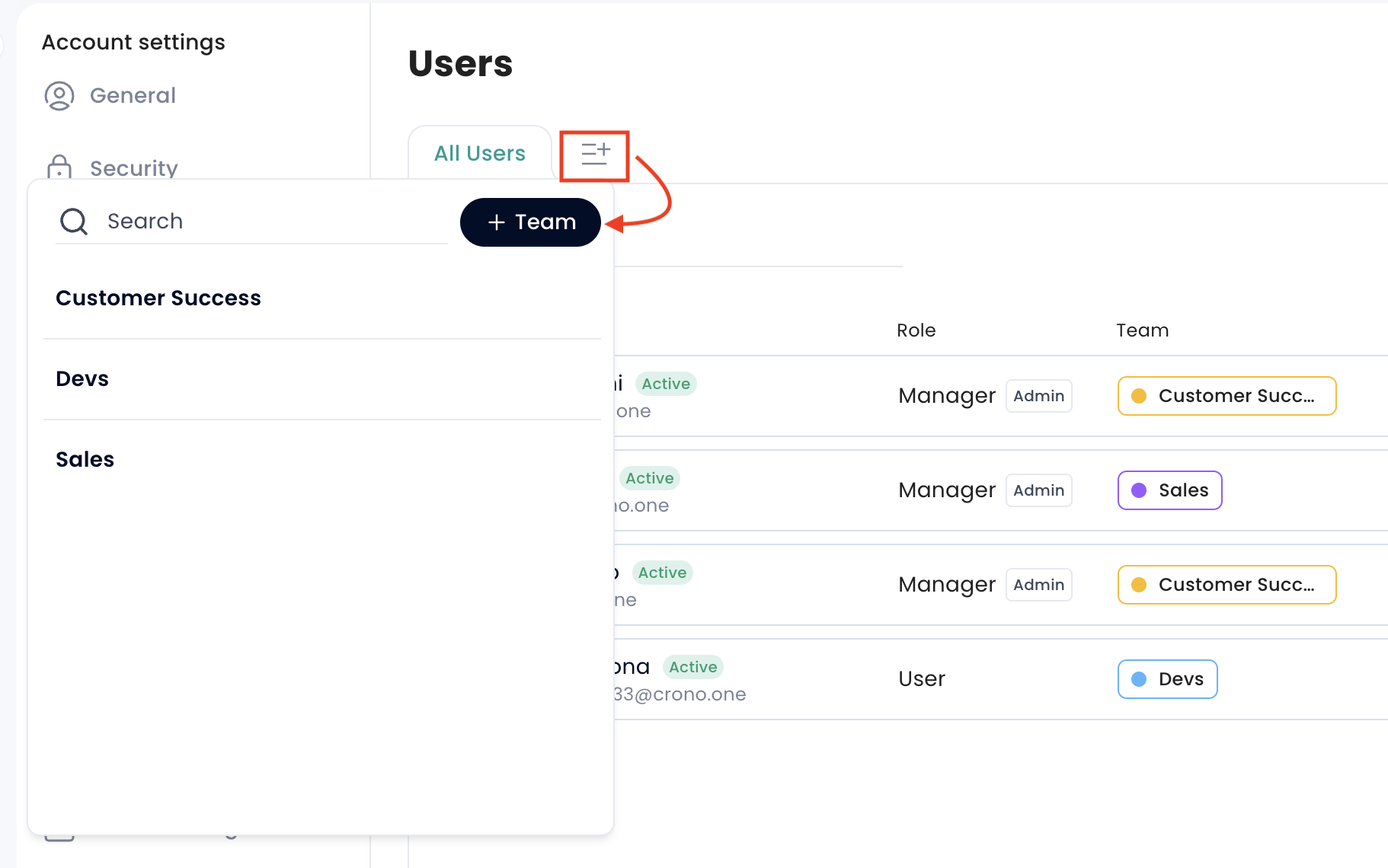
Go to Settings → Users
Click the button next to “All users”
Select “+ Team”
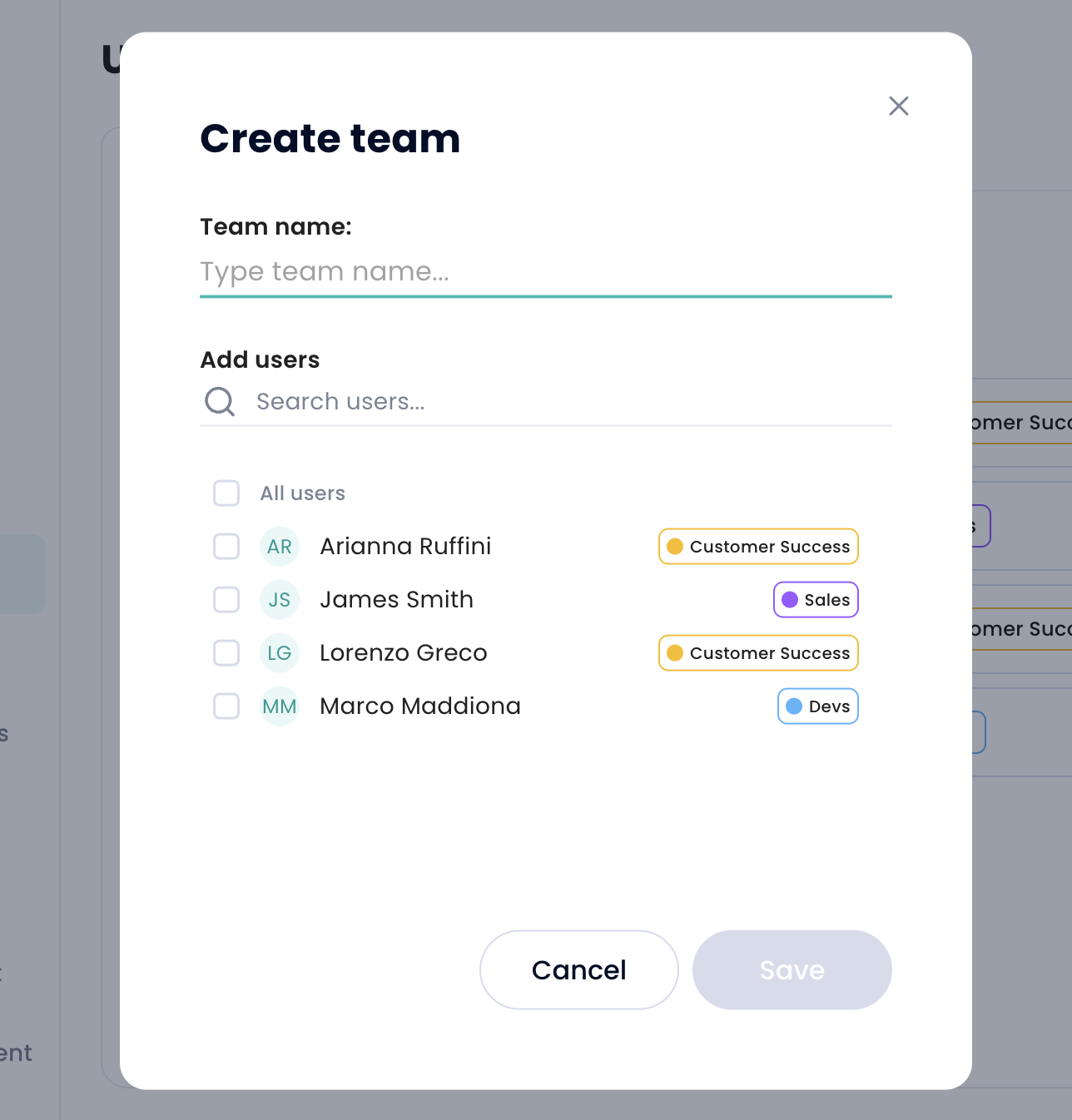
Enter a team name
Add the users you want to include in the team (users can be part of more than one team)
Click Save
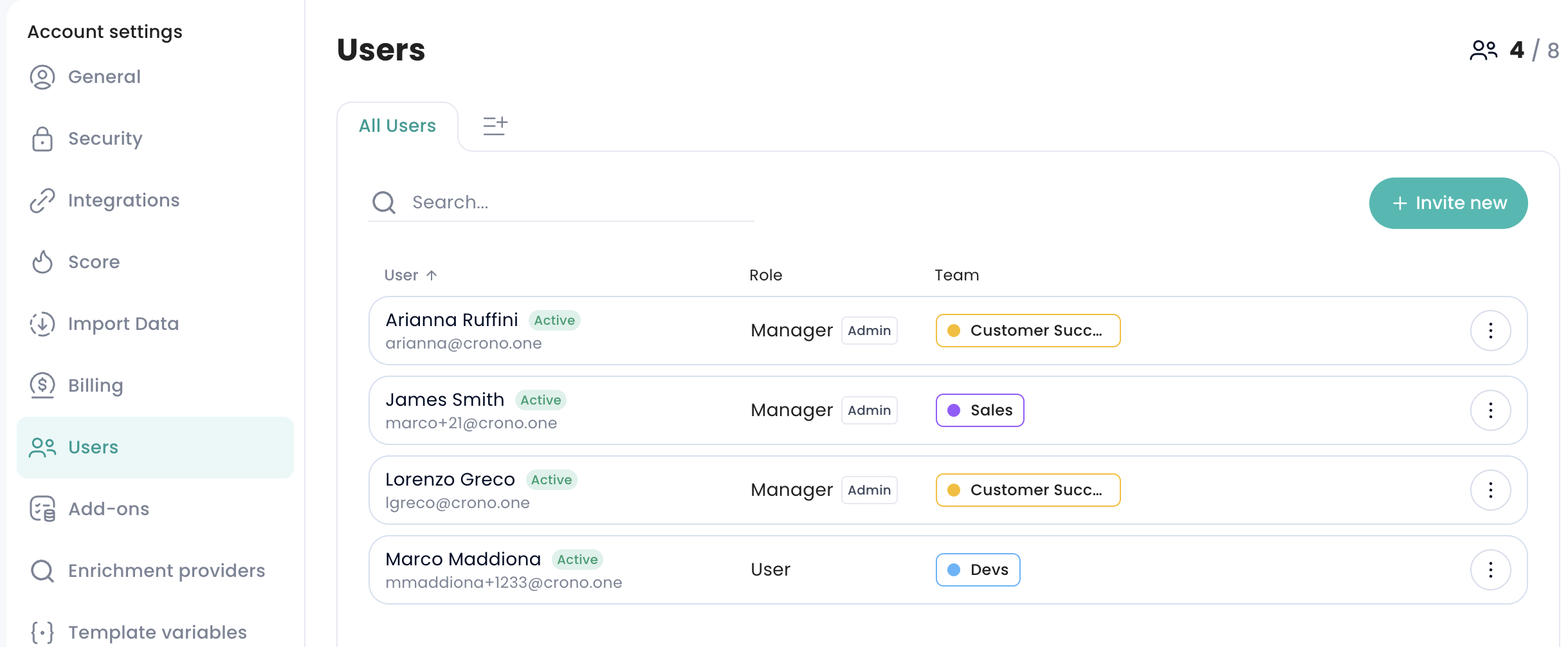
Users overview
In the Users page, you can see all users in your Crono workspace, including:
Their role
The team they belong to
Permissions
Managers can create and manage teams
All users can view teams and use them as filters across the platform
Where to find Teams across Crono
Users are grouped by team in the following areas:
Find New: when adding contacts into Crono and changing the ownership
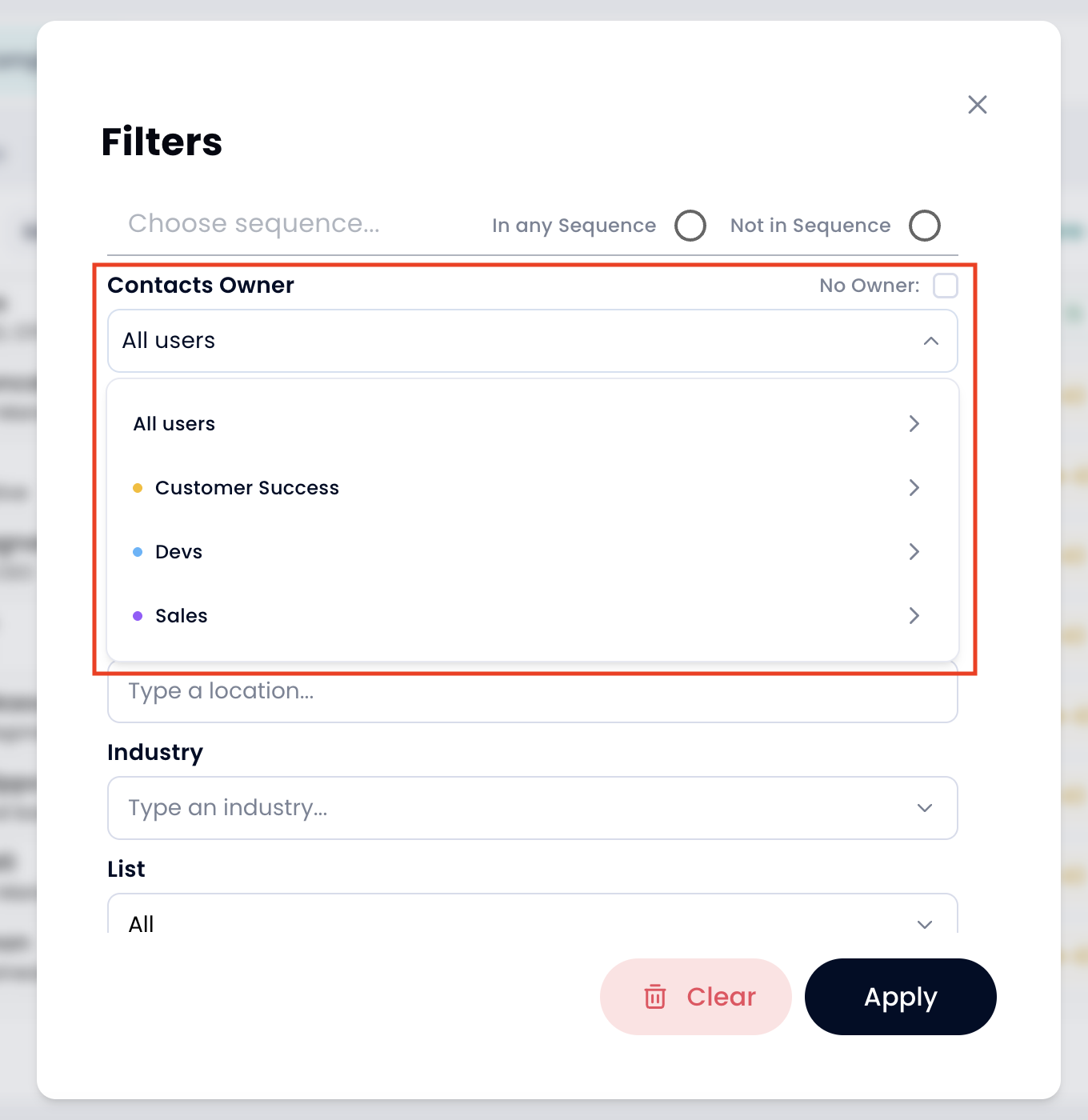
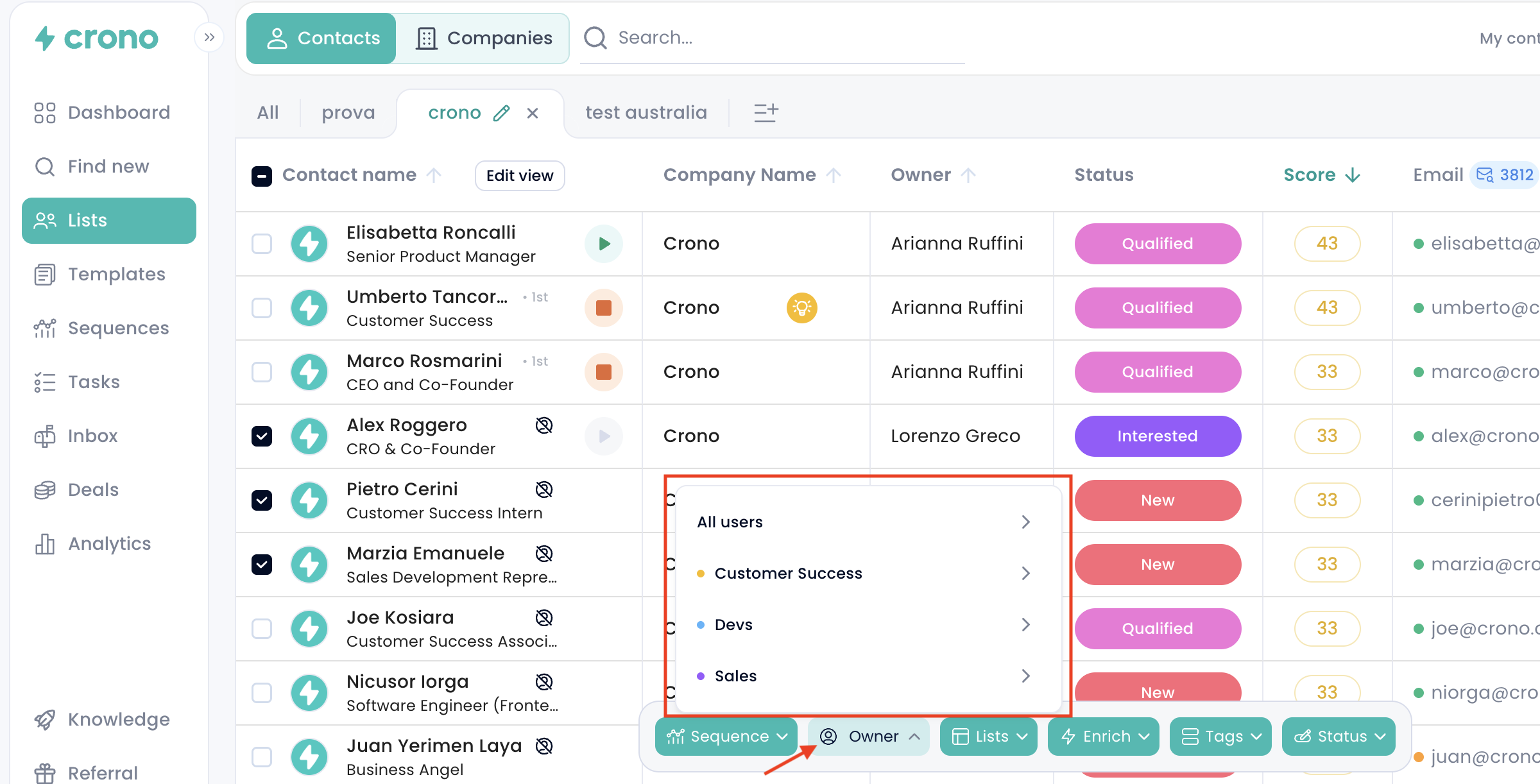
Lists: when selecting one or multiple contacts and changing ownership; and inside Filters → Contacts Owner
Contact card: when updating ownership
Deals: under the Owner filter
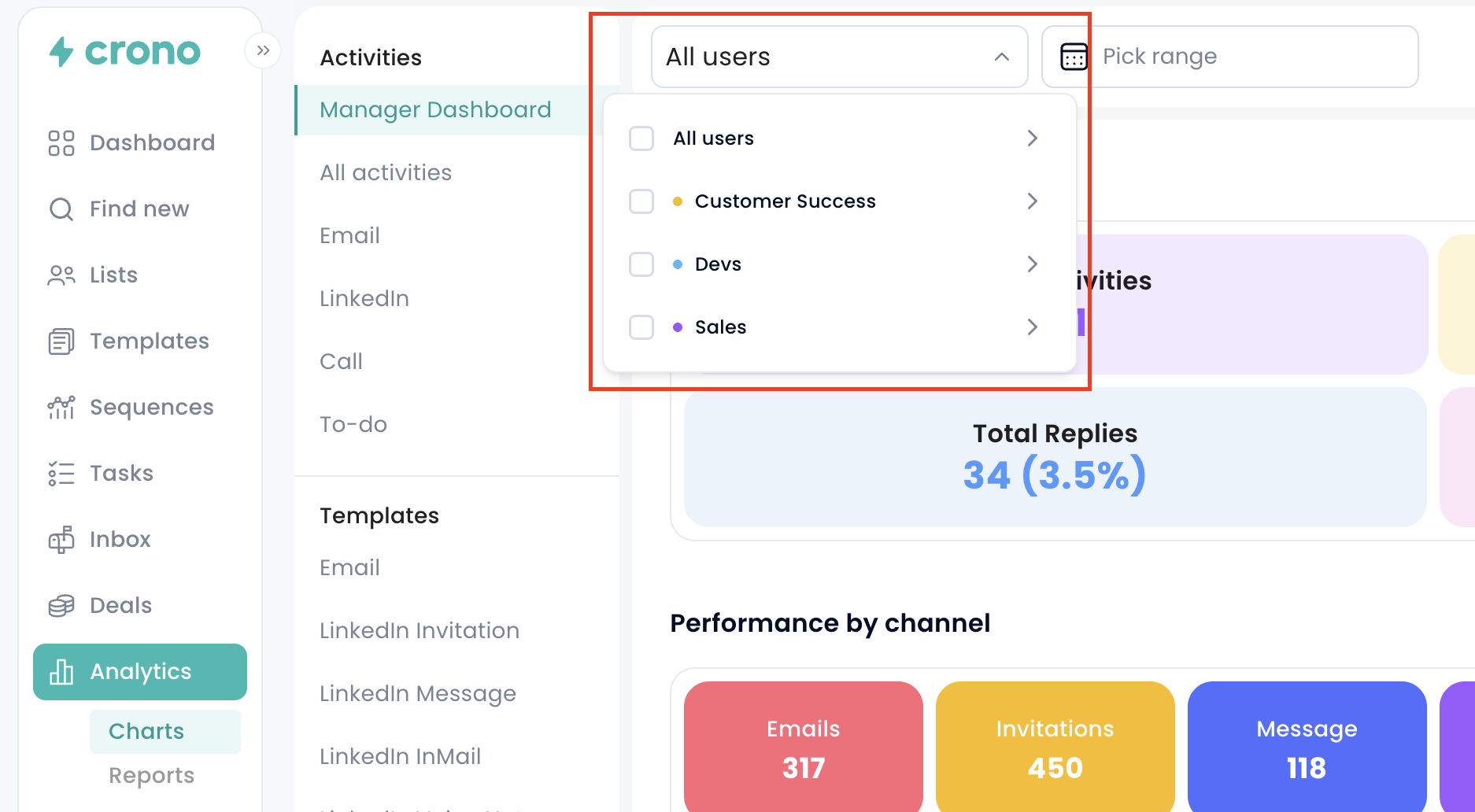
Teams in Analytics
Teams are also available as a filter inside Analytics → Charts.
This allows you to:
Segment performance metrics by team
Compare activity across different groups
Get a clearer view of team-level performance