Crono MCP enables AI agents (such as ChatGPT, Claude, and others) to securely connect to your Crono workspace and interact with your data directly from the chat interface.
Once connected, you can instruct your AI agent to:
Search and filter data
Create and update records
Enrich company and contact information
Manage sequences, tasks, and deals
Supported entities include:
Companies (Accounts)
Contacts (Prospects)
Sequences (Strategies)
Templates
Lists
Tasks
Deals (Opportunities)
Pipelines
Notes
AI & Enrichment data
Users
Reports
Custom fields
Before connecting Crono MCP to ChatGPT, ensure that:
You have access to a ChatGPT workspace (or company account) with MCP connectors enabled
You are logged into ChatGPT (web or desktop app)
You have an active Crono subscription (Ultra Plan required)
You have access to the Crono MCP Server URL
You can find the Crono MCP Server URL in: Crono → Settings → Integrations → Connections. You don't need any Client ID or key: the connection is authorized automatically when you log in to Crono.
⚠ Security note: Do not share personal access tokens, client secrets, or authorization credentials in ChatGPT messages. Complete authentication only through the official authorization flow.
Use the Crono MCP server URL provided by Crono when creating the connector in ChatGPT:
https://mcp.crono.one/mcp
Follow these steps:
Open ChatGPT in your browser
Go to Settings
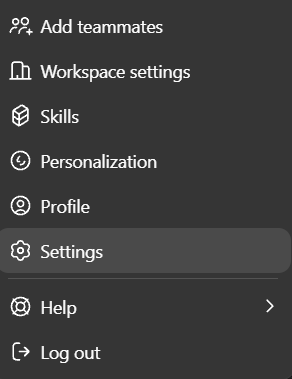
Navigate to Connectors or Apps & Connectors
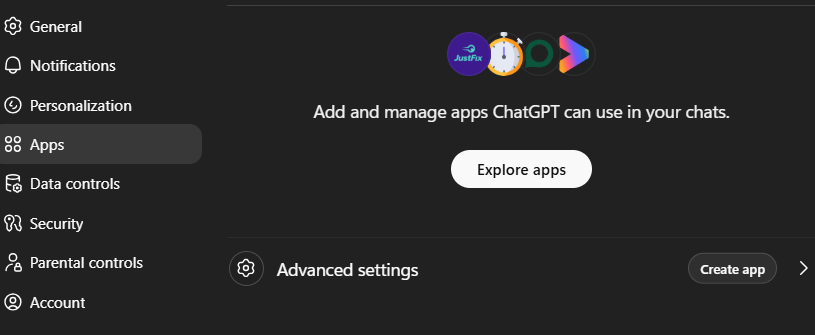
Open Advanced Settings and enable Developer Mode
Return and click Create App
Fill in the setup form as follows:
Name: (e.g., “Crono MCP”)
Description: Custom description
MCP Server Tool:
https://mcp.crono.one/mcp
Authentication: OAuth
Leave the Advanced OAuth Settings as they are. Do not choose "User-Defined OAuth Client" and do not paste any Client ID.
Check the informative box
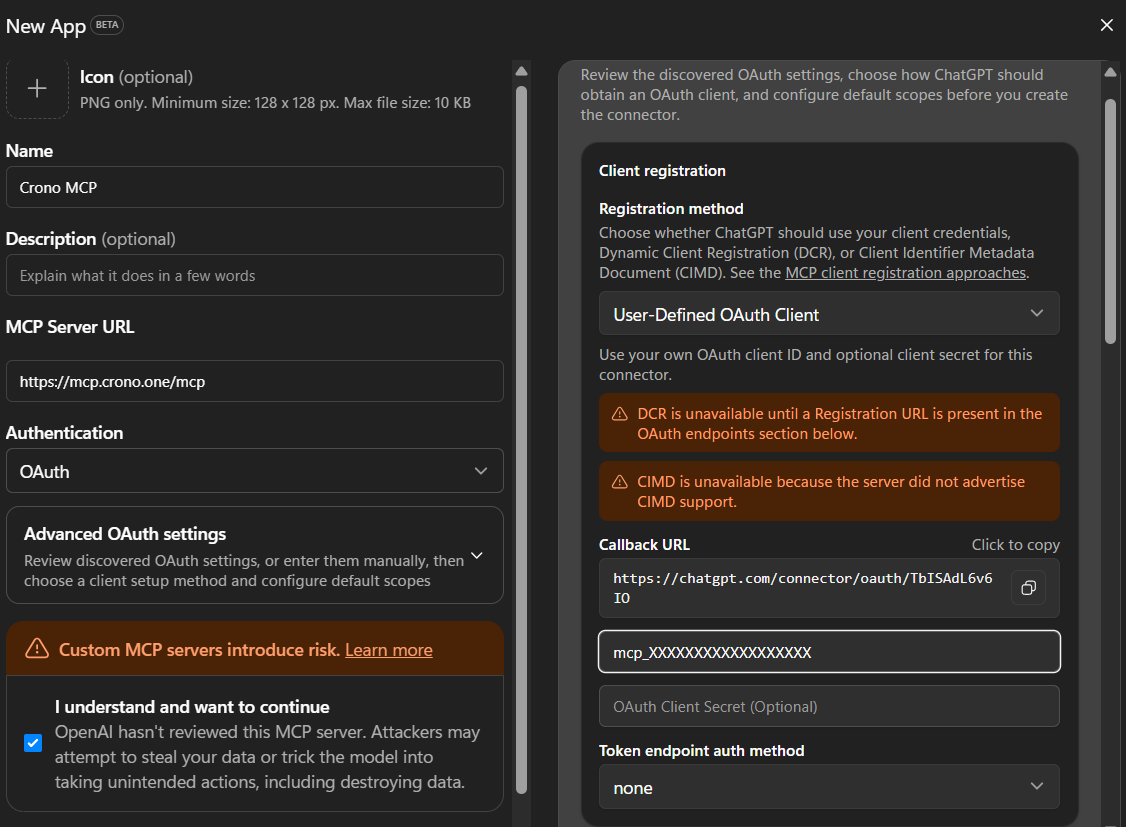
Click Create
A browser’s page will open, complete the Crono authentication flow and grant the requested permissions.
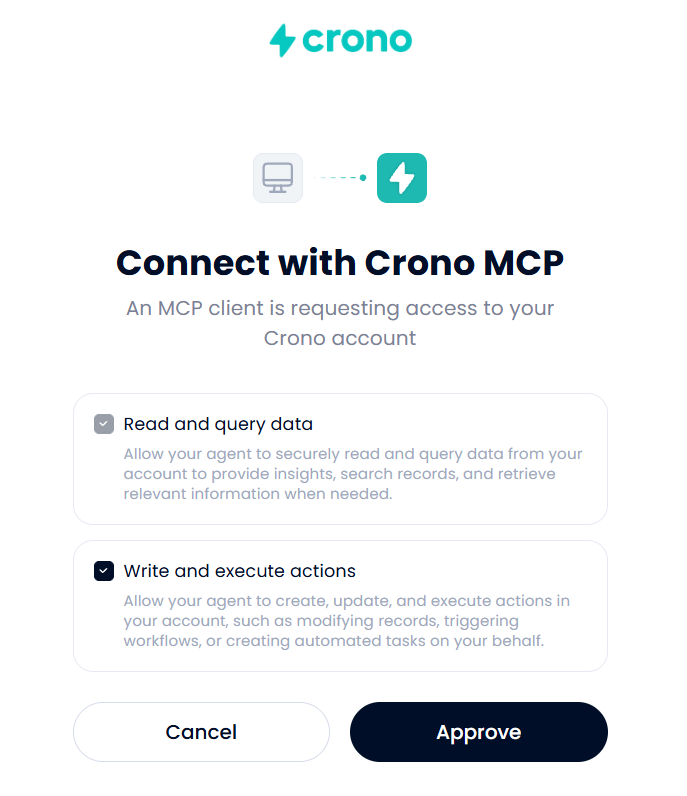
Return to ChatGPT and verify the connector is enabled
After the setup, start a new chat and to start asking ChatGPT to work with Crono data you can reference the Crono connector with the hotkey “@”
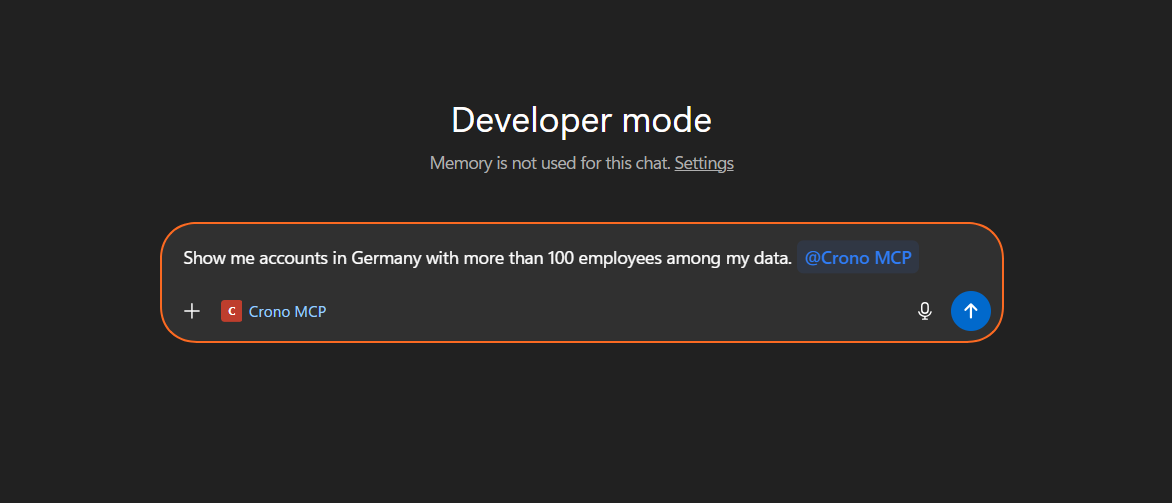
or by pressing the “+” and selecting the freshly added Crono MCP in the “More” list
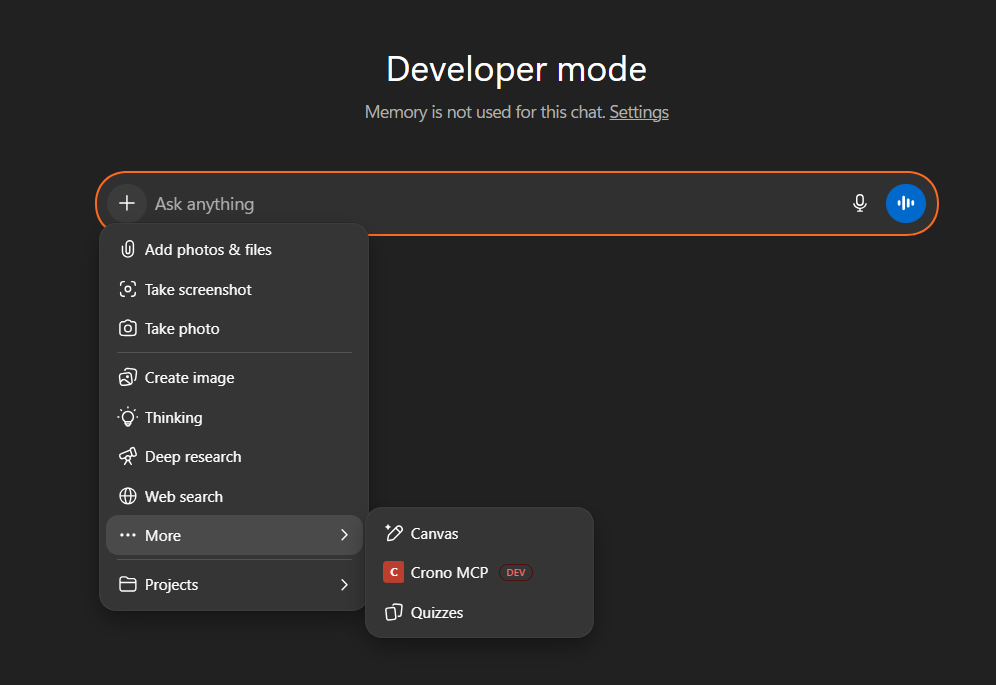
Example of prompts:
“Show me accounts in Germany with more than 100 employees among my data.”
“Find prospects with valid emails who opened our last campaign.”
“Create a task in Crono to follow up with John Smith tomorrow.”
Follow these steps:
Open the ChatGPT desktop app
Go to Settings
Navigate to Connectors or Apps & Connectors
Click Add Connector
Select Custom MCP Connector
Enter the MCP Server URL
Complete authentication in the browser or embedded authorization page
Grant permissions
Return to the desktop app and verify the Crono connector is active
If the desktop app opens the authentication flow in a browser, complete the authorization there and then return to the desktop app.
Before connecting, make sure you have an active Crono subscription (Ultra Plan required) and a Claude account that can add custom connectors.
Connect Crono MCP from Claude (web or desktop app)
Open Claude and go to Settings → Connectors.
Click Add custom connector.
Name: e.g. "Crono MCP". URL: https://mcp.crono.one/mcp
Do not open "Advanced settings". No Client ID or secret is needed.
Click Add, then Connect.
A browser page opens: log in to Crono and click Approve on the permission screen.
Back in Claude, the connector shows as Connected.
Start a new chat and enable Crono MCP from the tools menu. You can now ask, for example, "Search my companies in Crono."
You can these prompts to confirm everything is working:
“Which Crono tools are available?”
“Search for companies added last month.”
“Show my tasks for today.”
A successful setup allows your AI tool (ChatGPT or Claude) to retrieve and manipulate Crono data.
Crono MCP exposes only the tools and data allowed by the authenticated Crono user permissions.
Depending on your role, your agent may be able to:
Read records
Create and update data
Delete or archive records
Run enrichment processes
Access reports
Work with CRM-synced fields
If you cannot access certain data in Crono, the AI will not be able to access it either.
To get the best results:
Be explicit about the object (company, contact, task, etc.)
Include filters such as name, owner, or date
Ask the Agent to preview changes before applying them
Confirm targets before destructive actions
Use ObjectId for updates and deletions whenever possible
❌ Incorrect:
“Update Acme”
✅ Correct:
“For my company in Crono named Acme - update the status to Working”
Issue | Possible Cause | Resolution |
Connector not visible in AI Tool | MCP not enabled | Check workspace settings or contact the workspace admin |
Authentication fails | Expired session or permissions | Re-authenticate and restart the connector authorization |
AI Tool cannot access expected records | Limited permissions | Check user permissions in Crono |
Tool errors | Missing required parameters or invalid IDs | Check the tool documentation and provide the required fields |
Wrong records updated | Duplicate names | Search first, confirm the target record, then update using ObjectId |
Connection error mentioning the OAuth client or redirect | The connector was created with the old setup (manual Client ID) | Delete the connector in ChatGPT/Claude and add it again using only the MCP Server URL |
Search companies that are already in Crono/CRM using multiple filters.
Required: limit(int), offset (int)
Returns: Id (int), ObjectId (string)
Use ObjectId for updates
Example: “Show me all software companies in Germany with more than 100 employees that have replied to our emails”
Create a new company.
Required: name (string)
Example: “Add a new company called Acme Inc. in the United States, 200 employees, website acme.com, assign to Sarah”
Update an existing company.
Required: accountId (string - ObjectId)
Example: “Update Acme Inc. - set the owner to John and change the industry to Manufacturing”
Delete a single company forever. The company should not have contacts to be deleted.
Required: accountId (string - ObjectId)
Example: “Delete TechWave Solutions”
Bulk delete companies.
Required: data (string[] — array of account ObjectIds)
Example: “Remove all companies from the ‘old prospecting’ list”
Batch update multiple companies.
Required: accounts (array - each item must have accountId string ObjectId)
Example: “Assign all companies from last week’s import to Alice and mark them as Working”
Enrich company with external data (employees, revenue, etc.).
Example: “Enrich TechWave Solutions with the latest employee count and revenue”
Bulk enrich multiple companies simultaneously (queues a background job).
Required: Required: data (object)
- companyScrapeSearches (array): each item can include accountId, domain, linkedinUrl, linkedinUrlFoundFromWebsite, name
- enrichCompany (bool): whether to apply enrichment after scraping
Example: “Enrich company data for all accounts in the tech industry segment”
Retrieve the stored AI score for a company (without recomputing).
Required: accountId (string - ObjectId)
Example: “What is the score for Microsoft?”
Recompute and save the AI score for a company.
Required: accountId (string - ObjectId)
Example: “Refresh the score for the TechCorp account”
Search for individual contacts using multiple filters.
Required: limit (int), offset (int)
Returns both Id (int) and ObjectId (string). Always use ObjectId for CRUD operations. If you need both AccountId and ProspectId, do not use minimal: true.
Example: “Show me all CTOs at software companies who have opened our emails”
Create a new contact.
Required inside data: firstName (string), lastName (string)
If no company is provided, ask the user which company to link to before proceeding. In Salesforce, use createAsLead: true if the user says “Lead”.
Example: “Create a new contact John Smith, CTO at Microsoft, email [email protected]”
Update an existing contact (partial update).
Required: prospectId (string — ObjectId)
Tip: Check
externalPropertiesfirst — if a status-like CRM field (e.g. “Lead Status”) exists, it overrides the internal status.
Example: “Update John Smith from Microsoft — change title to VP of Engineering and assign to Sarah”
Delete a single prospect forever.
Required: prospectId (string — ObjectId)
Example: “Delete Jane Doe from TechWave Solutions”
Delete multiple prospects at once.
Required: data (array — each item must have prospectId string ObjectId)
Example: “Remove all prospects from the Q3 campaign”
Batch update multiple prospects.
Required: prospects (array — each item must have prospectId string ObjectId)
Example: “Assign all prospects from TechCorp to Mike and mark them as Qualified”
Bulk find emails, phones, or LinkedIn profiles for multiple prospects (queues a background job).
Required: data (object)
findEmail (bool)
findPhone (bool)
findLinkedin (bool)
prospectScrapeSearches (array): each item can include prospectId, firstName, lastName, companyName, domain, email, linkedinUrl, userId
Example: “Find emails for first 50 prospects from the enterprise list”
Retrieve the stored AI score for a prospect (without recomputing).
Required: prospectId (string — ObjectId)
Example: “What is John Smith’s score?”
Recompute and save the AI score for a prospect.
Required: prospectId (string — ObjectId)
Example: “Refresh the score for John Smith at TechCorp”
Discover and save the email address of a prospect.
Example: “Find the email for John Smith, CTO at TechCorp”
Discover and save the phone number of a prospect.
Example: “Find the phone number for Sarah Johnson at Microsoft”
Discover and save the LinkedIn profile of a prospect.
Example: “Find the LinkedIn profile for Mike Chen, VP of Sales at DataTech”
Search for outreach strategies/sequences.
Required: limit (int), offset (int)
ID note: Strategy uses integer Id only — no ObjectId.
Example: “Show me all active email sequences”
Retrieve the full structure of a strategy (all steps, conditionals, A/B templates, settings).
Required: strategyId (int)
Example: “Show me the full structure of the Cold Outreach sequence”
Get contacts enrolled in a strategy with their current status (minimal data per contact).
Required: strategyId (int), limit (int), offset (int), sort (enum)
Sort options: ContactsAsc ContactsDesc ProgressAsc ProgressDesc LastActivityAsc LastActivityDesc LastInteractionAsc LastInteractionDesc ScoreAsc ScoreDesc
Example: “Show me all contacts in the Cold Outreach sequence”
Generate a new strategy using AI.
Required: name (string), numberOfSteps (int), stepTypesToUse (enum[]), productDescription (string), targetAudience (string), language (string), communicationStyle (enum)
Step counts: short = 4, medium = 8, long = 12 Step types:
CallInMail— never useGeneric
Example: “Generate a short cold outreach sequence for SaaS companies using email and LinkedIn”
Create a one-off personalized sequence for a specific contact (not reusable, only visible in the contact’s card).
Required: prospectId (string — ObjectId), accountId (string — ObjectId), steps (array)
Each step required: type (enum), delay (int — days)
Example: “Create a custom 3-step email sequence for John Smith with personalized content”
Update strategy metadata (name, sharing, tags).
Required inside data: id (int)
Example: “Rename strategy XYZ to MAD and make it private”
Delete a strategy permanently.
Required: strategyId (int)
Example: “Delete the sequence XYZ”
Add a new step to a strategy.
Required inside data: strategyId (int), order (int), type (enum), delay (int), automatic (bool)
Step types: Email Call Linkedin InMail Generic
Example: “Add an email step at the 3rd position of the Cold Outreach sequence”
Delete a step from a strategy.
Required: strategyId (int), stepId (int)
Retrieve step ID from GetStrategy — users reference steps by position (e.g. “3rd step”).
Example: “Delete the 3rd step from sequence XYZ”
Update a step in a strategy.
Required inside data: id (int — step ID), strategyId (int)
Example: “Set the 3rd step of the sequence to automatic and attach template ‘Sample Template’”
Add an A/B testing template variant to a strategy step.
Required: strategyId (int)
Required inside data: strategyStepId (int), templateId (int), templateType (enum)
Template types: Email Linkedin Invitation Script InMail VoiceNote
Example: “Add an A/B testing template to the 3rd step using template ‘Sample Template’”
Delete an A/B testing template from a step.
Required: strategyId (int), strategyStepId (int), strategyStepTemplateId (int)
Example: “Delete the second A/B testing template from the 2nd step”
Enable or disable an A/B testing template variant.
Required: strategyId (int), strategyStepId (int), strategyStepTemplateId (int), enabled (bool)
Example: “Disable the second A/B testing template of the 3rd step”
Update the conditional configuration of a strategy step.
Required: strategyId (int), data.strategyStepId (int)
Example: “Set the conditional of the 3rd step to automatic”
Enroll a single prospect in a strategy sequence. The prospect must be owned by the current user.
Required: prospectId (string — ObjectId), strategyId (int)
Example: “Add John Smith from Microsoft to the Cold Outreach for SaaS sequence”
Enroll multiple prospects in a strategy at once.
Required: strategyId (int)
Example: “Add all prospects from Microsoft to the Enterprise Follow-up sequence”
Stop/pause an active sequence for a prospect.
Required: prospectId (string — ObjectId), sequenceInstanceId (int)
Example: “Stop the email sequence for John Smith at TechCorp”
Restart a prospect’s sequence from the beginning.
Required: prospectId (string — ObjectId), strategyId (int)
Example: “Restart the email sequence for Jane Doe at DataCorp”
Resume paused sequences for multiple prospects.
Example: “Resume email sequences for all paused prospects from the Q3 campaign”
Search email and message templates.
Required: limit (int), offset (int), type (enum)
ID note: Template uses integer Id only — no ObjectId.
Types: Email Linkedin Invitation Script InMail VoiceNote
Example: “Show me all cold email templates”
Create a one-off hidden template (used for task drafts — does not appear in search).
Required inside data: title (string), content (string), language (string), type (enum), isSingleUse: true (mandatory)
The returned Id should be used as templateId when creating a task.
Example: “Create a draft email template with subject ‘Quick question about {{Company}}’”
Update an existing template (partial update).
Required: id (int)
Search for existing lists.
Required: type (enum) — Account Prospect Lead Template Strategy User
ID note: List uses integer Id only — no ObjectId.
Example: "Show me all prospect lists"
Create a new list, optionally pre-populated.
Required: name (string), type (enum)
In Salesforce, check whether the user means a Lead list (Lead) or a Contact list (Prospect).
Example: "Create a new prospect list called Q1 2024 Pipeline and add John Smith to it"
Update a list's properties.
Required: id (int)
Example: "Rename the Q4 Pipeline list to Q1 2024 Pipeline"
Delete a list.
Required: listId (int)
Example: "Delete the Old Prospects list"
Add companies to a single list.
Required: listId (int), objectIds (string[] — account ObjectIds)
Example: "Add Microsoft and Google to my Enterprise Clients list"
Add companies to multiple lists simultaneously.
Required: listIds (int[]), objectIds (string[] — account ObjectIds)
Example: "Add Apple Inc to both Enterprise Clients and Tech Companies lists"
Add prospects to a single list.
Required: listId (int), objectIds (string[] — prospect ObjectIds)
Example: "Add John Smith to my Hot Prospects list"
Add prospects to multiple lists simultaneously.
Required: listIds (int[]), objectIds (string[] — prospect ObjectIds)
Example: "Add Sarah Johnson to both Hot Prospects and Q4 Pipeline lists"
Add strategies to a single list.
Required: listId (int), ids (int[] — strategy IDs)
Example: "Add ABM Starter to my Enterprise Clients list"
Add strategies to multiple lists simultaneously.
Required: listIds (int[]), ids (int[] — strategy IDs)
Example: "Add Q4 Expansion Play to both Strategic Accounts and Q4 Pipeline lists"
Add templates to a single list.
Required: listId (int), ids (int[] — template IDs)
Example: "Add Outbound Sequence A to my Q4 Pipeline list"
Add templates to multiple lists simultaneously.
Required: listIds (int[]), ids (int[] — template IDs)
Example: "Add Onboarding Sequence to both Enterprise Clients and Q1 Pipeline lists"
Remove companies from a specific list.
Required: listId (int), objectIds (string[] — account ObjectIds)
Example: "Remove Microsoft from my Enterprise Clients list"
Remove companies from all lists they belong to.
Required: objectIds (string[] — account ObjectIds)
Example: "Remove Microsoft from all lists"
Remove prospects from a specific list.
Required: listId (int), objectIds (string[] — prospect ObjectIds)
Example: "Remove John Smith from my Hot Prospects list"
Remove prospects from all lists they belong to.
Required: objectIds (string[] — prospect ObjectIds)
Example: "Remove John Smith from all lists"
Remove strategies from a specific list.
Required: listId (int), ids (int[] — strategy IDs)
Example: "Remove ABM Starter from my Enterprise Clients list"
Remove strategies from all lists they belong to.
Required: ids (int[] — strategy IDs)
Example: "Remove ABM Starter strategy from all lists"
Remove templates from a specific list.
Required: listId (int), ids (int[] — template IDs)
Example: "Remove Outbound Sequence A from my Q4 Pipeline list"
Remove templates from all lists they belong to.
Required: ids (int[] — template IDs)
Example: "Remove Onboarding Sequence template from all lists"
Search tasks (follow-up activities, to-dos, scheduled actions).
Required: limit (int), offset (int)
ID note: Task uses integer Id only. ProspectId, AccountId, OpportunityId filters expect ObjectId (string).
Example: "Show me all pending email tasks for Microsoft prospects"
Create a new follow-up task for a prospect.
Required: accountId (string — ObjectId), type (enum), activityDate (datetime), automatic (bool)
prospectId is required for all types except Generic. subject is mandatory — generate from context if not provided by the user.
For Email/InMail tasks with pre-written content: first create a single-use template via CreateSingleUseTemplate, then pass the returned ID as templateId.
Example: "Create a follow-up email task for John Smith at Microsoft tomorrow at 10am"
Update an existing task (partial update).
Required: id (int)
Example: "Mark the email task for John Smith as completed"
Batch update multiple tasks.
Required: ids (int[])
Example: "Reschedule all calls from today to next Monday"
Retrieve analytics and statistics about the current user's tasks. Returns counts of pending, completed, and overdue tasks by type and time period.
Example: "How many pending tasks do I have?"
Search opportunities in paginated list view with rich filtering.
Example: "Show me all open deals in Negotiation stage closing this quarter"
Search opportunities linked to a specific company.
Required: accountId (string — ObjectId)
Example: "Find all open opportunities for Acme Corp in negotiation stage"
Create a new deal/opportunity.
Required: accountId (string — ObjectId)
Example: "Add a new opportunity for TechWave worth $50,000 in Discovery stage, closing next month"
Update an existing opportunity (partial update).
Required: accountId (string — ObjectId), opportunityId (string — ObjectId)
Example: "Update the Acme opportunity to Negotiation stage and move the close date to next quarter"
Delete/archive an opportunity.
Required: accountId (string — ObjectId), opportunityId (string — ObjectId)
Example: "Delete the stale opportunity for Widget Corp"
Retrieve all sales pipelines with their stages and probabilities. Returns all active pipelines with names, IDs, and stage details (name, probability %).
Example: "Show me all our sales pipelines"
Add a new stage to an existing pipeline.
Example: "Add a Technical Review stage with 70% probability to the Enterprise Sales pipeline"
Rename a pipeline.
Required inside data: pipelineId (int), publicName (string)
Example: "Rename Sales Pipeline 2024 to Enterprise Sales Pipeline"
Delete/archive a pipeline.
Warning: May affect all opportunities linked to this pipeline. First retrieve pipelines to confirm the correct ID.
Example: "Delete the old 2023 Sales Pipeline"
Create a note attached to a prospect, company, or deal.
Required: description (string), accountId (string — ObjectId)
Example: "Add a note to John Smith: discussed pricing on the call today"
Generate AI-powered personalized variables for prospects or accounts in bulk (queues a background job).
Required: externalPropertyIds (int[]), objectIds (string[] — ObjectIds), tableType (enum)
Table types: Account Prospect Lead Opportunity
Example: "Generate icebreaker variables for all prospects in the Q4 enterprise sequence"
Retrieve all context needed to generate a comprehensive AI summary for a contact, company, or deal — in a single call.
Returns:
Contact: full contact info + deals + recent tasks
Company: full company info + contacts + all linked deals
Deal: full deal info + linked company + pipeline/stage + recent tasks
Example: "Generate a comprehensive summary for Acme Corp"
Search all users in the current Crono workspace. Returns a list of users with their integer Id and profile info.
Use the integer Id as userId / ownerId when assigning ownership on other entities.
Example: "Who are the users in my workspace?"
Search for saved "Find New" search configurations.
Required: type (enum) — CompanyLinkedin ContactLinkedin CompanySalesNavigator ContactSalesNavigator
ID note: FindNewSearch uses integer Id only — no ObjectId.
Example: "Show me all Find New searches for LinkedIn contacts"
Get details of a specific Find New search configuration.
Required: findNewSearchId (int)
Example: "Show me the details of the German CTO search"
Delete a Find New search configuration.
Required: findNewSearchId (int)
Example: "Delete the Find New search for German CTOs"
Retrieve custom CRM fields and AI variables configured in the system. Returns property metadata: field name, type (text, number, picklist…), options, editability, CRM sync status.
Example: "Show me all custom properties available for contacts"
Always prefer ObjectId for updates
Use search → confirm → update workflow
Be explicit in instructions to avoid ambiguity
Use AI generation features for scaling personalization
