---
title: "How to Configure Single Sign-On (SSO)"
description: "This guide explains how to set up Single Sign-On (SSO) for your organization to access Crono, including the Okta configuration and the Microsoft and Google sign-in options"
url: https://help.crono.one/en/articles/79-how-to-configure-single-sign-on-sso
collection: "Settings"
updated: 2026-09-15
language: en
---
# How to Configure Single Sign-On (SSO)
This guide explains how to set up Single Sign-On (SSO) for your organization to access Crono, including the Okta configuration and the Microsoft and Google sign-in options
This guide explains how to set up Single Sign-On (SSO) for your organization to access Crono. Okta is the only sign-in method that requires configuration, and the steps below cover it in full.
At the end of the process, you will provide the generated configuration values to the Crono team.
Configuring SSO requires the Subscription Manager role, which the interface labels **Admin**.
* * *
## Microsoft and Google Sign-In
Crono also supports signing in with Microsoft and with Google. Both appear as one-click buttons on the login screen, next to the Okta button, and neither requires any setup by the user or by the administrator. There is nothing to configure for them, so the rest of this guide covers Okta only.
* * *
## Step 1: Create an Okta Application
Log in to your Okta Admin Console.
Navigate to:
```javascript
Applications
→ Applications
→ Create App Integration
```
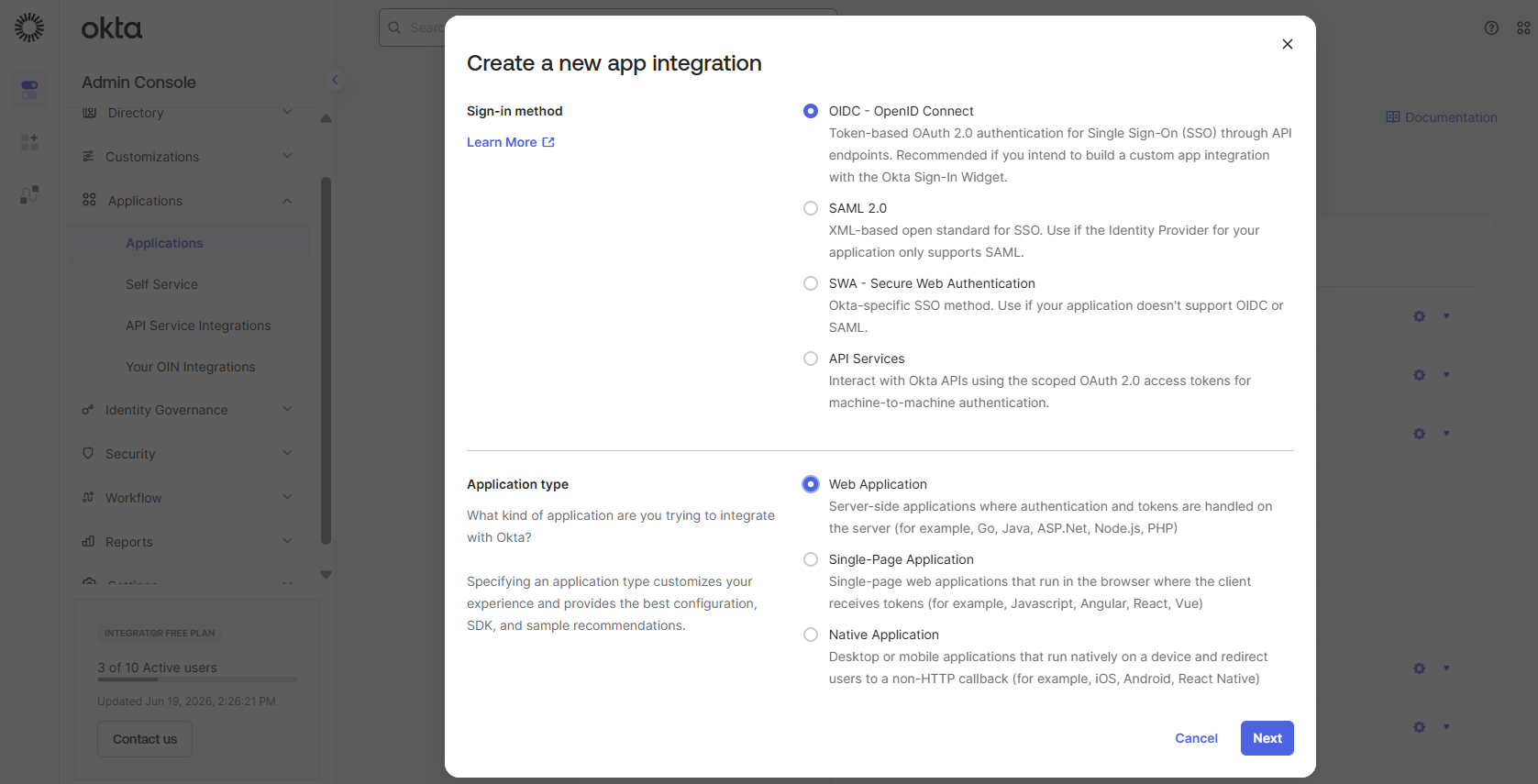
### Configure the application type
Select:
```javascript
Sign-in method: OIDC - OpenID Connect
Application type: Web Application
```
Click **Next**
* * *
## Step 2: Configure the Application
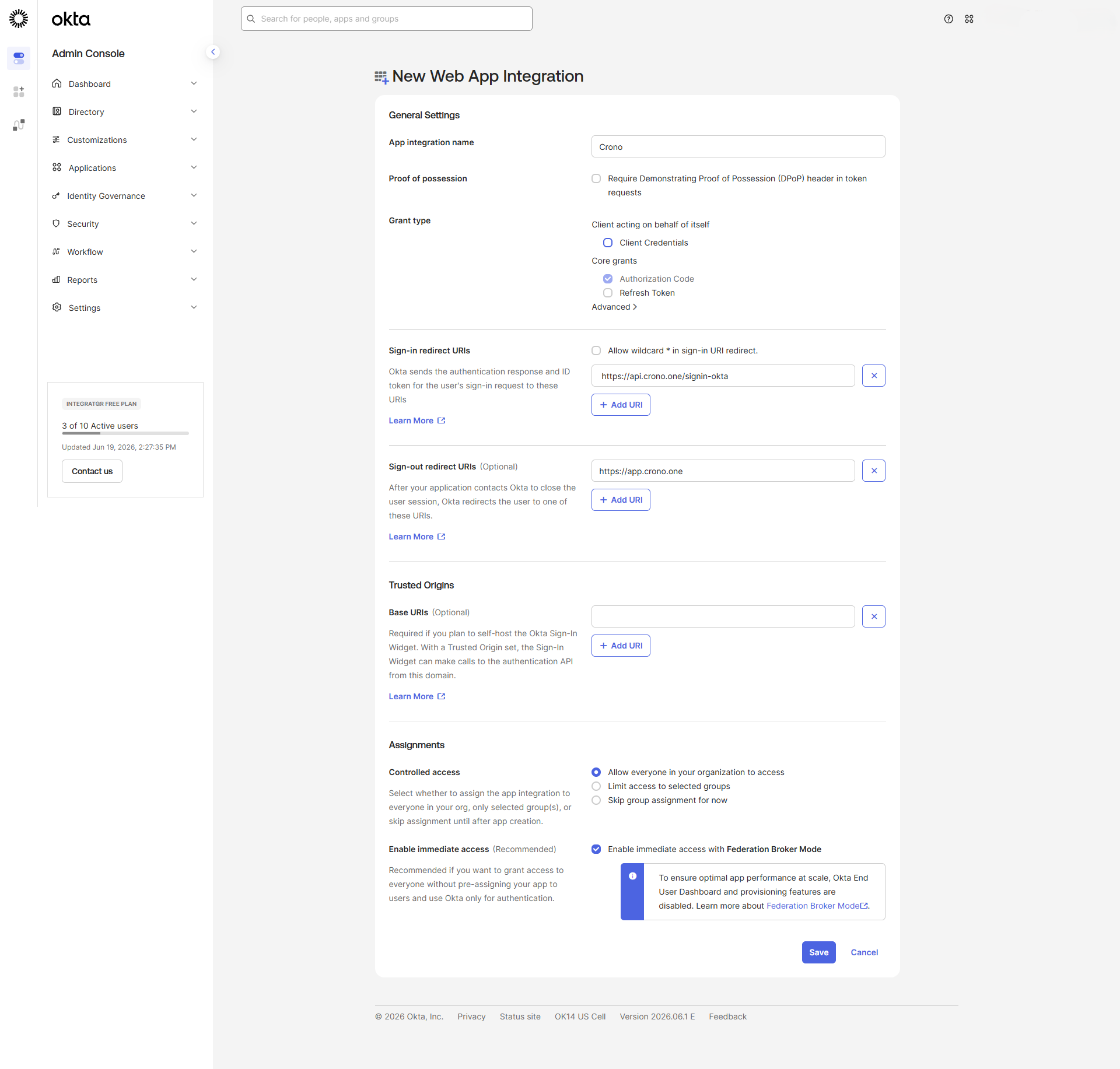
## Application Name
Enter:
```javascript
Crono
```
or any name your organization prefers.
* * *
## Sign-in Redirect URI
Add the following URL:
```javascript
https://api.crono.one/signin-okta
```
This value must be entered exactly as shown.
* * *
## Sign-out Redirect URI (Optional)
You may enter:
```javascript
https://app.crono.one
```
* * *
## Controlled Access
You may initially allow access to everyone, or restrict access to selected groups and users according to your organization's policies.
* * *
## Step 3: Retrieve the Client ID and Client Secret
Open the application you just created.
Navigate to:
```javascript
Applications
→ Applications
→ Crono
→ General
```
Locate the **Client Credentials** section.
Copy the following values:
## Client ID
Example:
```javascript
0oa123abc456XYZ789
```
## Client Secret
Generate or reveal the Client Secret and copy its value.
* * *
## Step 4: Retrieve the Authority URL
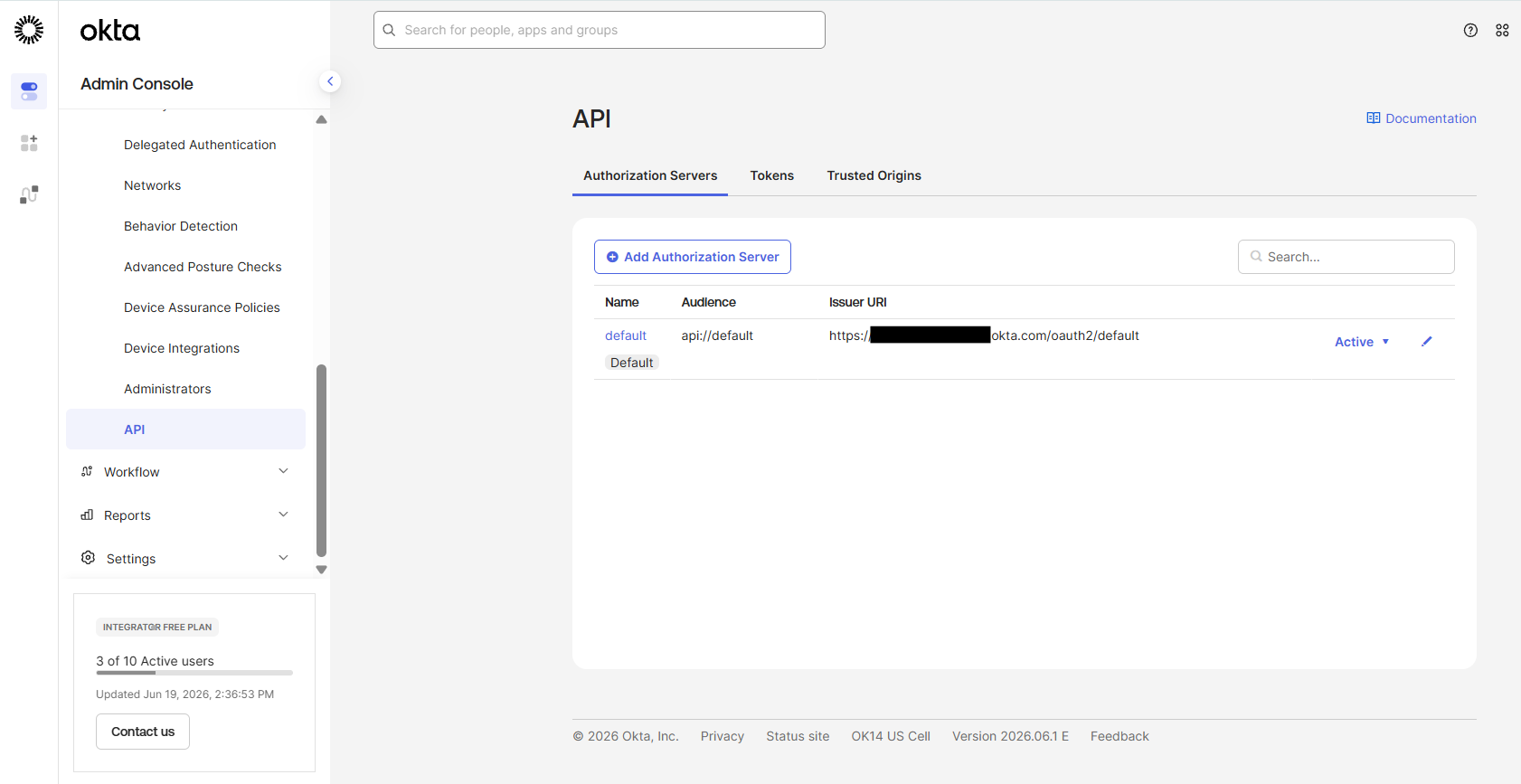
Navigate to:
```javascript
Security
→ API
→ Authorization Servers
```
Open the authorization server you intend to use.
In most Okta tenants this is:
```javascript
default
```
Copy the **Issuer URI** value.
Example:
```javascript
https://your-company.okta.com/oauth2/default
```
This value will be used as the **Authority**.
### ⚠ Important
Use:
```javascript
https://your-company.okta.com/oauth2/default
```
Do **NOT** use:
```javascript
https://your-company.okta.com
```
The `/oauth2/default` portion is required.
* * *
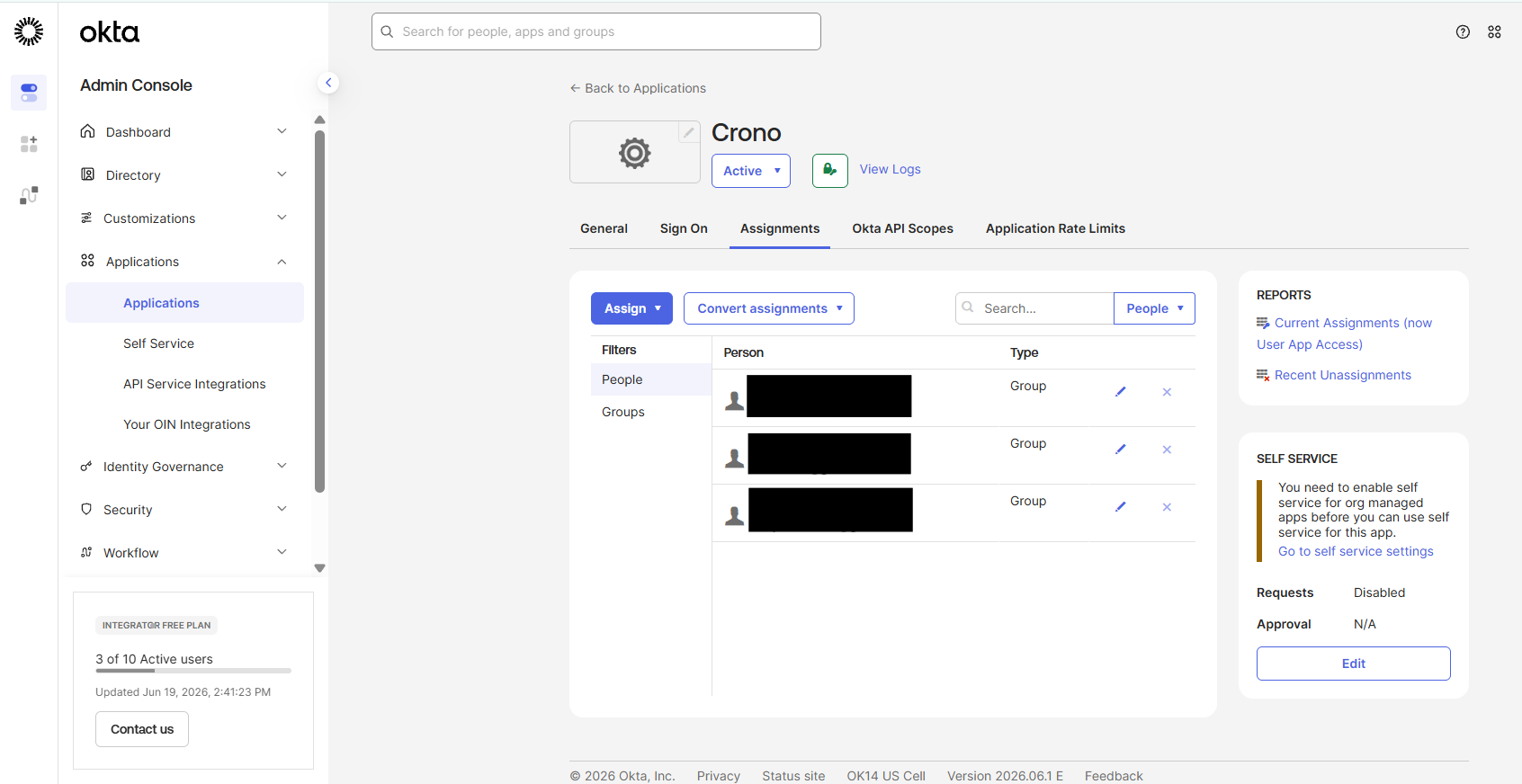
## Step 5: Assign Users or Groups
Creating the application does not automatically grant access.
Users must be assigned to the application.
Navigate to:
```javascript
Applications
→ Applications
→ Crono
→ Assignments
```
Assign:
- Individual users, or
- Groups that should be allowed to access Crono
* * *
## Information to Provide to the Crono Team
Once the configuration is complete, send the following information to the Crono team:
Configuration
Example
Authority
https://your-company.okta.com/oauth2/default
Client ID
0oa123abc456XYZ789
Client Secret
<generated secret>
The Crono team will complete the final activation of SSO for your organization.
* * *
## Troubleshooting
## Error: "The 'redirect\_uri' parameter must be a Login redirect URI"
Verify that the following URI exists in the application's Sign-in Redirect URIs:
```javascript
https://api.crono.one/signin-okta
```
The value must match exactly.
* * *
## Error: "User is not assigned to the application"
Assign the user or the user's group to the Crono application through the Assignments section.
* * *
## Error: Authentication succeeds in Okta but access to Crono is denied
Verify that:
- The user has been assigned to the Crono application in Okta.
- The user has an active Crono account.
- The Authority, Client ID, and Client Secret provided to Crono are correct.
* * *
## Important: User Email Addresses Must Match
Crono does not automatically create users during the SSO login process.
Users who authenticate through Okta must already exist in Crono, and the email address used in Okta must match the email address registered in Crono.
For example:
Before enabling SSO for your users, ensure that all users who need access to Crono:
- Have an active Crono account.
- Use the same email address in both Okta and Crono.
In most organizations, users authenticate to Okta using their corporate email address (for example, `user@your-company.com`). The same email address should also be registered for the user in Crono.