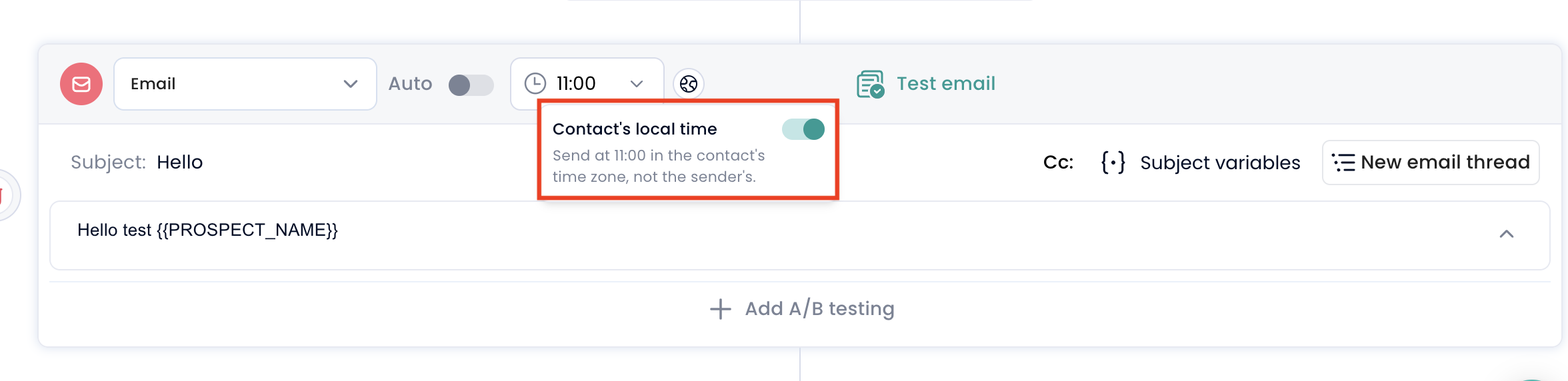
When creating a sequence, you can decide whether a task should be scheduled based on your timezone or on the contact’s local time. By enabling Contact’s local time, Crono will use the timezone saved in the contact card to calculate when the task should be executed.
This means that if you schedule a task for 11:00 AM, Crono will try to send it when it is 11:00 AM for the contact, not when it is 11:00 AM for you.
This is especially useful when working with contacts in different countries, as it helps you reach them at the right time of their day!
When you create or edit a sequence step, select the time you want the task to be executed.
Then, enable the Contact’s local time option.
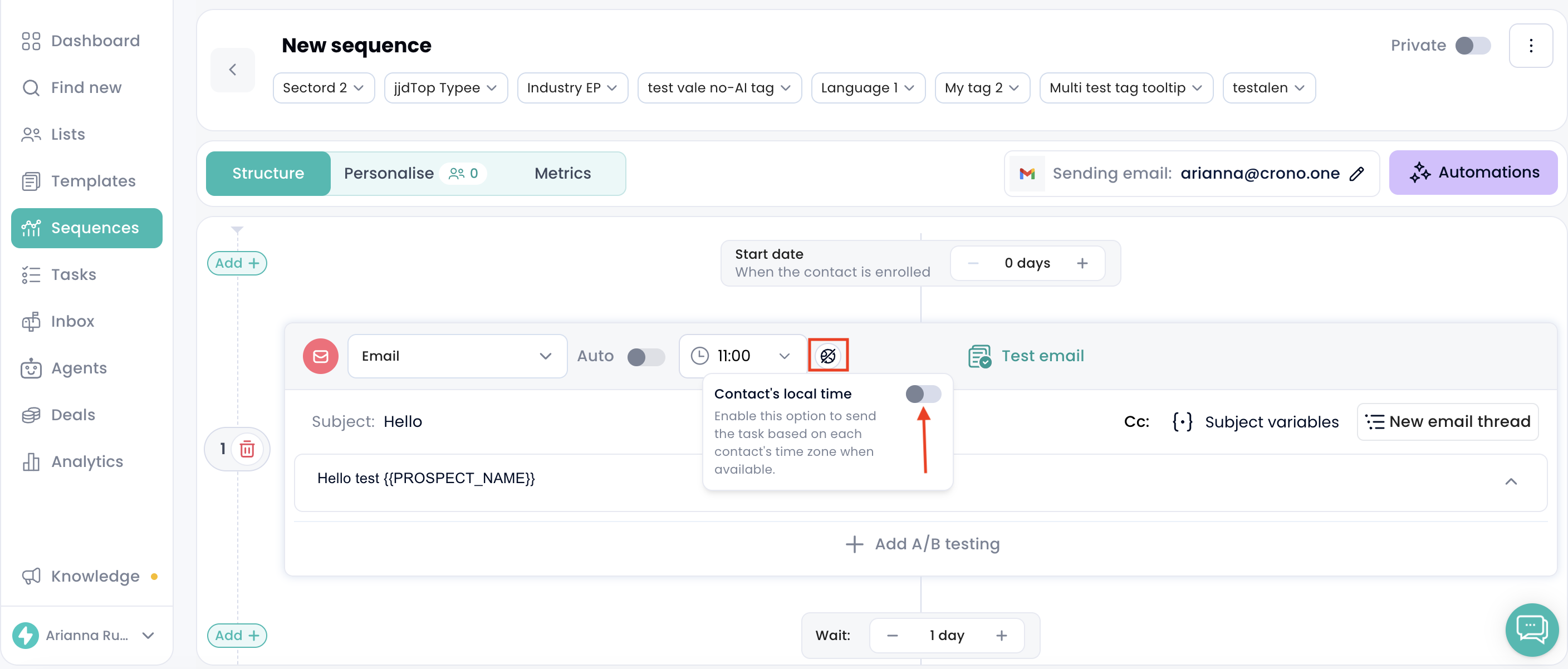
Crono will automatically check the contact’s timezone and adjust the execution time accordingly.
So, even if you selected 11:00 AM in the sequence, the task may appear at a different time when you check the personalized schedule of a specific contact. This happens because Crono is adapting the schedule to that contact’s timezone.
Let’s say:
You are based in Italy.
You schedule an email task for 11:00 AM.
You add a contact based in Buenos Aires to the sequence.
The contact has the Buenos Aires timezone saved in their contact card.
If Contact’s local time is enabled, Crono will schedule the email so that it is sent at 11:00 AM in Buenos Aires.
Since 11:00 AM in Buenos Aires corresponds to 4:00 PM in Italy, you may see the task scheduled at 4:00 PM in Crono when checking that contact’s personalized sequence.
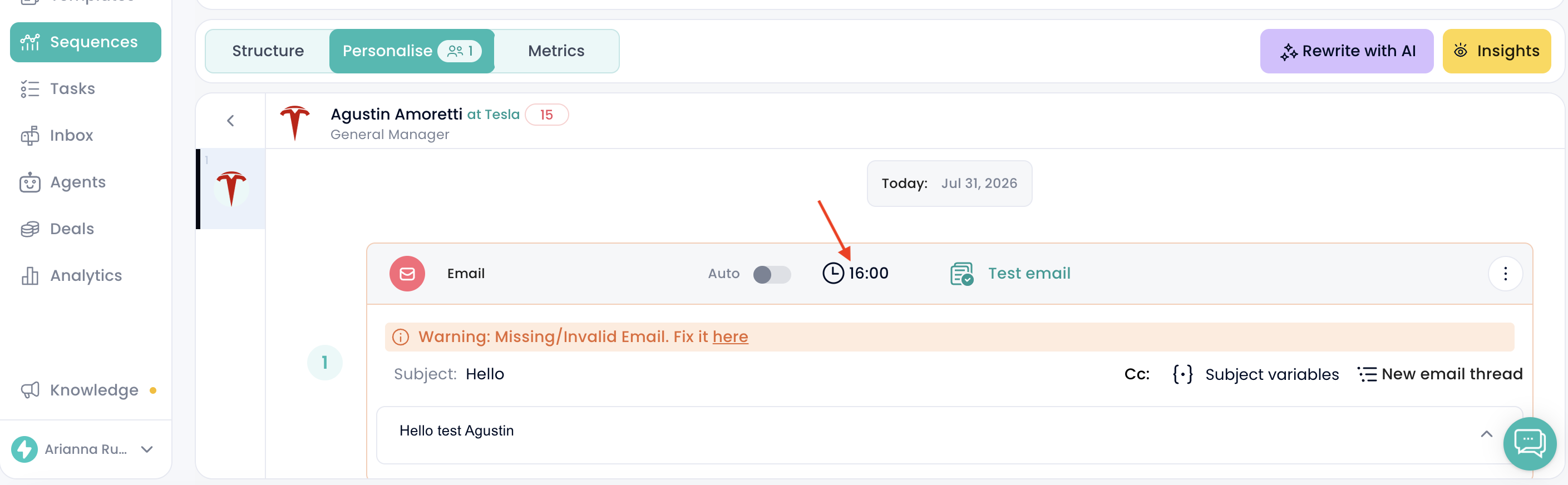
This is expected: from your side, the task appears at 4:00 PM, but the contact will receive it at 11:00 AM in their local time.
For this option to work correctly, the contact must have a timezone selected in their contact card.
You can find the Time zone field in the bottom-right section of the contact card.
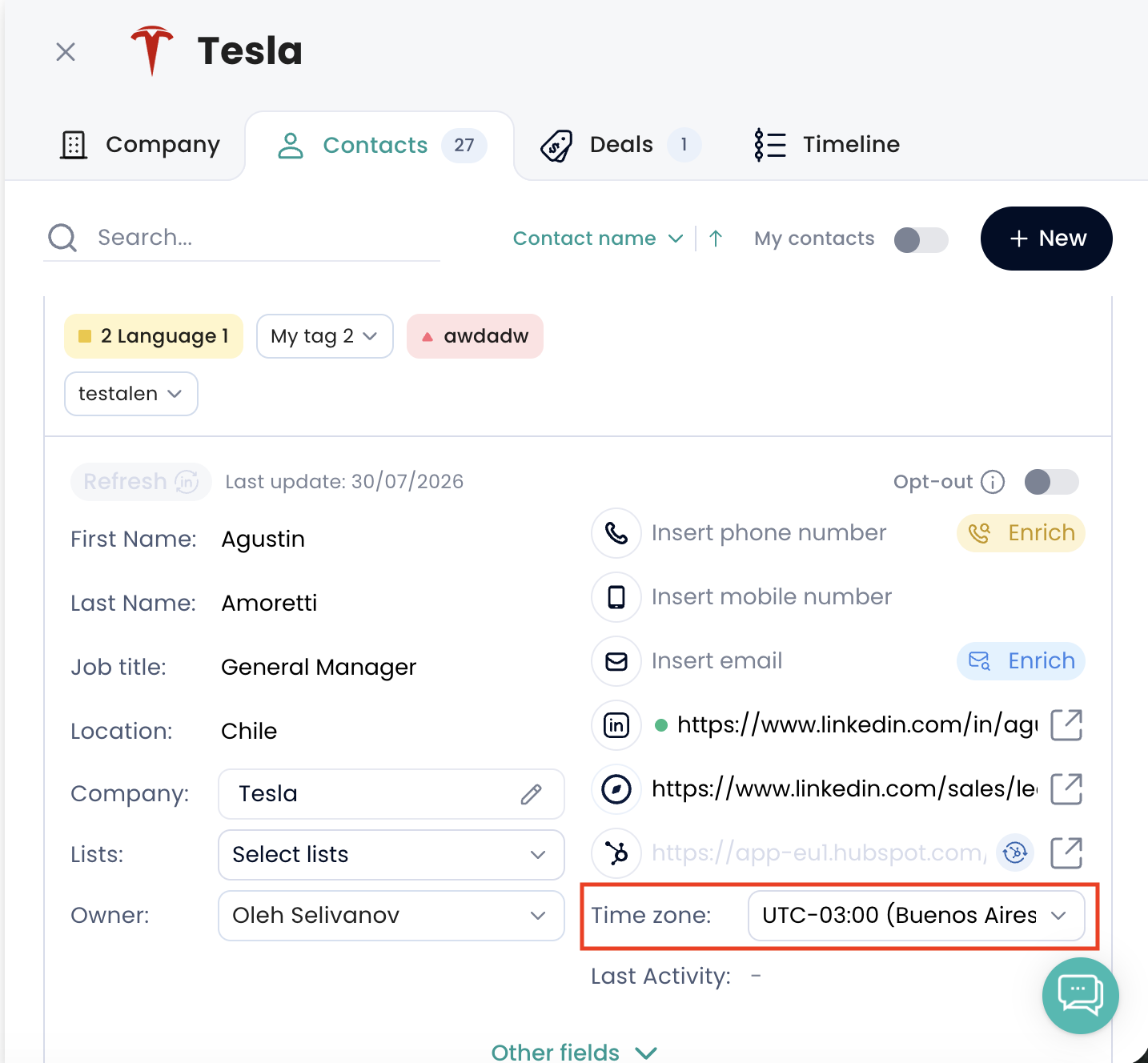
If no timezone is selected, Crono will schedule the task based on your timezone instead.
