Connect Crono to Slack to receive notifications and interact with Crono AI directly from your Slack workspace.
The Slack integration allows you to:
Receive Crono notifications in a Slack channel or private DM
Ask Crono AI questions directly in Slack by mentioning @crono
The Crono app must first be installed in your Slack workspace by a manager or by the person who manages the Crono subscription.
This setup is done once for the whole company.
After the app has been installed, each user can connect their own Slack account. This allows Crono to recognize the user and send them individual notifications when needed.
If the Slack card does not appear under Settings → Connections, the feature may not be enabled on your account. In that case, please contact Crono.
To install the Crono app:
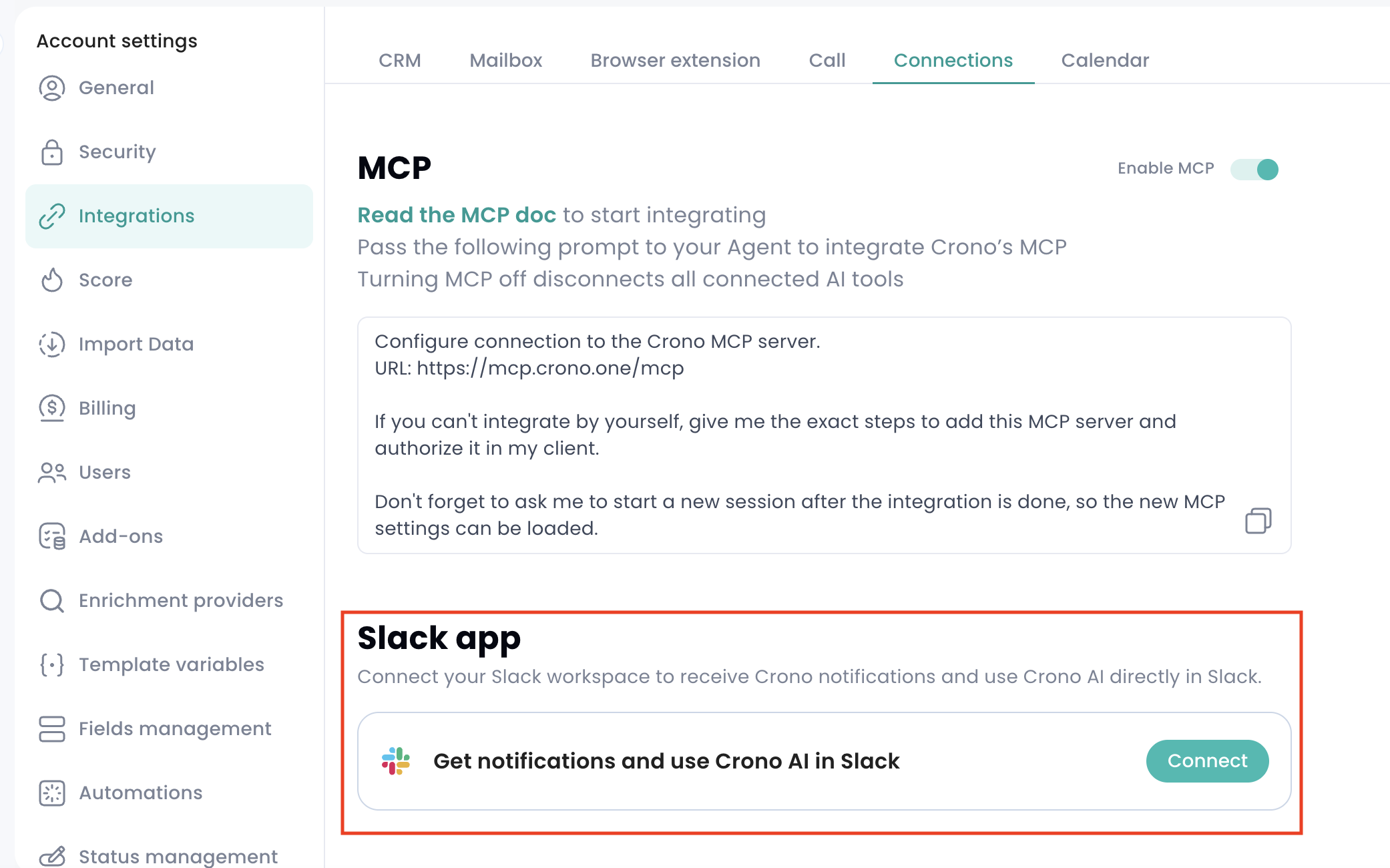
Go to Settings → Integrations → Connections.
Find the Slack app card.
Click Connect.
Select your Slack workspace.
Review the requested permissions.
Click Allow.
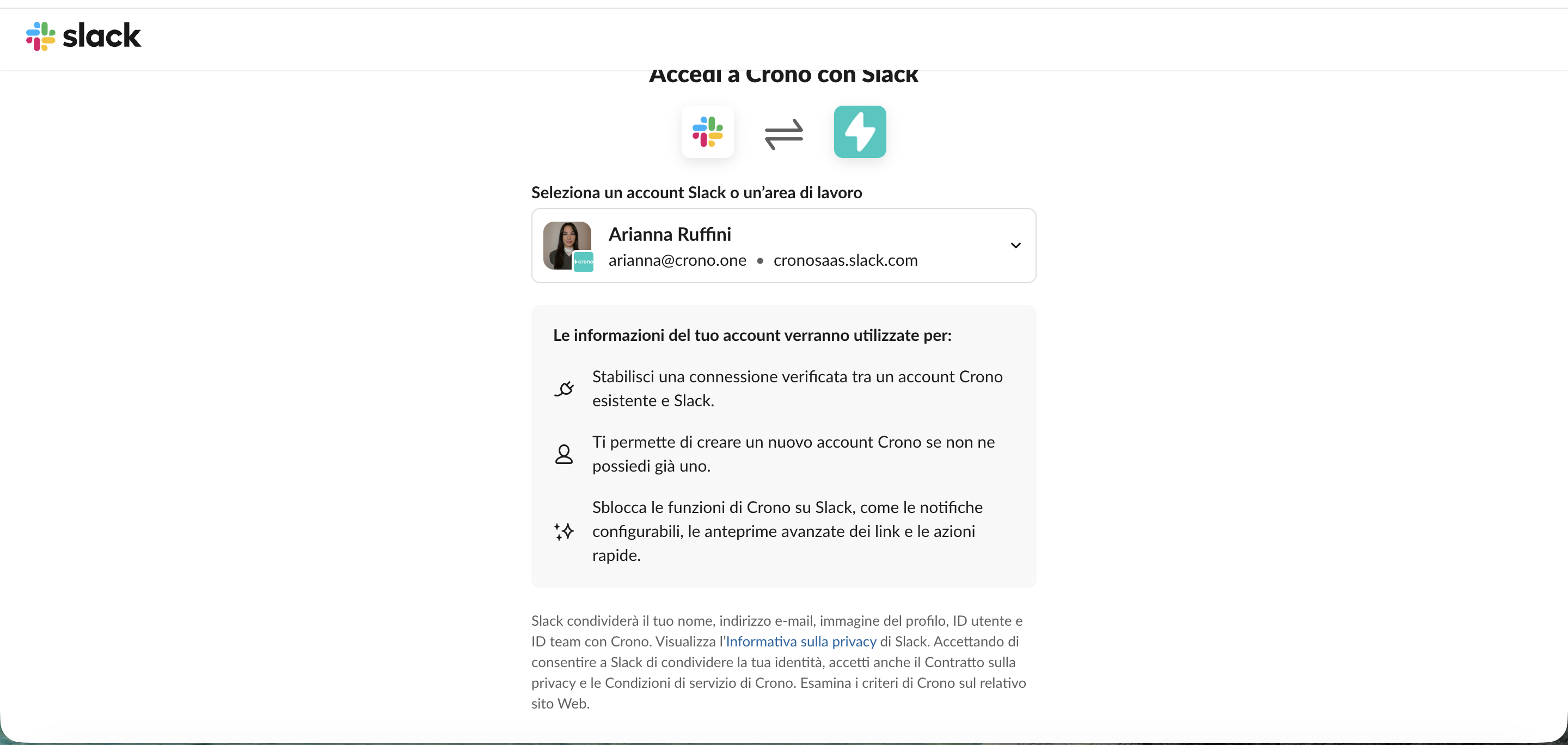
You need permission to install apps in your Slack workspace. If you do not have this permission, ask your Slack admin to complete this step.
Once the Crono app has been installed in the workspace, each user should link their own Slack account.
To do this:
Go to Settings → Integrations → Connections.
Open the Slack app card.
Click Connect.
Sign in with your Slack account.
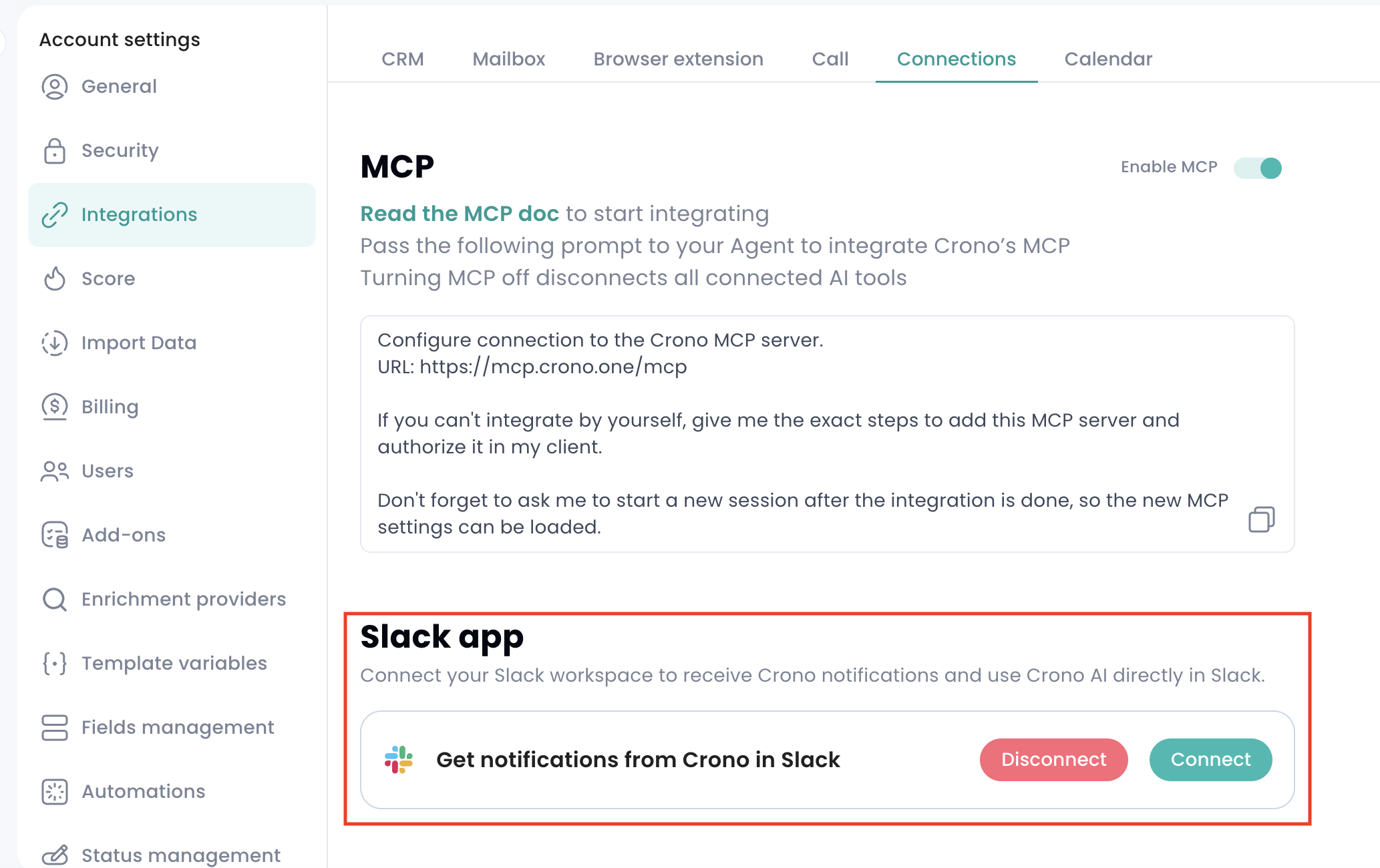
The Slack account must belong to the connected workspace.
Please note that one Slack account can be linked to only one Crono user.
To manage your Slack notifications, click Configure on the Slack card.
This opens the Slack notifications page, where you can choose where notifications should be sent and which events should trigger them.
You can send notifications to:
A Slack channel
A private DM
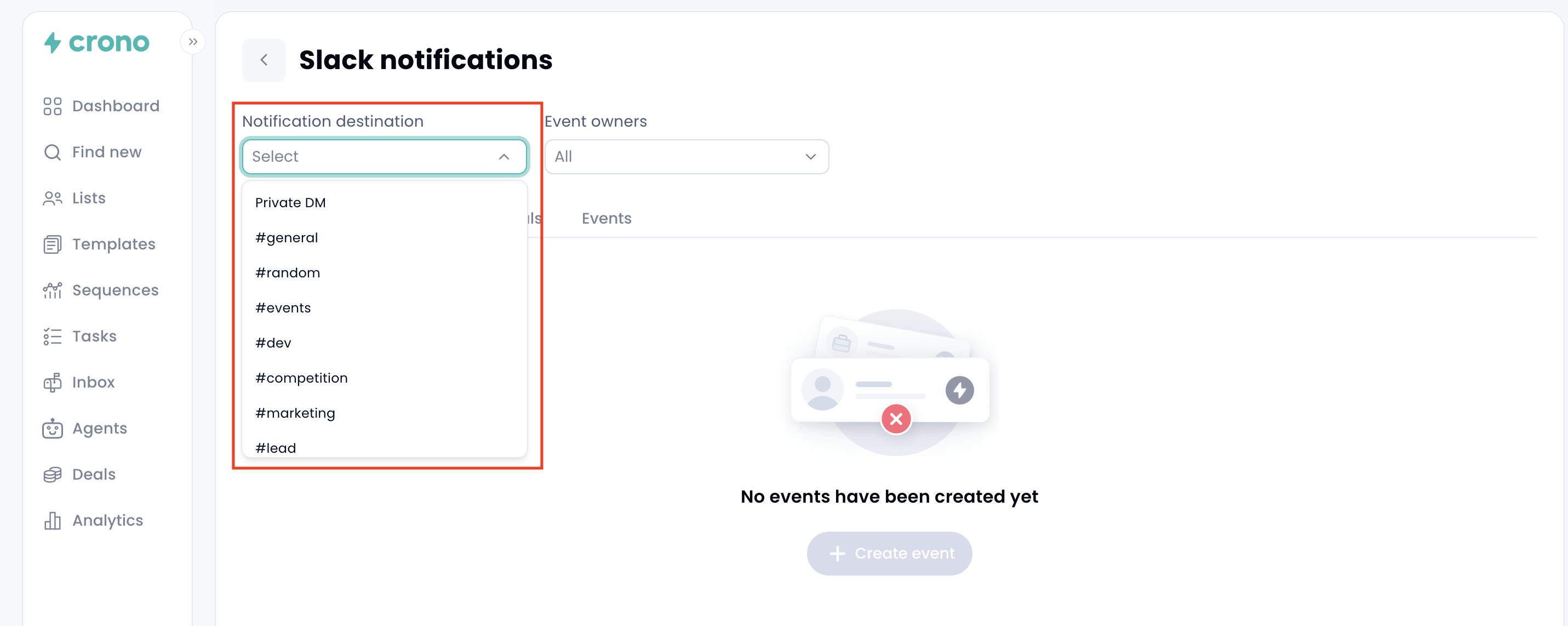
You can only have one destination active at a time.
If you switch from a channel to private DM, Crono will stop sending notifications to the channel. If you select a channel again, Crono will stop sending private DMs.
You can choose a Slack channel as your notification destination.
Crono can join public channels automatically.
For private channels, you must invite the Crono app to the channel first. Otherwise, the channel will not appear in the list.
The first time a channel is selected, the bot posts a short introduction message in that channel.
Please note that a Slack channel can only be used by one person in the company for Crono notifications. If a colleague is already using a channel, it will appear as Used by [name].
Private DM notifications are available once your Slack account has been linked to Crono.
When using private DMs, Crono groups events together when possible. This means that if several events happen close together, you may receive one grouped message instead of multiple separate notifications.
You can decide whose records should generate Slack notifications.
By default, the setting is set to All.
This means you receive notifications for events related to all selected records, depending on your notification setup.
In the Slack notifications page, you can configure notifications by tab:
Leads
Contacts
Companies
Deals
Events
Click Create event to add a new notification rule.
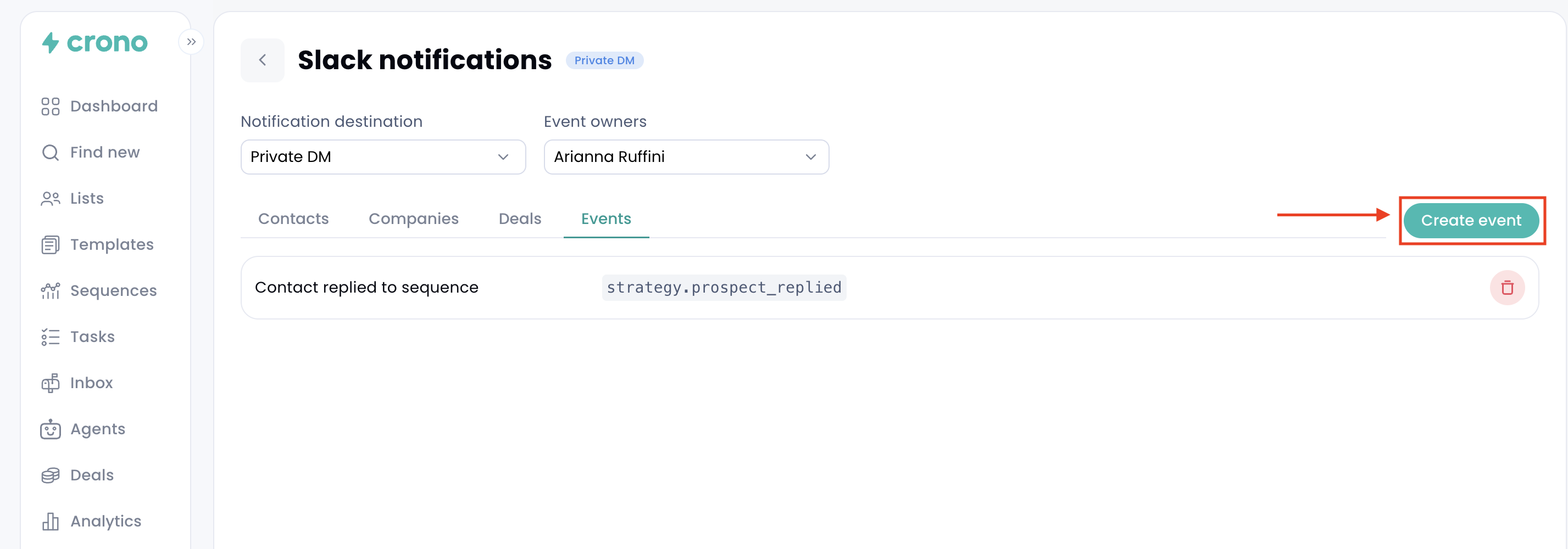
For Leads, Contacts, Companies, and Deals, you can receive notifications when a record is:
Created
Updated
Deleted
When notifications are sent to a channel, you can narrow updated events to specific fields and values.
When notifications are sent as private DMs, this field-level filtering is not available.
For Events, you can create notifications for activities and signals such as:
Sequence completed
Contact replied to a sequence
Contact enrolled in a sequence
Role change
Company change
Website visit
Interested open
Interested click
Hiring signal
Email opened
Email clicked
Email replied
LinkedIn replied
LinkedIn invitation accepted
LinkedIn InMail replied
LinkedIn voice note replied
Changes are saved automatically.
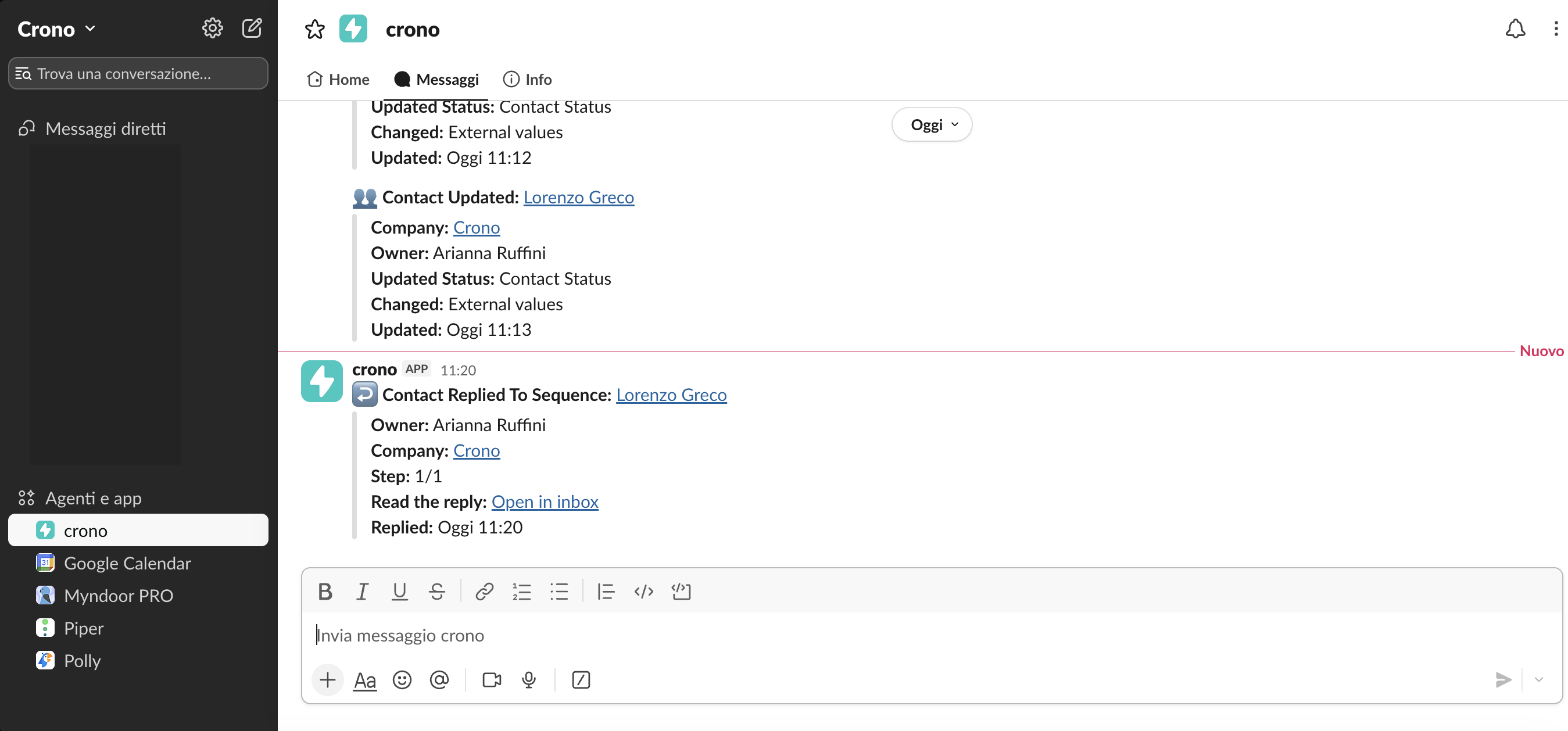
You can also interact with Crono AI directly from Slack.
To ask a question, mention @crono in any channel where the Crono app is present.
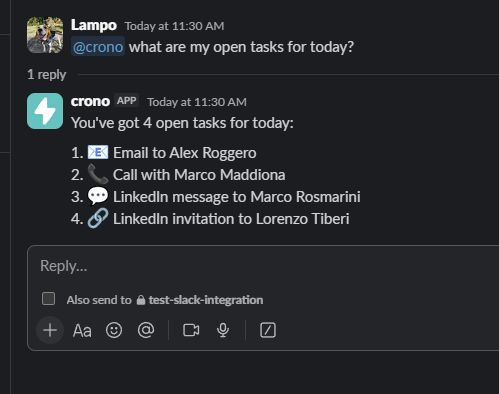
You can also message the Crono app directly. In a direct message, you do not need to mention @crono.
When Crono AI starts working, it reacts with an eyes emoji and then replies in the thread. To continue the same conversation, keep replying in that thread. If you send a new message outside the thread, Crono will start a new conversation.
Crono AI in Slack is the same assistant available inside Crono, and it uses your AI credits.
You can disconnect your own Slack account from the Slack card.
If you disconnect your own account, Crono will stop sending you private Slack messages.
If a manager disconnects the Slack workspace connection, the integration is removed for the whole company. In that case:
Slack notifications stop for everyone
@crono stops answering in Slack
Link your Slack account from Settings → Connections, then message the bot again.
Crono AI needs available AI credits to answer. Check your AI credit usage in Crono.
This may happen if:
The Crono app has not been added to that channel
The channel is private and the app has not been invited
The channel is archived
For private channels, invite the Crono app to the channel first, then try again.
That channel is already being used by another person in your company for Crono notifications.
Select a different channel or use private DM notifications.
If the assistant takes more than around two minutes, it will show a message in the thread.
You can send the message again to retry.
The Crono app may have been removed from the Slack workspace.
A manager can reconnect it from Settings → Connections using the same Slack card.
