Filters in Crono allow you to narrow down your lists and quickly find the records you need.
You can use filters on Contacts, Companies, and Deals. The same filter drawer is available across these sections, so you can build your view in a consistent way.
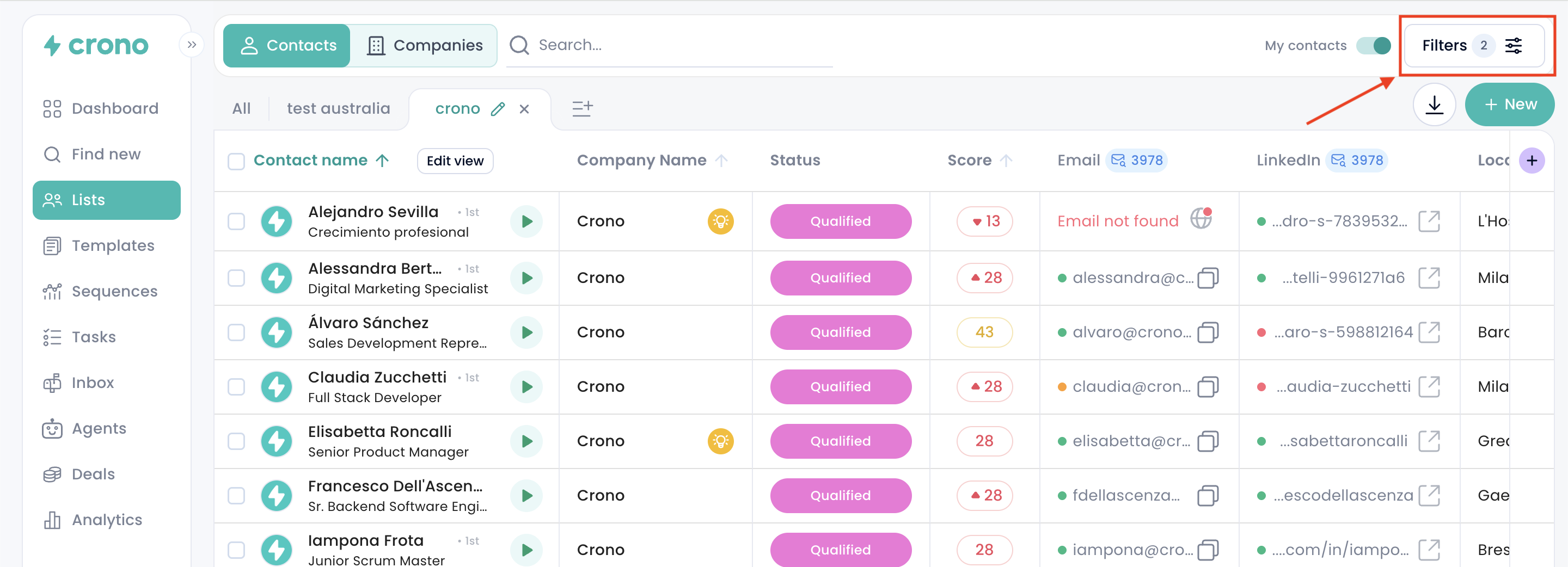
To open the filters, click the Filters button in the top-right corner of the list.
The number shown on the button tells you how many filters are currently active.
The filter drawer will open from the right side of the page.
If this is your first time using filters, the drawer may be empty. Click Add filters to start building your filter view.
Click Add filters to open the list of available filters.
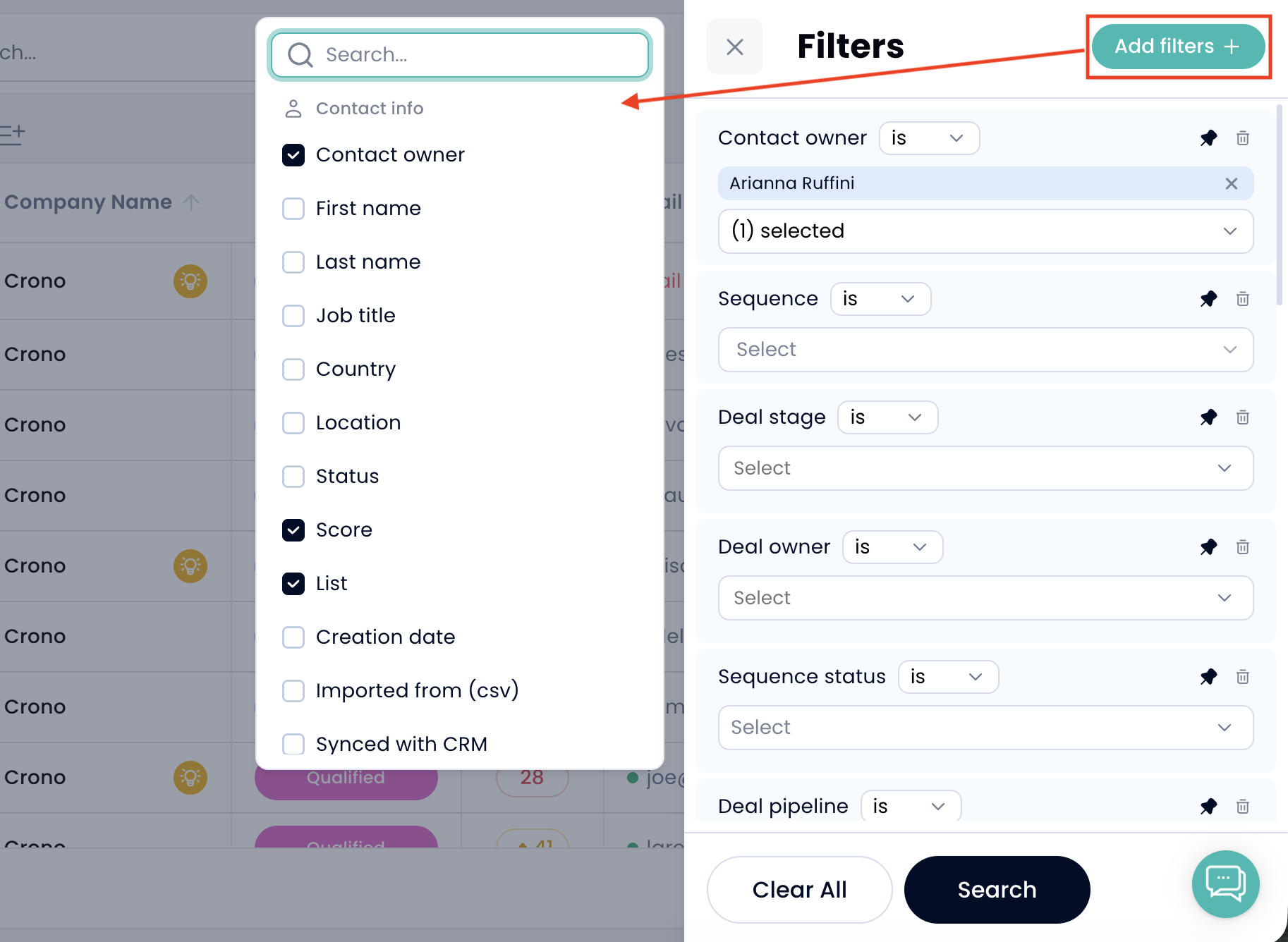
Filters are grouped by category, such as:
Contact info
Tags
AI fields
Company info
Data quality
Engagement
Deals
Use the search bar to quickly find the filter you need. Select a filter to add it to the drawer. You can also unselect it to remove it. You will find the selected filters in the filters menu to the right.
Some filters may only appear if the related feature is active on your account. For example:
Sequence filters require Sequences.
Creation origin and Synced with CRM require a connected CRM.
Score requires contact scoring (available for Ultra plans only).
Each filter row includes:
The field you want to filter by
A condition
A value
The condition defines how Crono should read the value you enter.
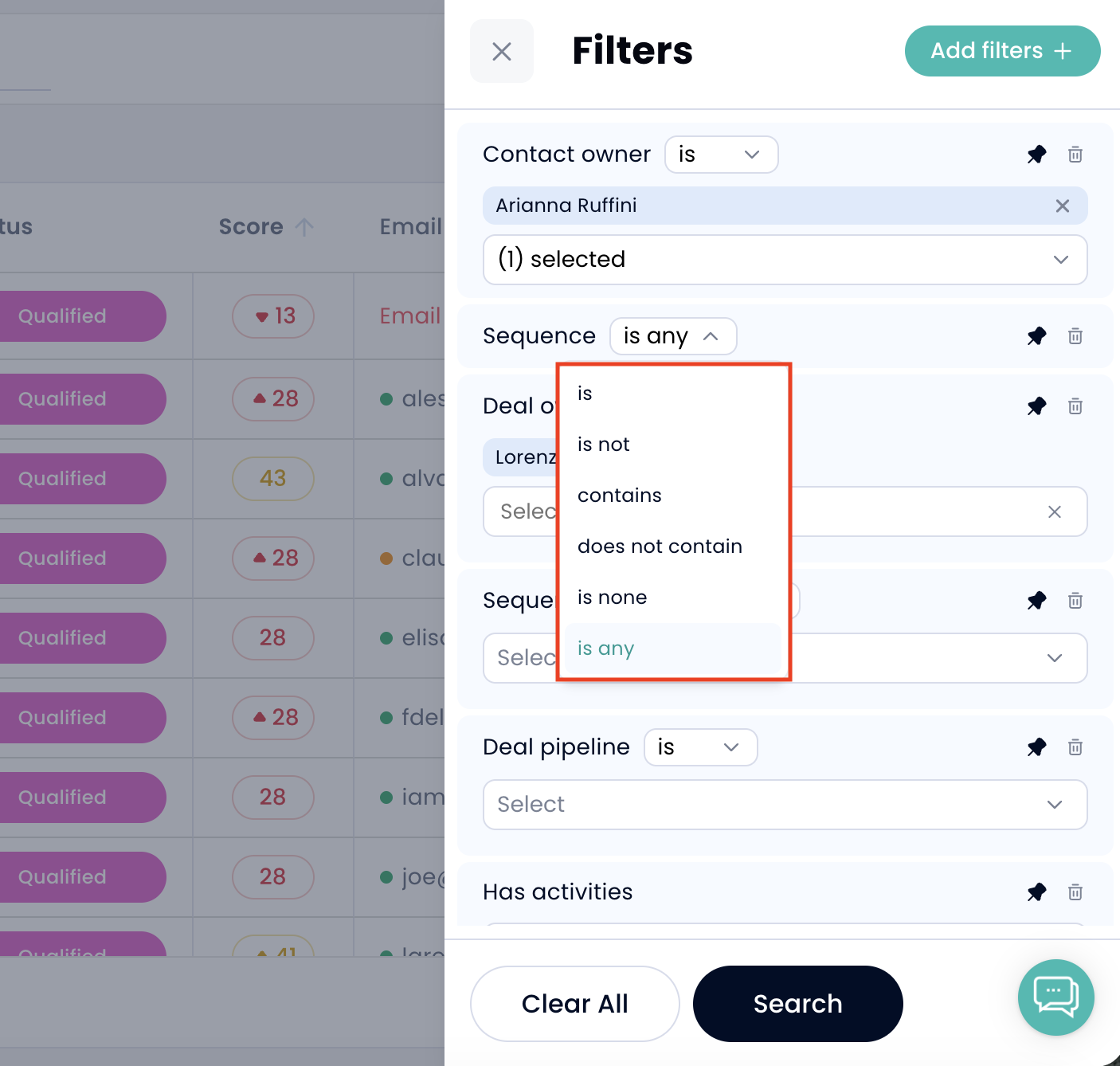
Available conditions may include:
is / is not: exact match. You can select or enter multiple values, and the record will match if it has any of them.
contains / does not contain: partial text match. This is useful when you want to search by part of a name or value.
is none / is any: checks whether the field is empty (none) or filled (any). No value is required.
less than / greater than / between: used for number fields.
before / after / between: used for date fields. Before and after exclude the selected day, while between includes both start and end dates.
True / False: used for yes/no filters, such as Has replies, Opt-out, or Has existing deals.
For text filters, type the value and press Enter to turn it into a chip. You can add multiple values if needed.
After setting your filters, click Search to apply them. Changes are not applied automatically while you edit the drawer.
If you click Clear All, Crono clears the values from the filters but keeps the rows in the drawer. To see the updated list, click Search again.
If you close the drawer with unsaved changes, Crono will ask you before discarding them.
You can pin the filters you use most often. Click the pin icon on a filter row to keep it in the drawer permanently, even when it is empty. Pinned filters appear at the top of the drawer with a grey background.
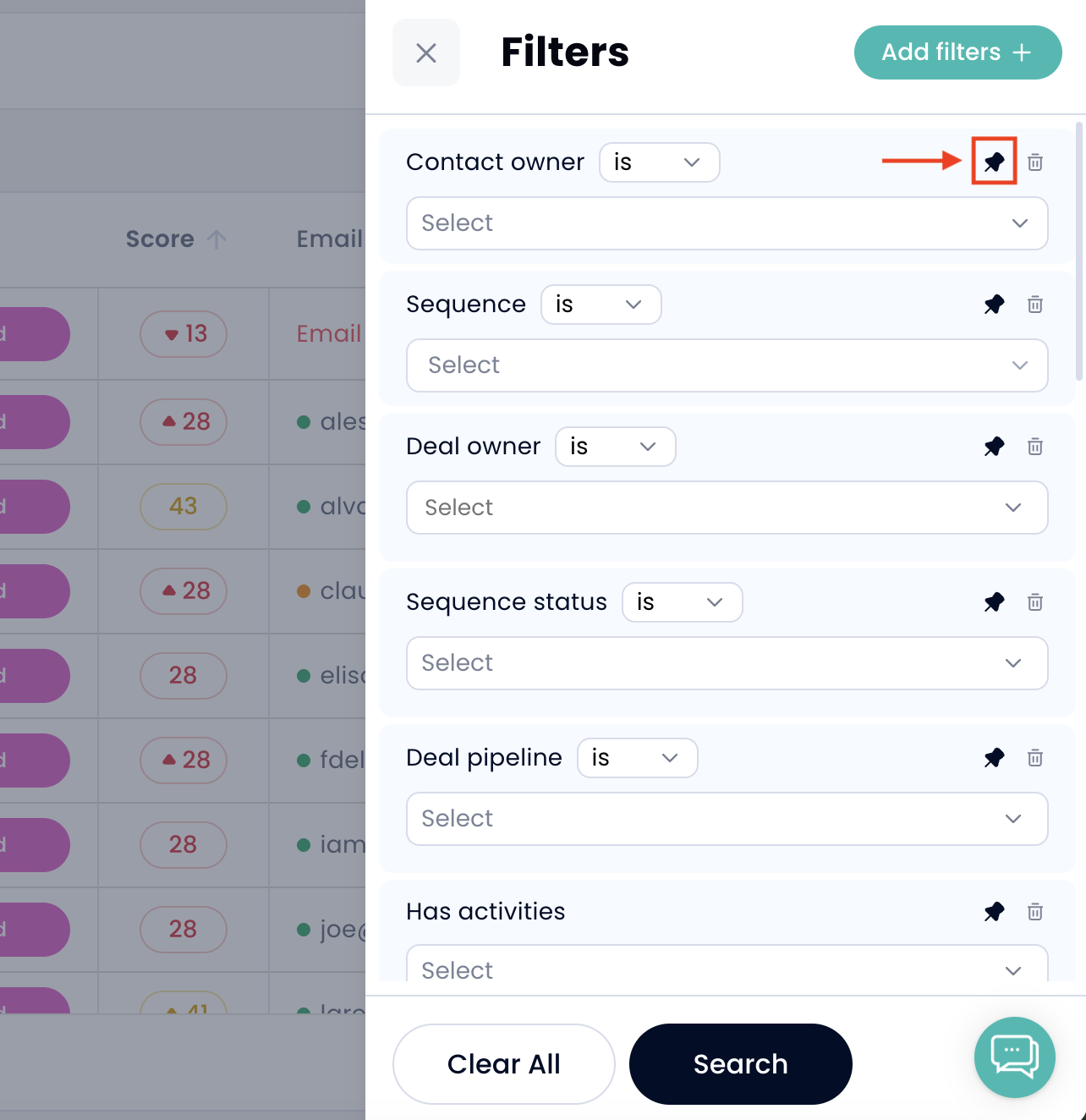
Pinning is saved immediately, so you do not need to click Search for the pinned setup to be saved.
If a filter is not pinned and is left empty, it will disappear the next time you open the drawer.
This is useful if you want to create your own default filter setup: pin the filters you use every day and add occasional filters only when needed.
Active filters appear as chips under the list header. These chips show which filters are currently applied.
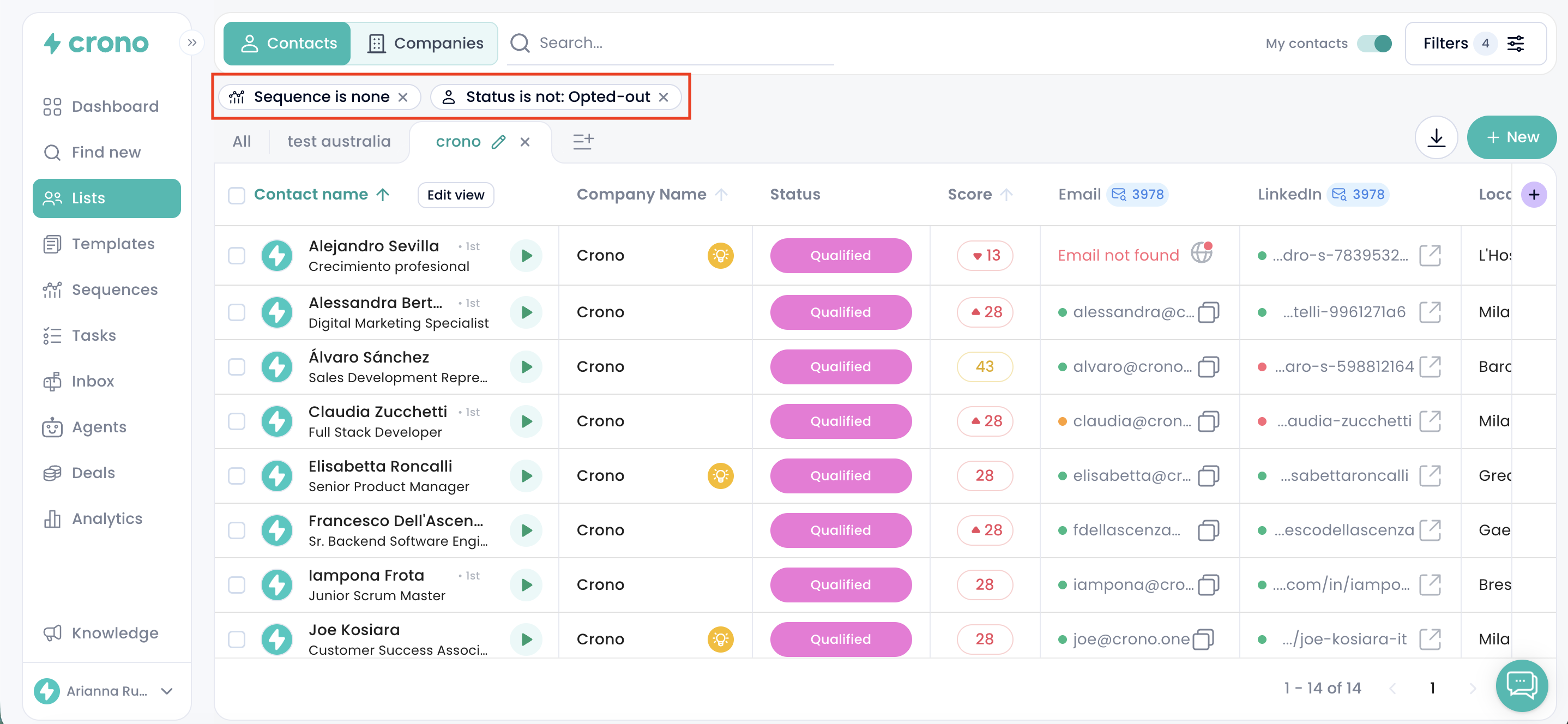
If a filter includes several values, the chip shows the filter name and the number of selected values. You can click the chip to see the full list. If there are more chips than can fit in the row, Crono shows +N to indicate that more filters are active.
Click the x on a chip to clear that filter immediately. If the filter was pinned, its row will remain in the drawer but will be empty.
Crono remembers your filters for each tab. This means that filters applied to Contacts, Leads, Companies, and Deals are saved separately.
For example, changing filters in Contacts will not affect the filters you saved in Companies or Deals. Your filters will still be there when you come back later.
When you open a specific list, the List filter is automatically set to that list and locked.
You can see it, but you cannot edit or remove it while you are inside that list.
This filter is not saved as part of your general filter setup. It only applies while you are viewing that specific list.
The My contacts or My companies switch works as an owner filter.
When you turn it on, Crono filters the list to show only the records assigned to you.
While the switch is active, the owner chip is hidden because the switch already shows that the list is filtered by your ownership.
If you select a different owner from the filter drawer, the switch will automatically turn off.
Filters work together. This means that a record must match all the filter rows you have applied.
However, if you add multiple values inside the same filter row, the record only needs to match one of those values.
For example, if you filter by country and select Italy, Spain, and France, Crono will show records that match any of those countries.
Please note that is not and does not contain also include records where the field is empty.
If you want to find records that have a value, but not a specific one, add the same filter twice:
One with is any
One with is not
Changing the condition on a filter row may clear the value. This happens when the input type changes, for example from a picker to a text field or from a single date to a date range.
Click Search. Filter changes are not applied until you search.
Check the active filter chips under the list header.
You can remove filters one by one using the x on each chip, or click Clear All and then Search.
Use the search bar inside Add filters.
If the filter still does not appear, the related feature may not be active on your account, such as Sequences, CRM, or scoring.
The filter was probably empty and not pinned.
Pin the filter if you want it to stay in the drawer.
Only active filters are counted.
Filters that are added to the drawer but left empty do not count.
