Once Hyperbound is connected, Crono automatically sends the recordings of calls logged through Aircall, Ringover, or Twilio to Hyperbound.
Each recording is sent with a clear title, following this format: Call - contact - company
Crono also sends the rep and the contact as the two speakers, so Hyperbound can analyze the conversation and provide scoring or coaching insights.
Before connecting Hyperbound, please note that:
Only a Manager can connect, enable, pause, or disconnect Hyperbound.
The Hyperbound connection applies to the whole workspace.
Each rep must have their own Aircall, Ringover, or Twilio account connected in Settings → Integrations → Call.
You need your Hyperbound API key and Organization ID.
To connect Hyperbound:
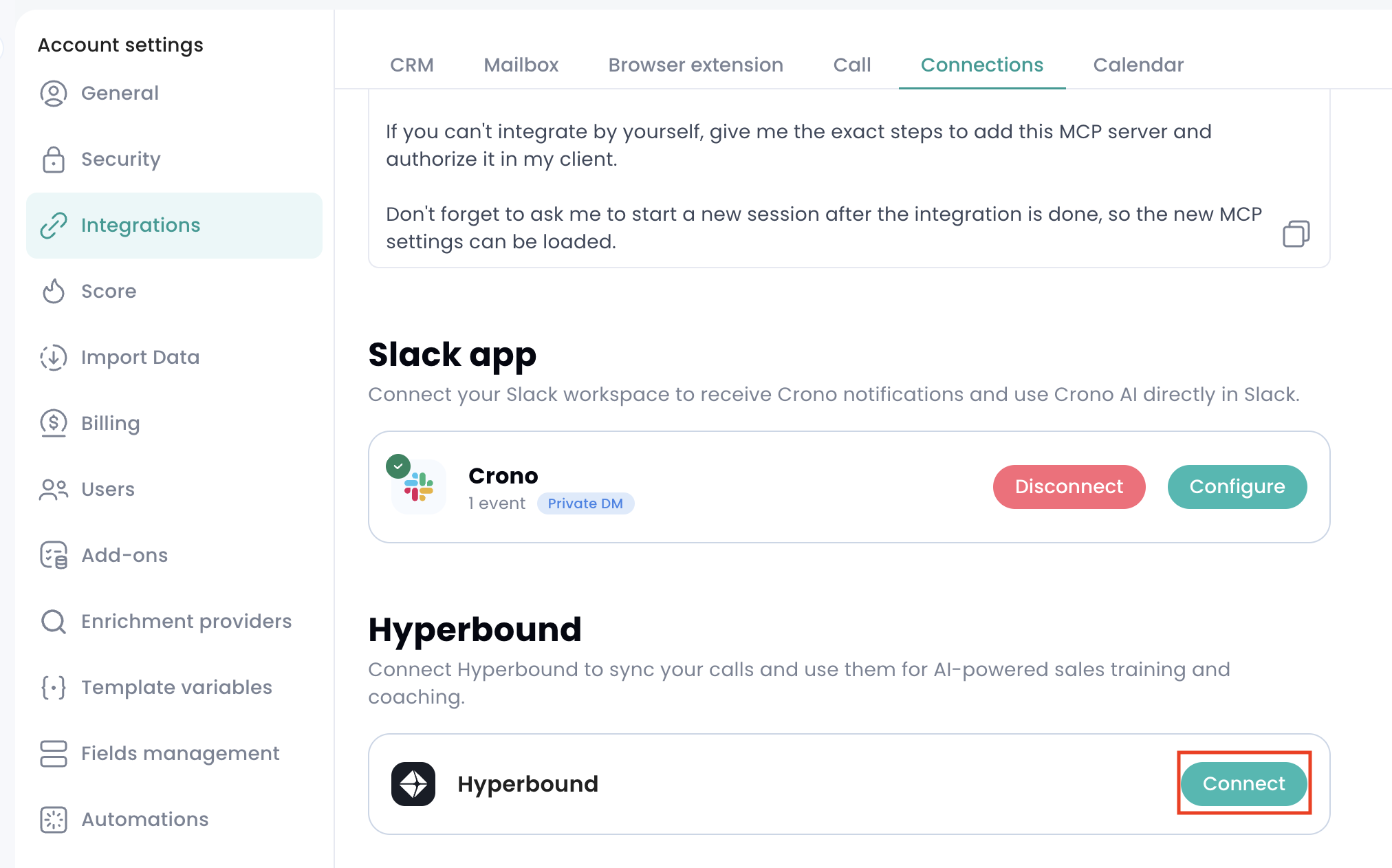
Go to Settings → Integrations → Connections.
Scroll to the Hyperbound card.
Click Connect.
Paste your Hyperbound API key and Organization ID.
Tick the checkbox to confirm that Crono can share call recordings with Hyperbound.
Click Connect.
Crono will check the details with Hyperbound before saving the connection.
If the connection is successful, the card will show as Connected and display the Organization ID and the last characters of the API key.
Crono sends calls to Hyperbound only when they meet the required conditions.
Calls are sent if they are:
Logged after Hyperbound has been connected
Made through Aircall, Ringover, or Twilio
Linked to an available call recording
Older calls are not sent retroactively.
Calls logged manually, or calls made through other phone providers, are not sent to Hyperbound.
Each call is sent only once. If the same call is logged again, Crono will not create a duplicate in Hyperbound.
Important: If the phone provider has not finished processing the recording when the call is logged, the call is skipped and Crono will not try to send it again.
If you want to stop sending new recordings without removing the connection details, you can pause the integration.
To do this, click Disconnect on the Hyperbound card.
This turns off recording sharing immediately, but keeps your saved API key and Organization ID.
The card will then show Enable, which you can use to turn the integration back on.
To remove the Hyperbound connection completely:
Pause the integration by clicking Disconnect on the Hyperbound card.
Click Disconnect again.
Confirm your choice.
Crono will remove the saved Hyperbound connection details.
Recordings that were already sent to Hyperbound will remain available in Hyperbound.
Only Managers can manage the Hyperbound connection.
Other users may see whether Hyperbound is Connected or Disabled, but they cannot change the integration settings.
Hyperbound may have rejected the API key or Organization ID.
Copy both values again from Hyperbound and try connecting once more.
The Hyperbound card is only shown to Managers until the integration has been connected.
If you are not a Manager, ask a Manager in your workspace to complete the setup.
Click Try again.
If the issue continues, check that the API key and Organization ID are correct.
Check that:
The call was made through Aircall, Ringover, or Twilio.
The call has an available recording.
The call was logged after Hyperbound was connected.
The recording had already been processed by the phone provider when the call was logged.
