When using the Find new, Sales Navigator users can now control results at the filter level inside the Find New section using the new Include ✅ and Exclude ❌ options.
When building a search, you can choose to include or exclude a specific keyword for any filter. For example, if you do not want a certain industry to appear in your results, simply exclude that industry from the search and it will be removed from the results.
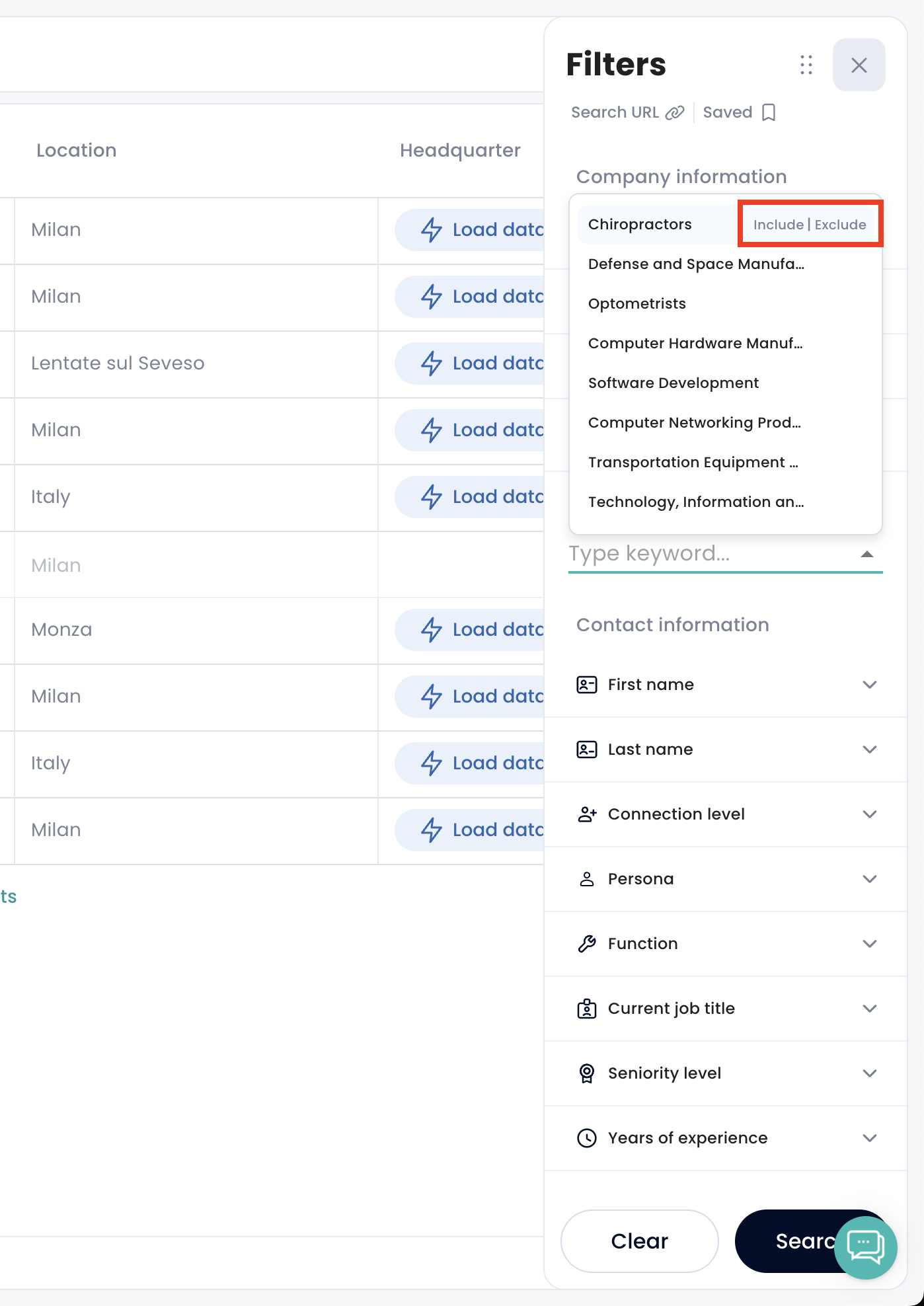
The new Include and Exclude options are now available to everyone with Sales Navigator inside the Find New page.
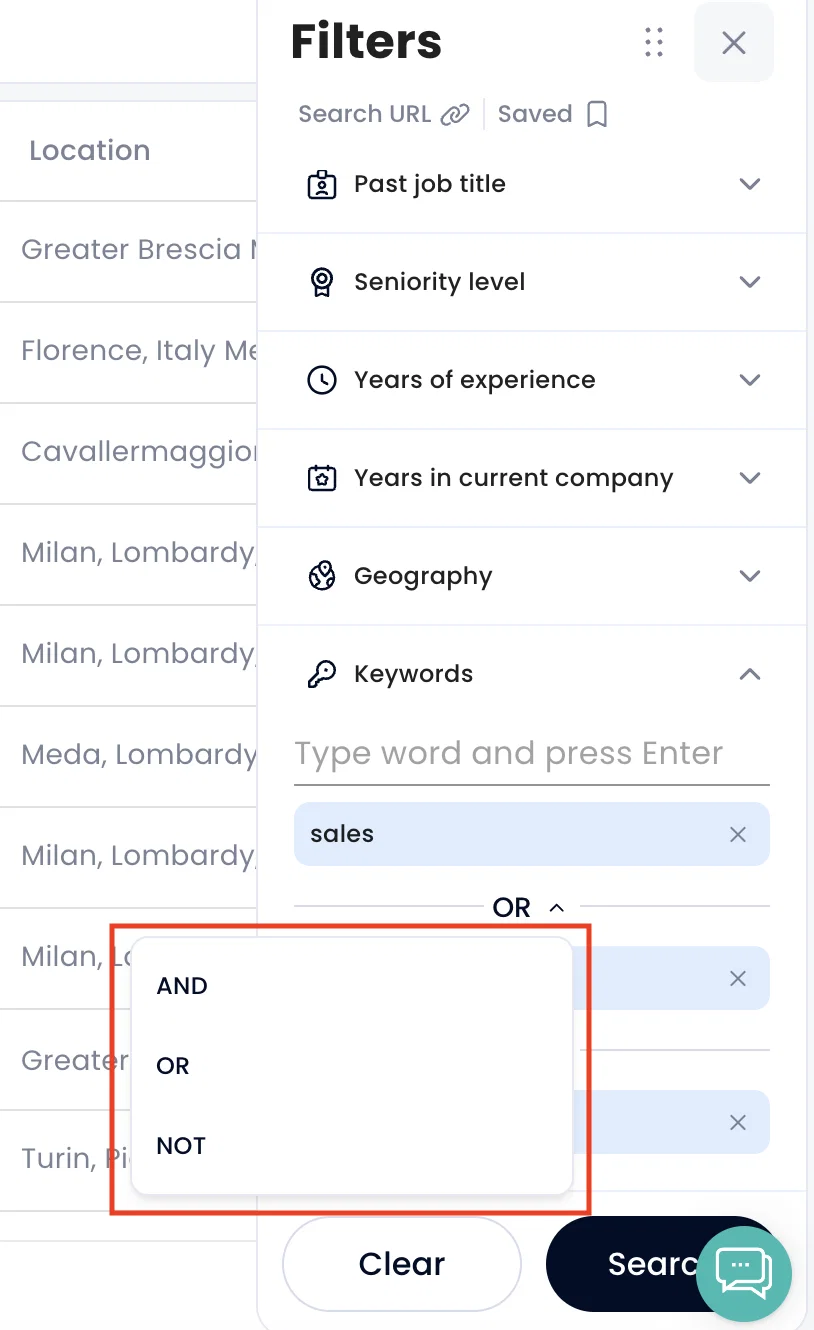
In the filters section, when searching by keywords, you can now choose how your keywords are combined using AND, OR, and NOT logic:
AND: returns results that include all the selected keywords (e.g. “CEO AND SaaS” → only profiles containing both terms)
OR: returns results that include at least one of the selected keywords (e.g. “CEO OR Founder” → profiles containing either term)
NOT: excludes results that contain the selected keyword (e.g. “CEO NOT Intern” → excludes profiles containing “Intern”)
This gives you more precise control over your search results, making it easier to refine searches and target more relevant prospects.