
Problem
If you have integrated Aircall with Crono and, when trying to make a call, you see the Aircall login popup, you may experience the following behavior:
you click the popup to sign in;
you are redirected to the Aircall login page;
you sign in successfully;
you return to Crono;
the Aircall login popup still appears.
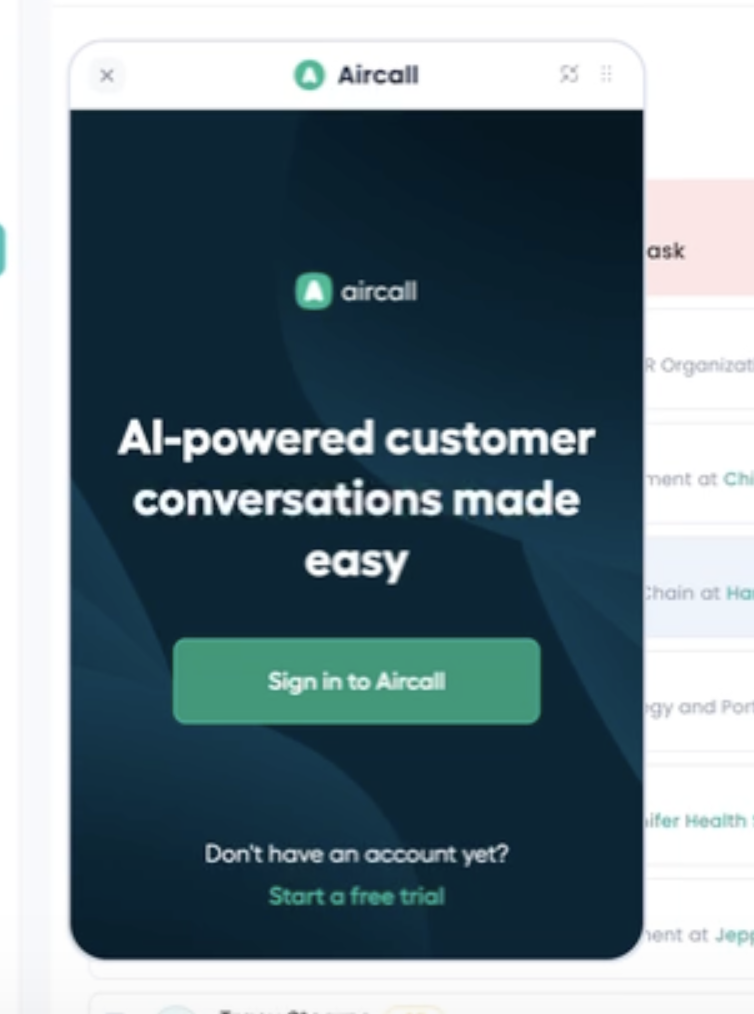
In this case, the issue may be caused by third-party cookies being blocked in your browser. Please note that third-party cookies may be disabled by default in Chrome, depending on your browser version and privacy settings.
Solution
To use Aircall correctly inside Crono, make sure third-party cookies are enabled in Google Chrome.
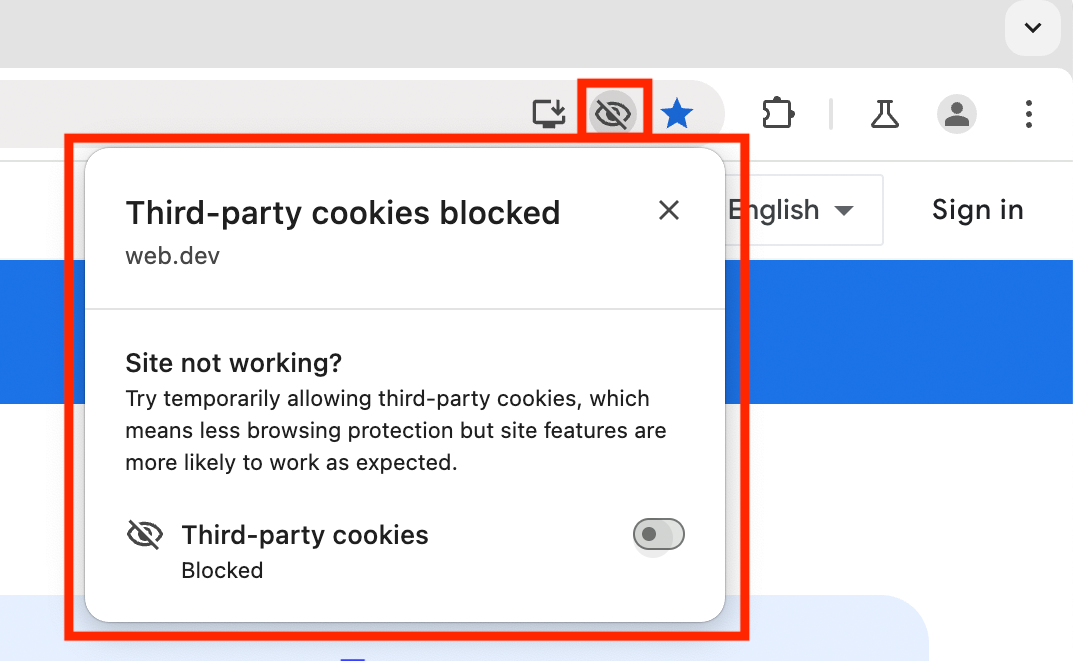
If you see the “Third-party cookies blocked” warning
If Chrome shows a “Third-party cookies blocked” warning in the address bar, you can enable third-party cookies directly from that popup by turning on the toggle displayed there.
After enabling them, refresh Crono and try making the call again.
Other issues
If you’re experiencing other issues, please verify that:
You are assigned to an active line in Aircall
The phone number is in international format (e.g.
+393401234567)Be sure your number has a prefix, otherwise set up a default one
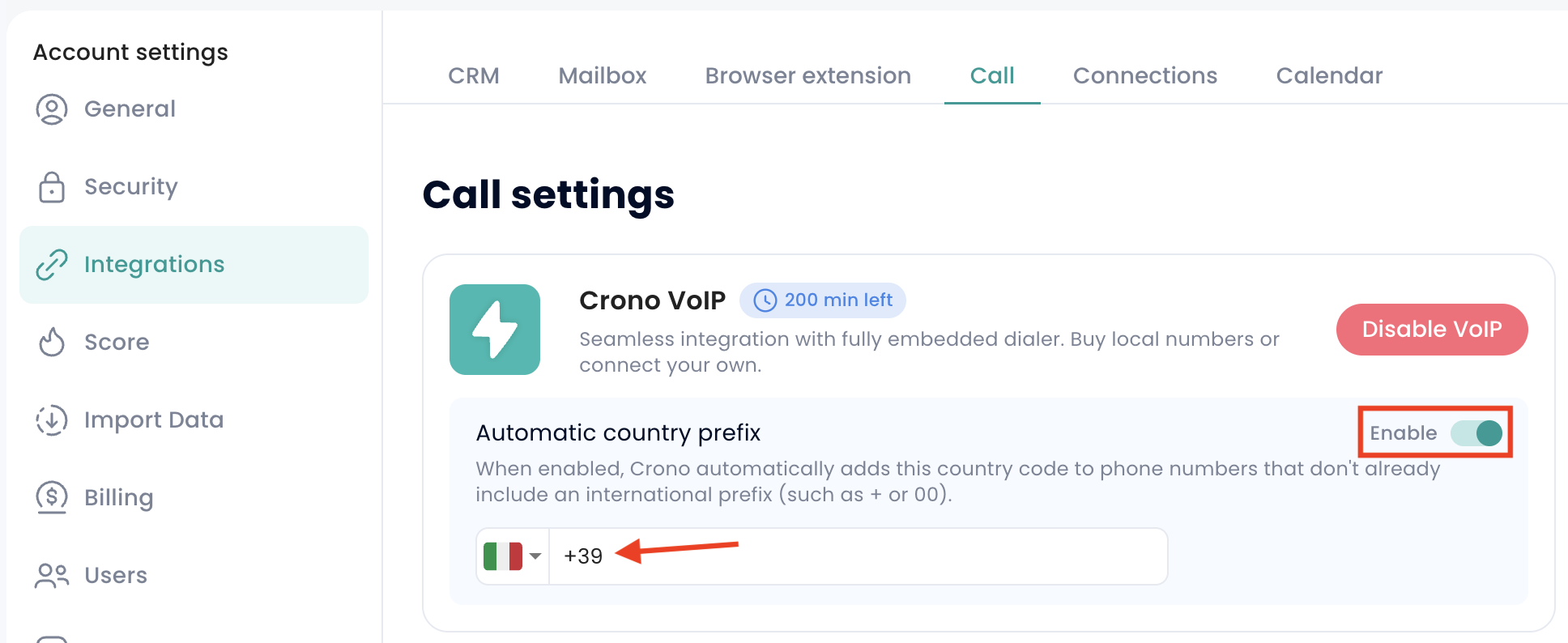
you can also configure a default prefix by going to Settings → Integrations → Calls and enabling Automatic country prefix. When enabled, Crono automatically adds the selected country code to phone numbers that do not already include an international prefix.
Still not working?
If you have completed all the steps above and the issue is still not resolved, please contact our support team.
We’ll be happy to help you complete the configuration and investigate any issues with the integration.