Logging calls correctly in Crono helps you keep your sequences organized, track conversations, and ensure the next steps with a contact are clear. When a call step is part of a sequence, the activity will appear in your Tasks section so you can complete and log the outcome.
Below is how to log a call properly.
When you add a Call step inside a sequence or you create an individual call task, it will appear in the Tasks section.
Go to the Tasks section
Find the call task you need to complete
Click on the task to open it
After making the call, fill in the Call Feedback fields
You will see several options that describe the outcome of the call.
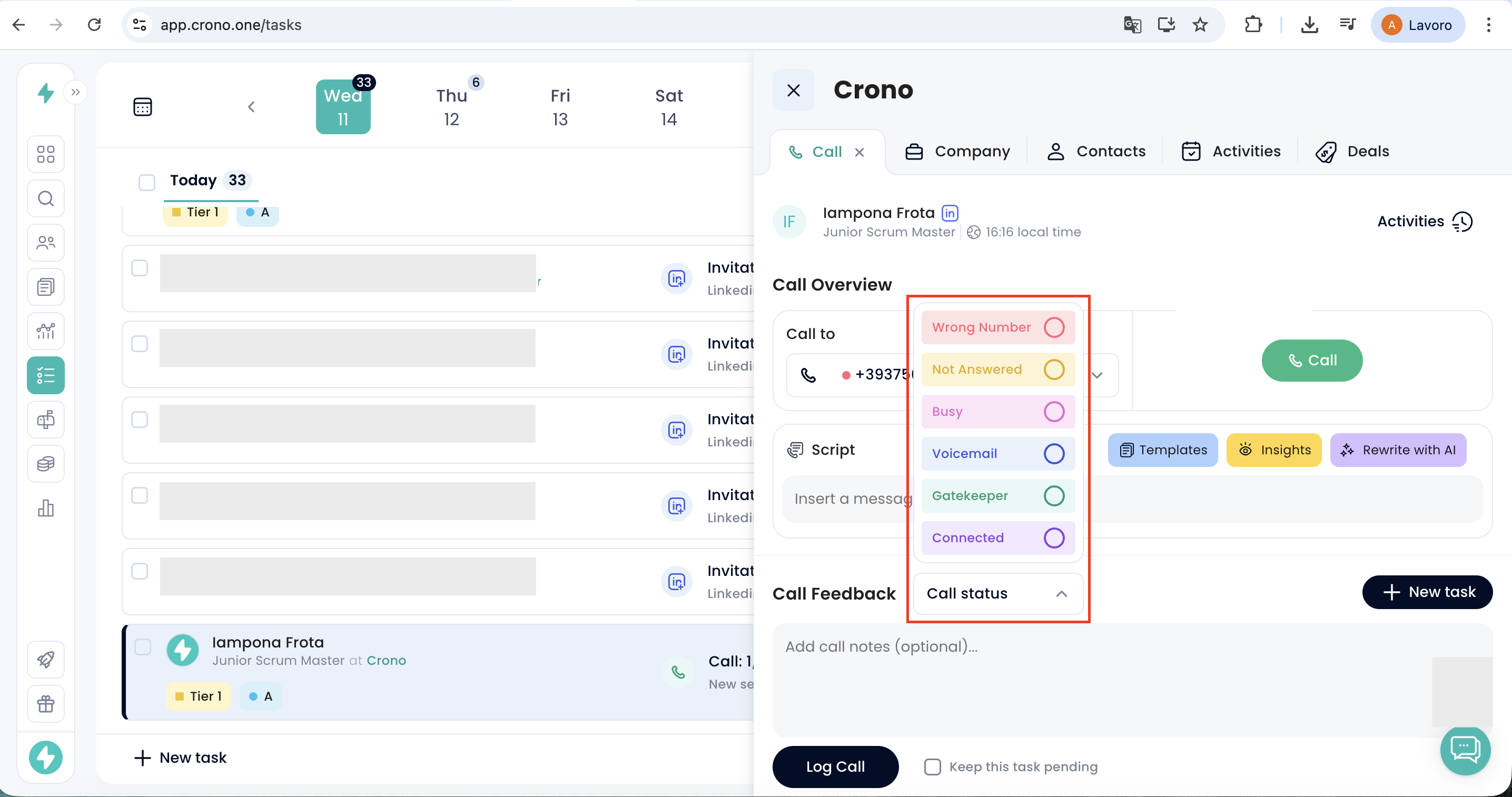
Choose the option that best represents what happened during the call.
Wrong number
Use this when the number you called does not belong to the contact you intended to reach.
Not answered
Select this when the contact does not answer the call.
Busy
Use this when the contact answers but tells you they are busy and ask you to call back later.
Voicemail
Select this when the call goes to voicemail.
Gatekeeper
Use this when someone else answers the phone, such as an assistant or secretary.
Connected
Select this when you successfully speak with the contact.
Regardless of the call outcome, you can provide additional context about the interaction. You can:
Use the Notes field to describe what happened during the call
Select “Keep this task pending” if you want the call task to remain visible in the Tasks section so you can redo it later.
Note that if you log the call while keeping the task pending, the call you are currently logging will still appear as a completed activity (which you can later find in the Activity section and in analytics), while the task will remain available for execution.
This is helpful when you want to keep the task visible while planning a follow-up or additional attempts.
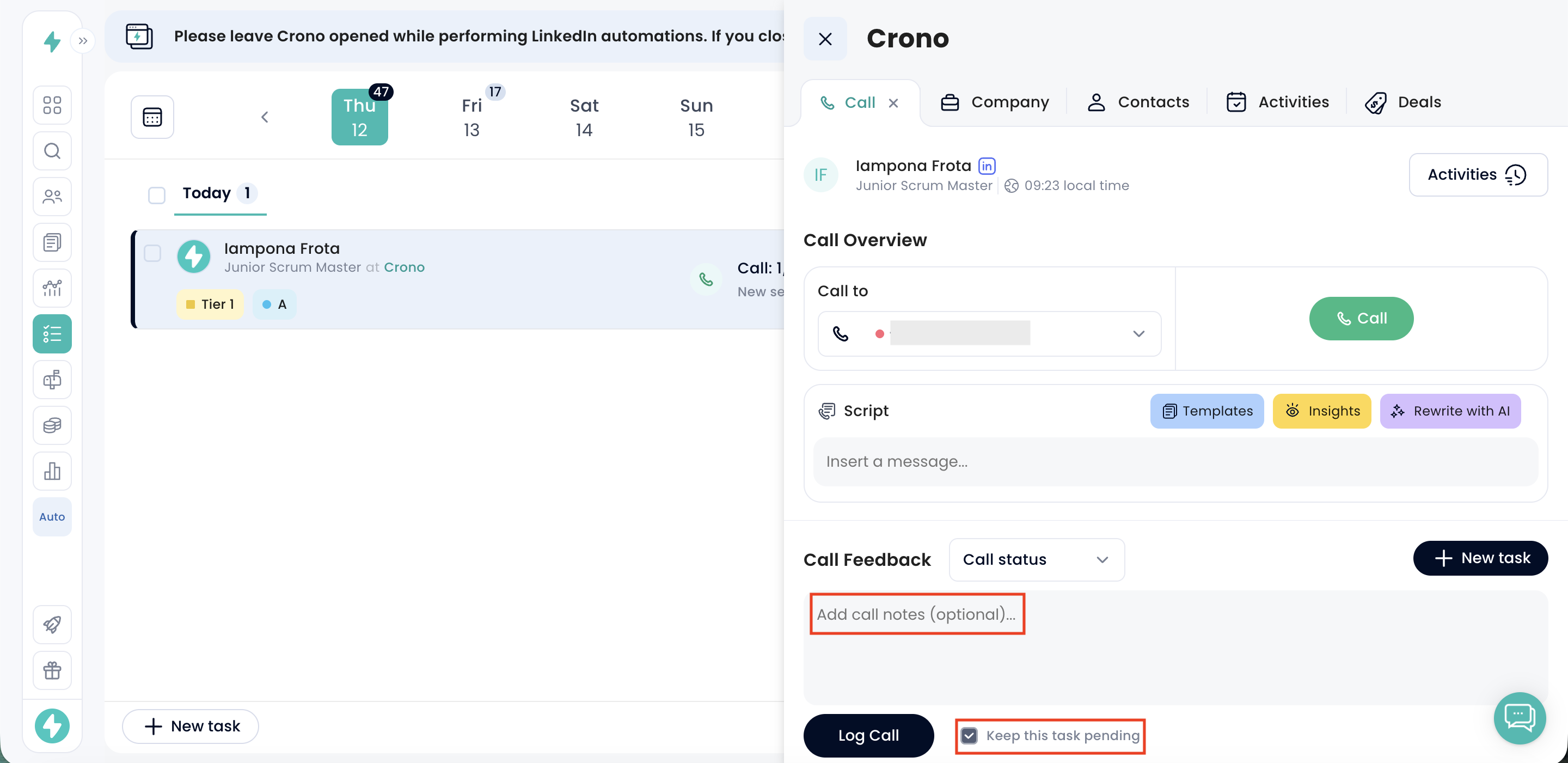
This option can be useful when you need to remember important details or when the call requires another attempt.
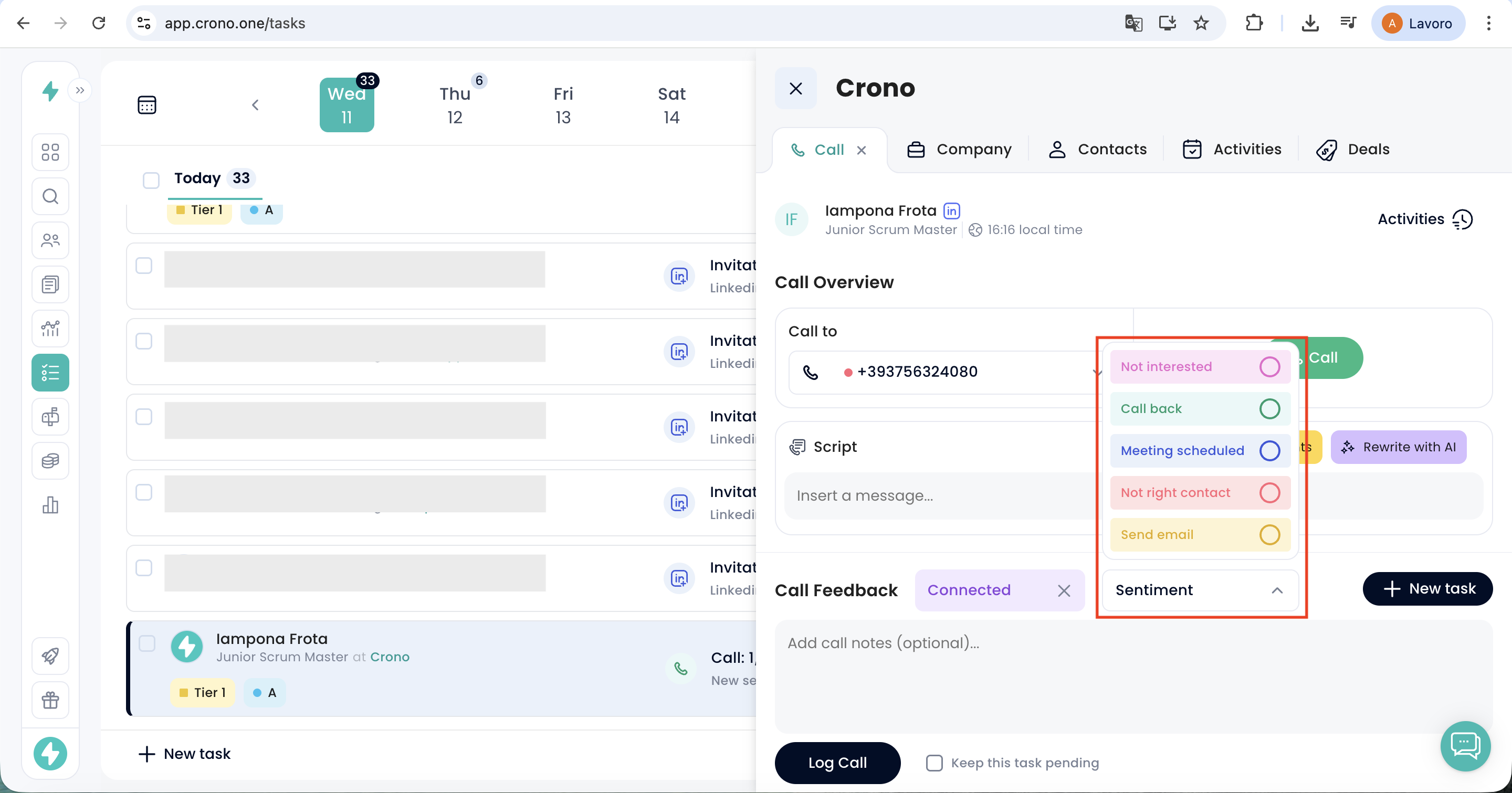
If you select Connected, you will be asked to indicate the sentiment of the call. The available options are:
Not interested – The contact shows no interest.
Call back – The contact asks you to call again at another time.
Meeting scheduled – You successfully schedule a meeting with the contact.
Not right contact – The person you spoke with is not the correct contact.
Send email – The contact asks to continue the conversation via email.
Recorded calls can be automatically transcribed and saved directly into Notes, making post-call follow-ups and information tracking much easier.
When you call a contact inside Crono and record the call, once the call ends you’ll see the “Generate Transcript” option inside the call notes panel.
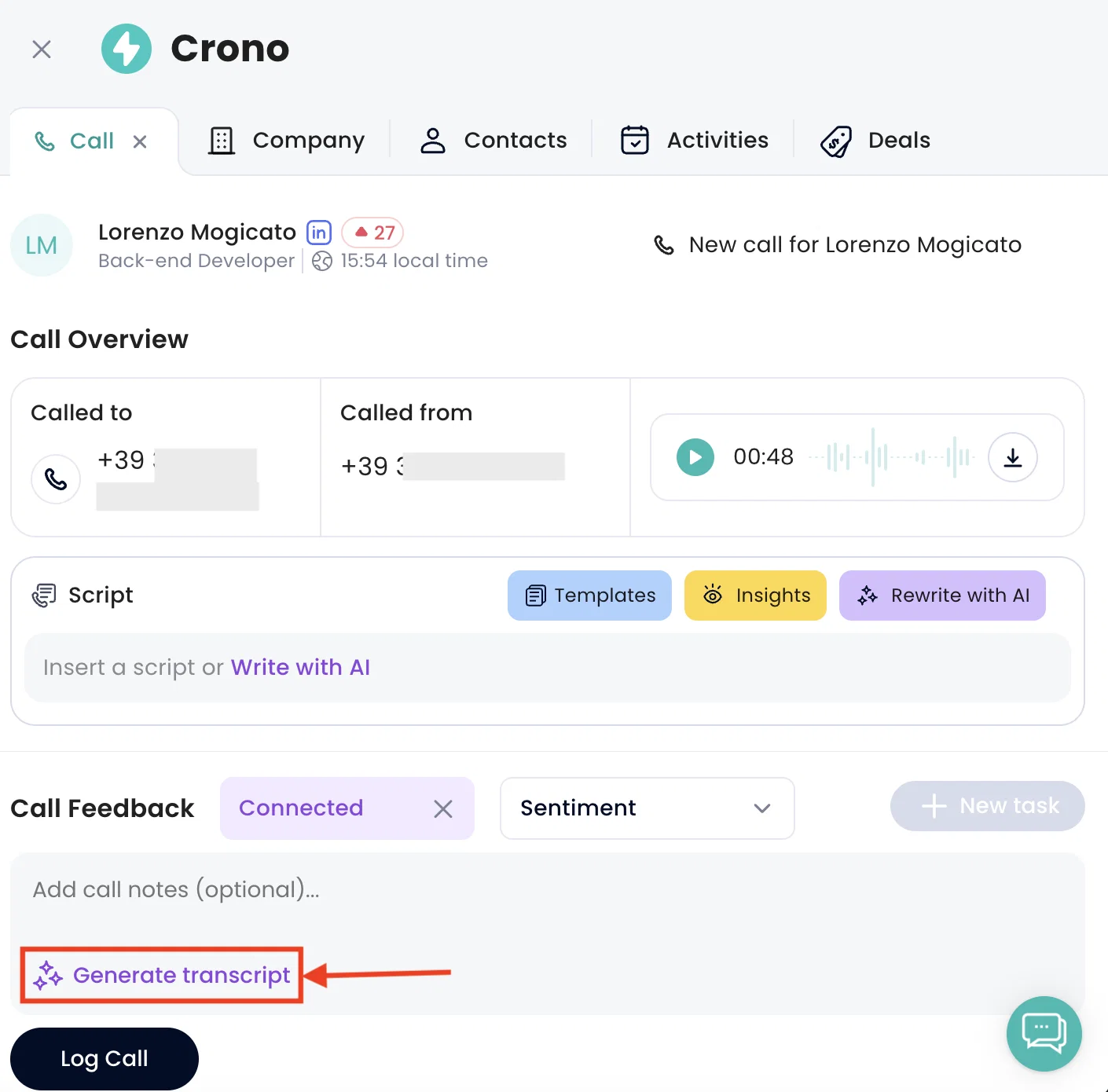
By clicking it, AI will generate the full call transcript in just a few seconds (depending on the call length).
Before saving the call log, you can:
Edit the generated transcript
Add additional notes above the transcript
Copy the transcript using the copy button in the top-right corner
Delete it using the trash icon
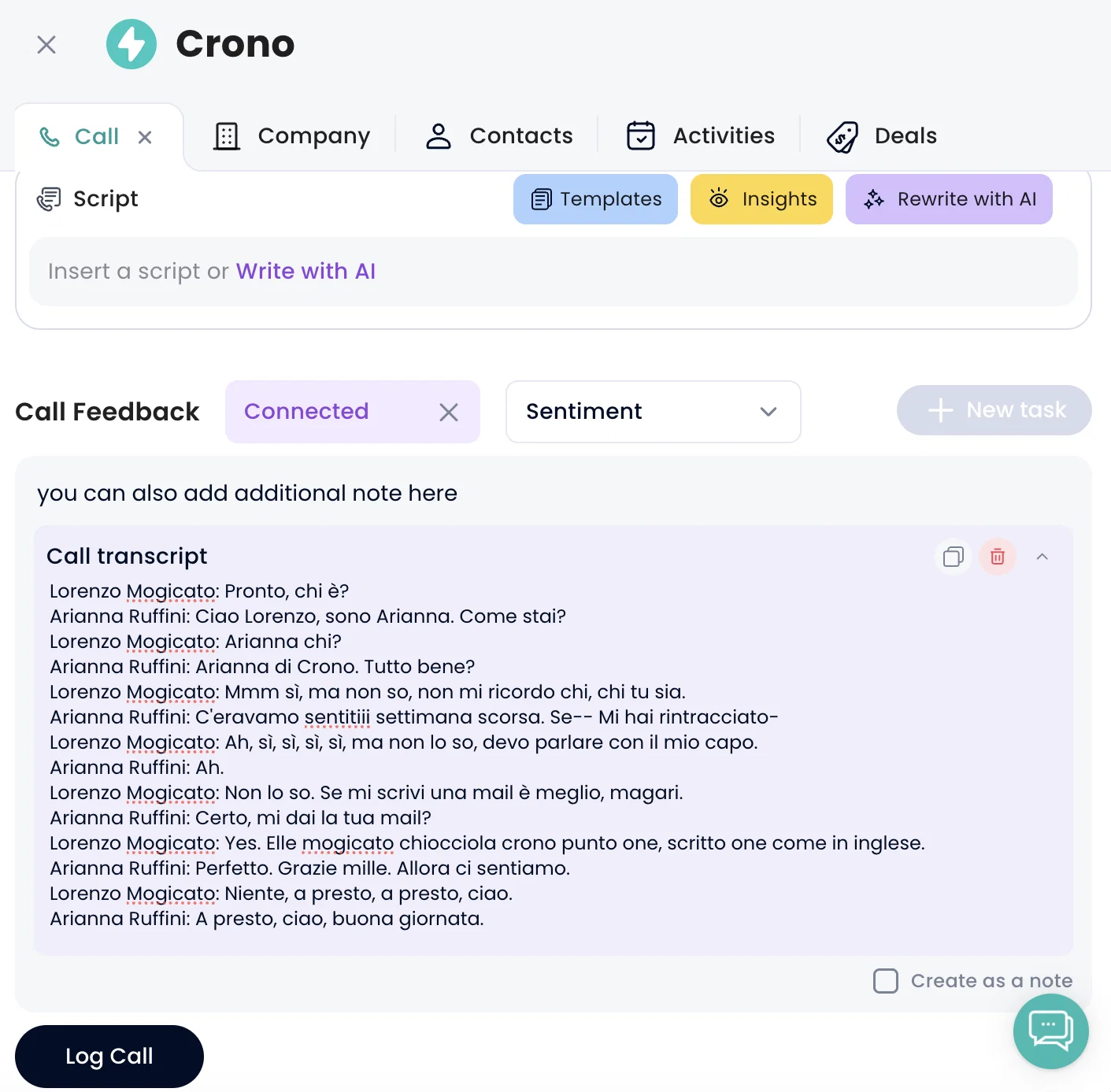
Once logged, the transcript and notes will be available directly inside the Contact card under: Activities → Call details
This makes it easier to review conversations, share context internally, and keep all call information centralized in Crono.
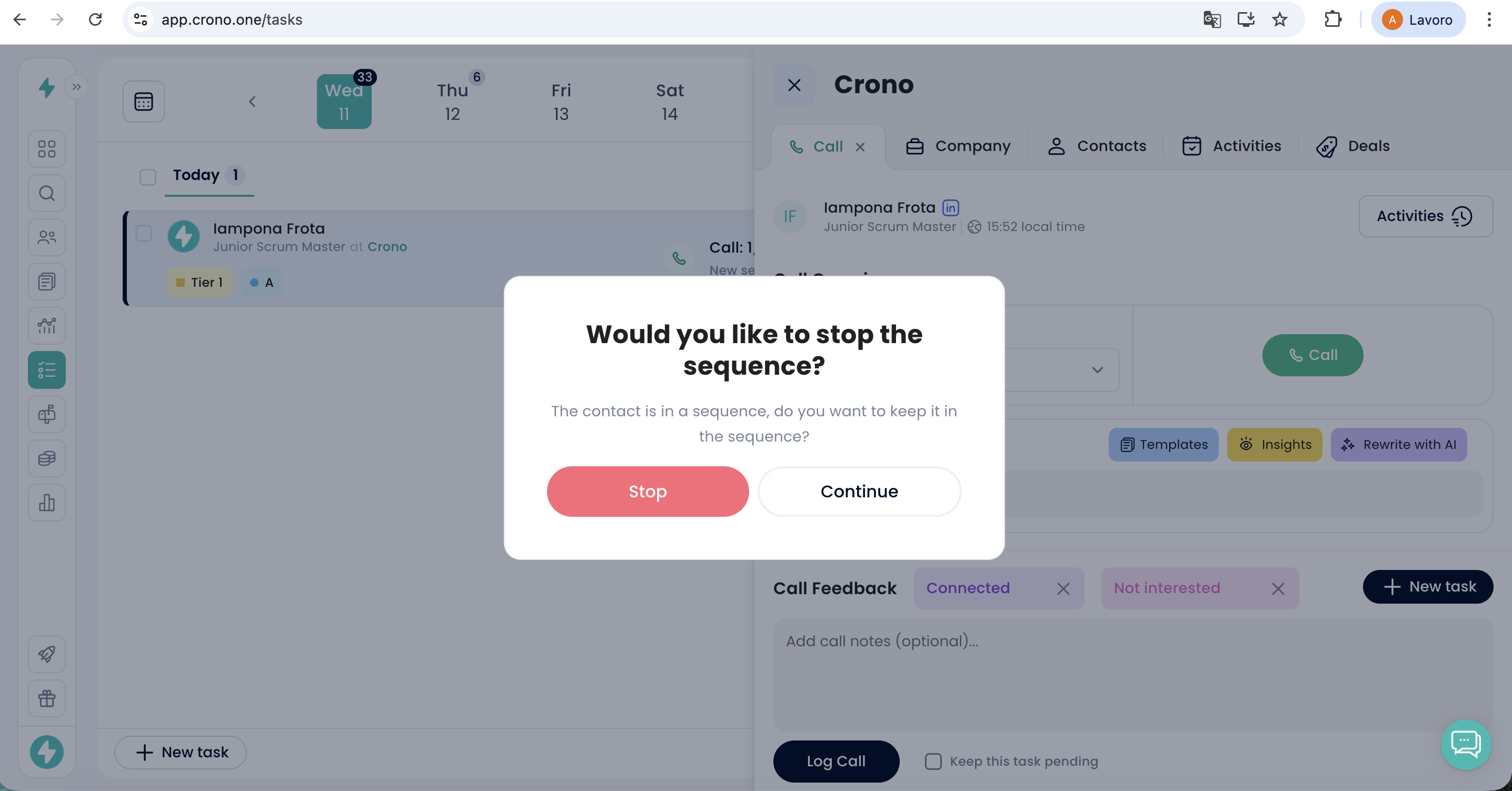
If you select Connected and there are additional steps remaining in the sequence, a window will appear asking:
“Would you like to stop the sequence?”
At this point, you can choose to:
Stop the sequence, if the conversation has progressed and automated steps are no longer needed.
Continue the sequence, if you want the remaining steps to proceed as planned.
This allows you to adapt the sequence based on how the conversation develops.
If the task originated from a Call step within a sequence, the selected sentiment will also affect how the contact appears in the sequence analytics. Depending on the sentiment selected, the prospect may appear in the Converted section (Meeting scheduled) or in the Replied section (Not interested, Call back, Not right contact, Send email) within the sequence Metrics. This helps keep reporting accurate and reflects the outcome of your interaction with the contact.
