
If you have connected your CRM, you can import lists you already maintain there straight into Crono — rather than rebuilding them by hand.
This works for both HubSpot and Salesforce, and the steps are the same for each — only the menu entry differs.
Importing a list
Go to the Lists page in Crono.
Click the + New button in the top-right corner.
From the dropdown, choose Import HubSpot List or Import Salesforce List, depending on which CRM you use.
You will only see the option for the CRM you have connected. If neither appears, check your CRM integration under Account Settings.
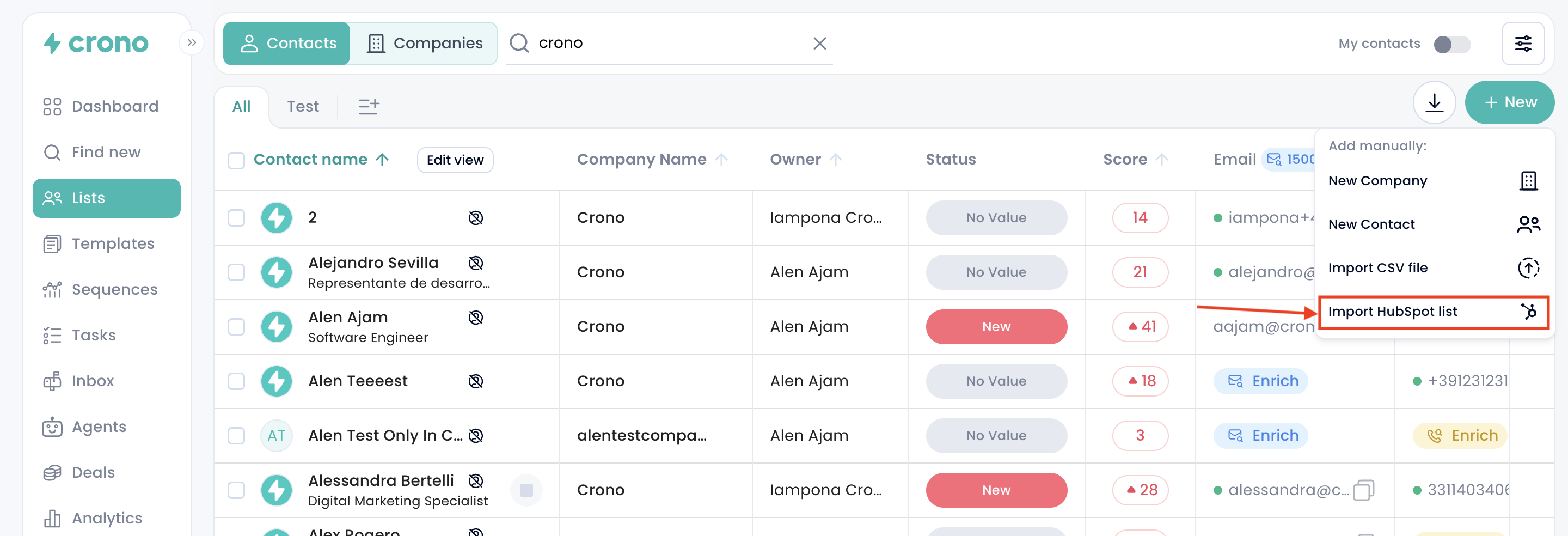
A popup opens showing the lists already available in your connected CRM account. Pick the one you want and continue.
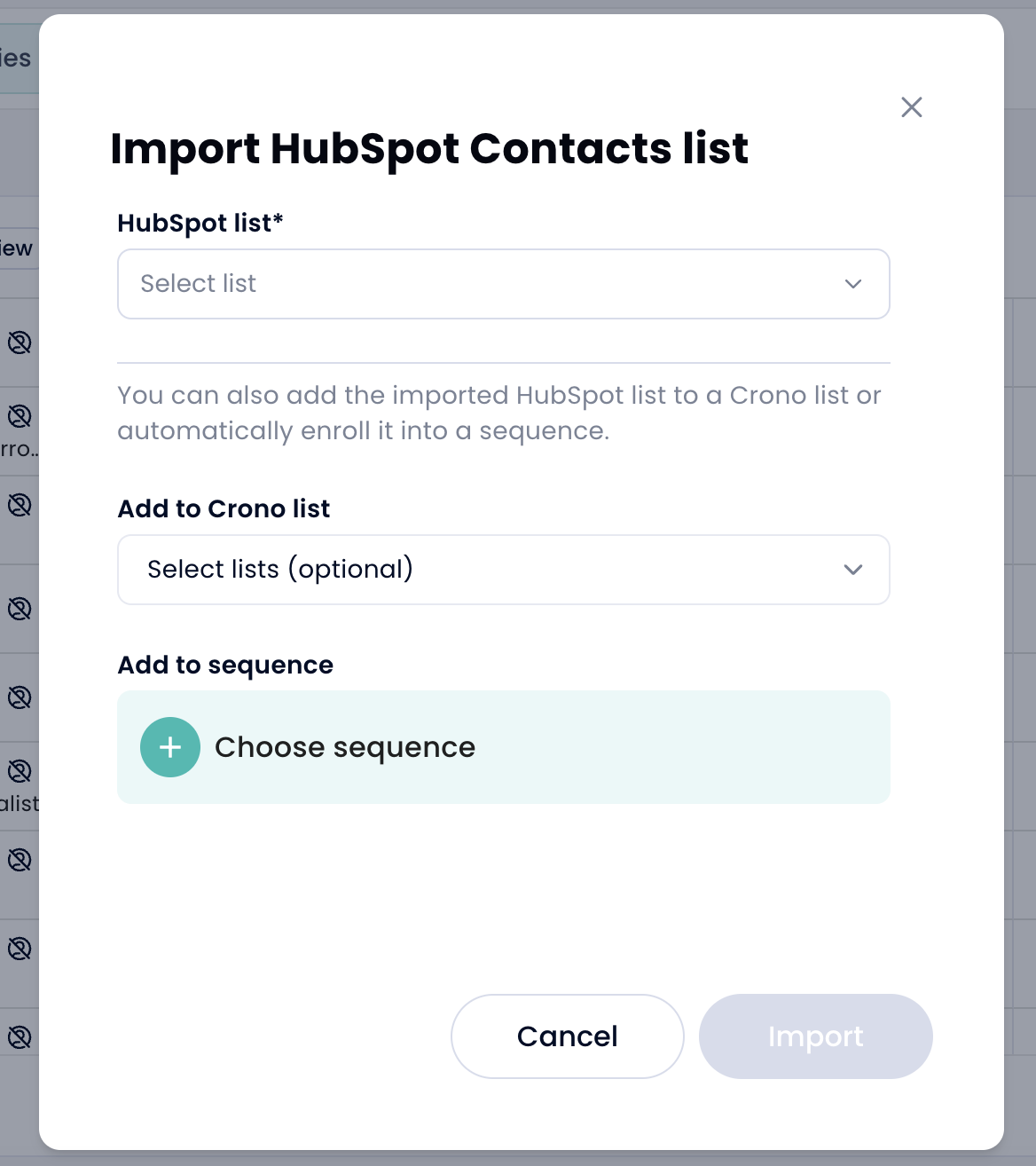
Import options
As you import, you can decide what happens to the records in Crono.
Add them to a Crono list — so the group stays together and is easy to find afterwards.
Enrol them into a sequence — so you can start working them immediately, without a second pass to add them manually.
Note that sequence enrolment applies to contact lists only. Company lists can be imported and organised into Crono lists, but companies cannot be enrolled into a sequence directly — you enrol their contacts instead.