You can manage meetings directly from the Timeline section inside a contact card.
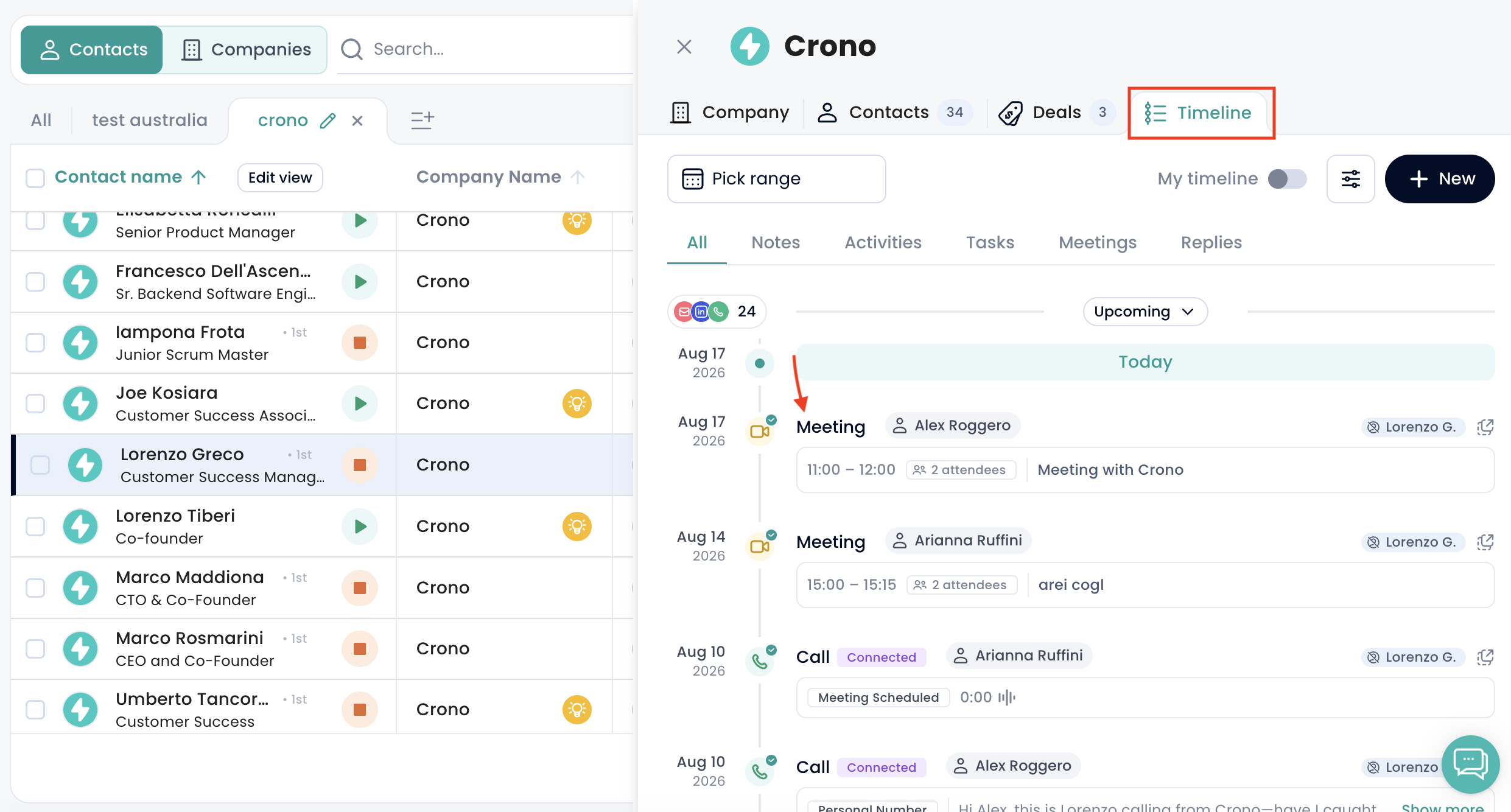
This makes it easier to keep track of all meeting activity related to a contact, without having to leave the contact card or update information from a different section of Crono.
To log a new meeting:
Open the contact card of the contact you want to update.
Go to the Timeline section.
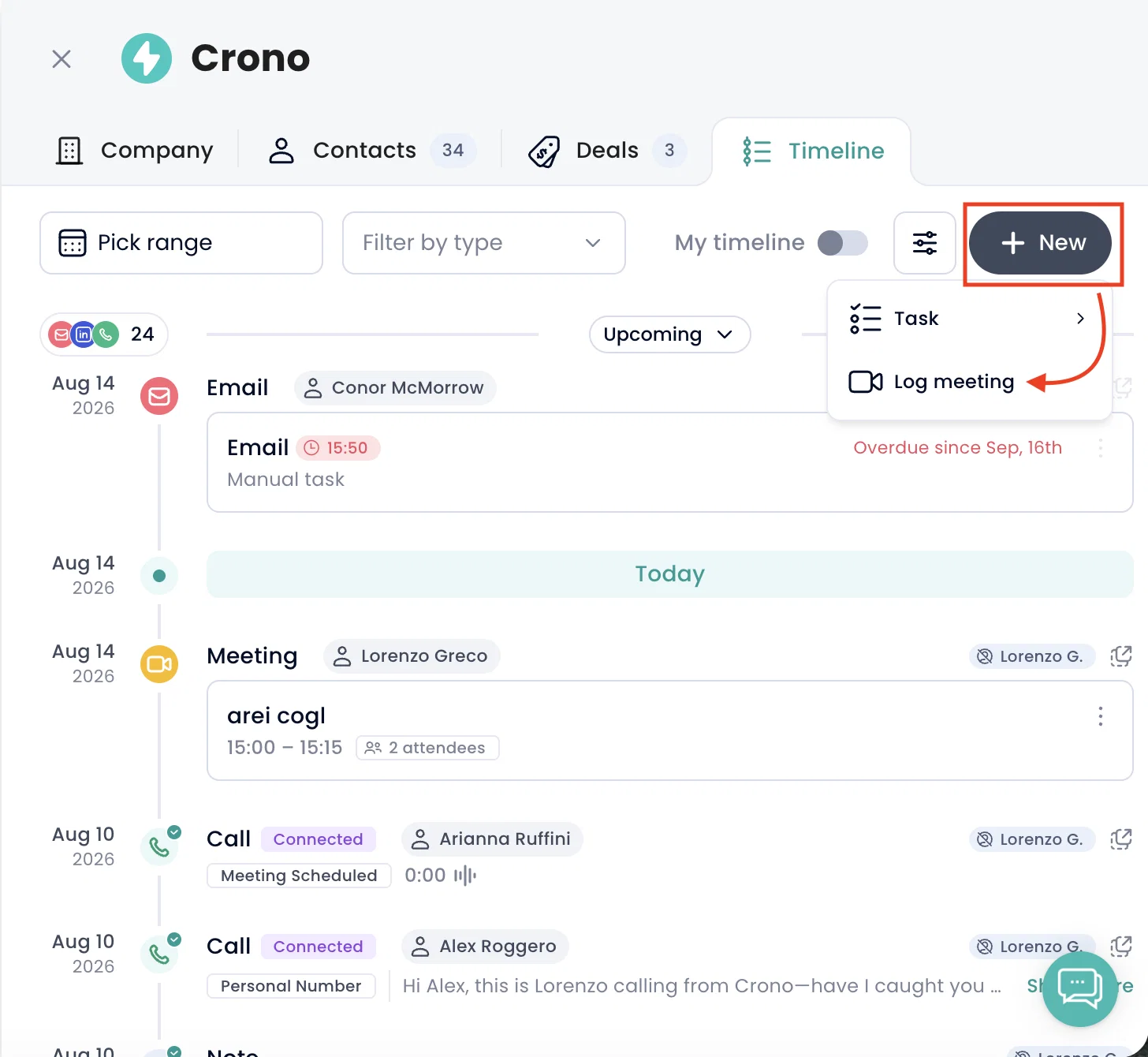
Click New in the top-right corner.
Select the meeting option and fill in the meeting details.
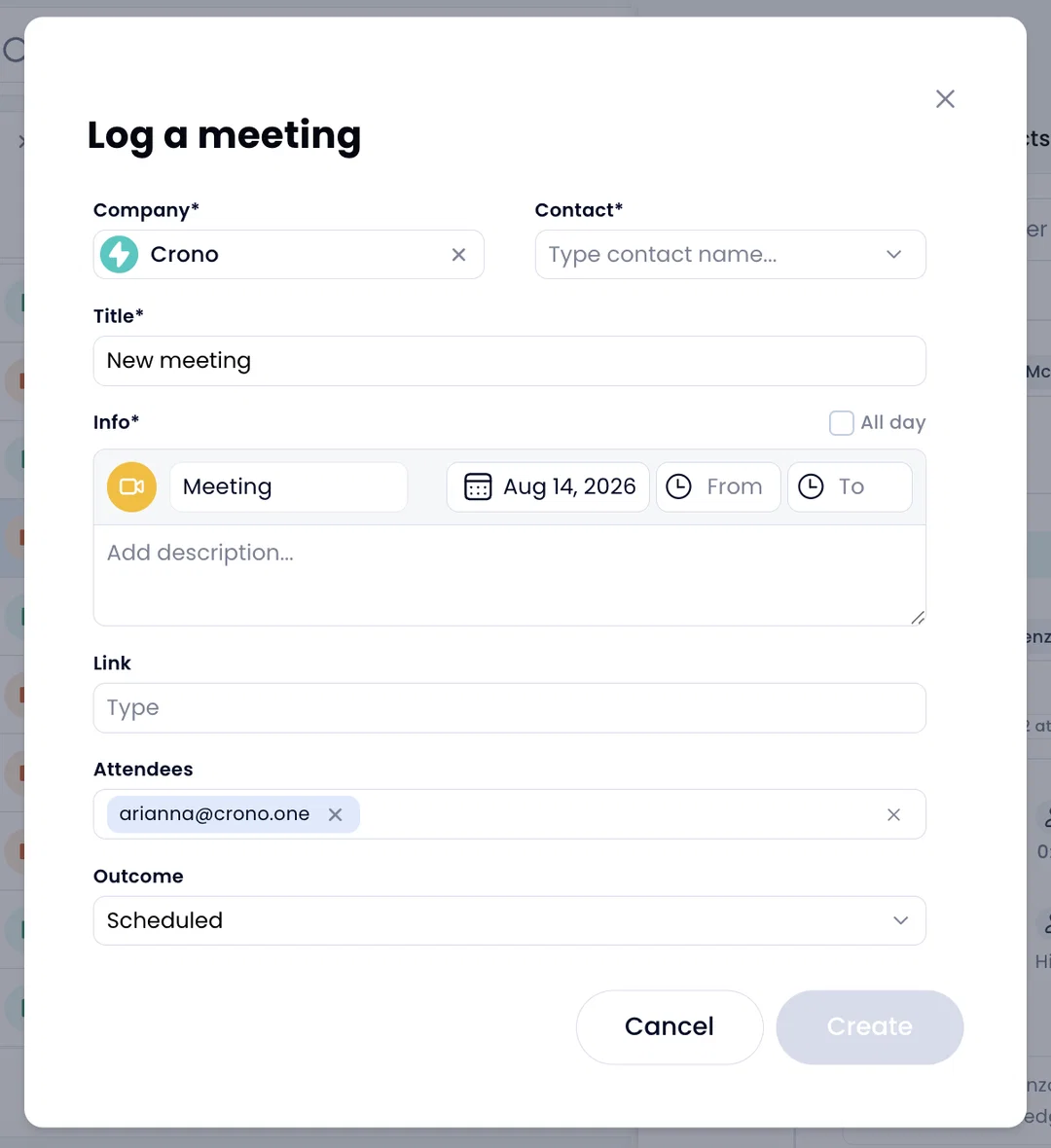
From the meeting creation window, you can add all the key information related to the meeting, including:
Time
Notes and additional information
Meeting link
Attendees
Outcome
Available meeting outcomes are:
Scheduled
Completed
Rescheduled
No show
Canceled
Once saved, the meeting will appear in the contact timeline, helping you keep the contact history complete and easy to review.
Meetings in Crono can also include your CRM fields, just like logged calls.
If you use Salesforce or HubSpot, you can configure custom CRM properties for the Meeting activity type and fill them in when logging a meeting in Crono.
Once the meeting is logged, the selected information is automatically pushed to your CRM.
This helps you keep CRM activity records more complete and consistent, without having to update the same information manually in both systems.
Using CRM properties for meetings is especially useful when you want to:
Track structured meeting details
Standardize how meeting information is logged
Improve reporting in your CRM
Keep HubSpot or Salesforce updated with the right meeting data
You can also manage already scheduled meetings directly from the contact timeline.
Click on an existing meeting in the timeline to open it.
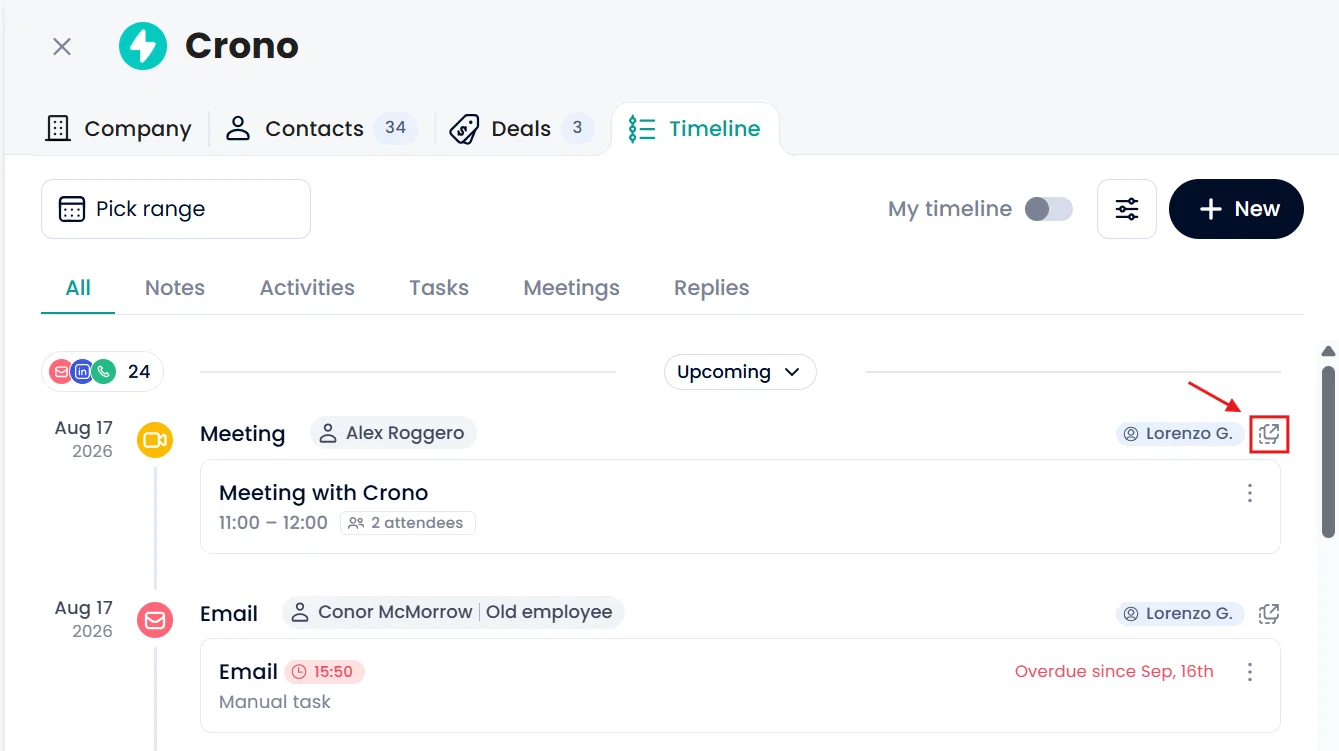
From there, you can:
Edit the meeting details
Update the meeting outcome
Add or update notes
Open the meeting link
Join the meeting directly from the contact card
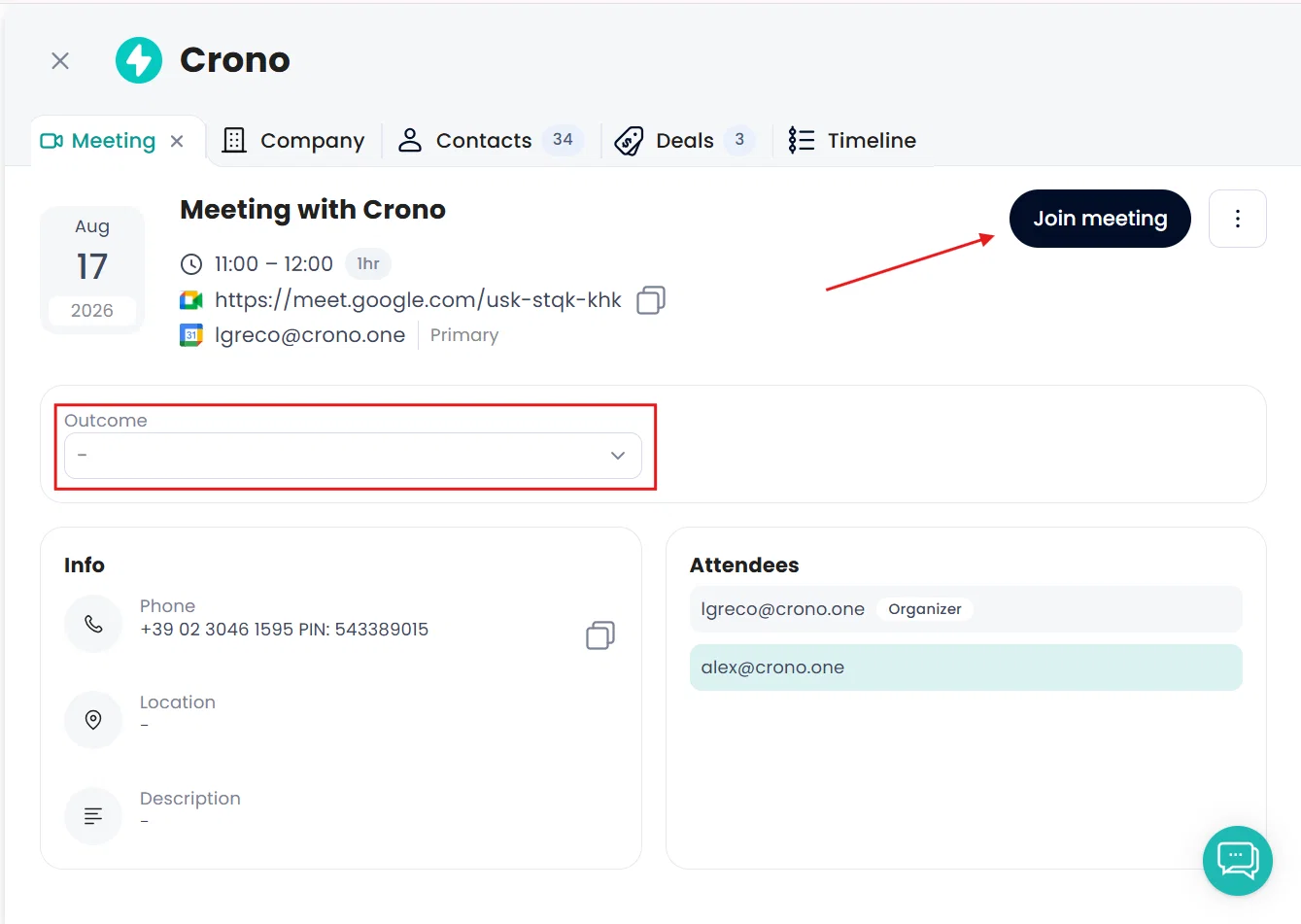
This allows you to quickly access meeting information and take action without switching context.
Logging and managing meetings from the contact timeline helps you keep all contact interactions in one place.
It is especially useful when you want to:
Track meetings alongside calls, emails, and other activities
Make sure meeting outcomes are always updated
Keep notes and follow-up information connected to the right contact
Join scheduled meetings faster from the contact card
Keep CRM meeting records complete with the relevant properties
This helps your team maintain a complete and accurate history of every interaction with each contact.
