Find prospects directly from LinkedIn
One way to discover and add new contacts or companies to Crono is directly from LinkedIn or LinkedIn Sales Navigator.
Start by performing the search you are interested in on LinkedIn. You can apply the available filters to narrow down your results. If you are using Sales Navigator, you will have access to additional filters to refine your search even further.
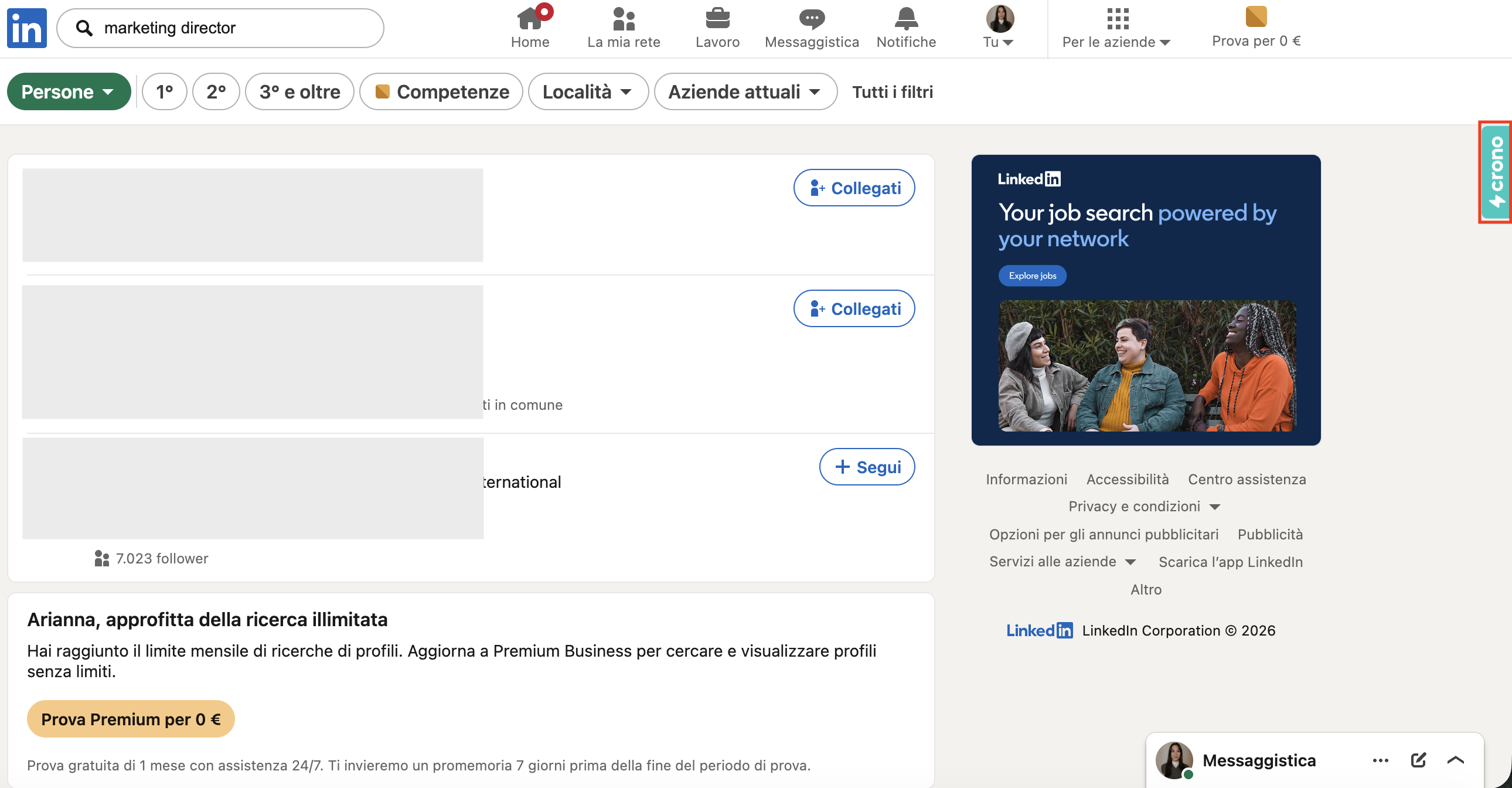
Notice that you always have the Crono extension button on the right side of the page.
Import contacts or companies from search results
Click the Crono extension button to open the extension panel. Then click Find at the bottom right of the window to retrieve the contacts or companies from the page.
A list of the detected results will appear. From here you can:
Select all results using Select all
Select contacts or companies individually
Once selected, you can perform several actions before importing them into Crono:
Enrich contact information such as email and phone number (for contacts)
Enrich company information (for companies)
Add them to an existing list or create a new one
Change the ownership of the contacts or companies
Add tags to organize them (tags can be created by an admin in the Tag Management section of Settings)
Enroll contacts into a sequence (available for contacts only)
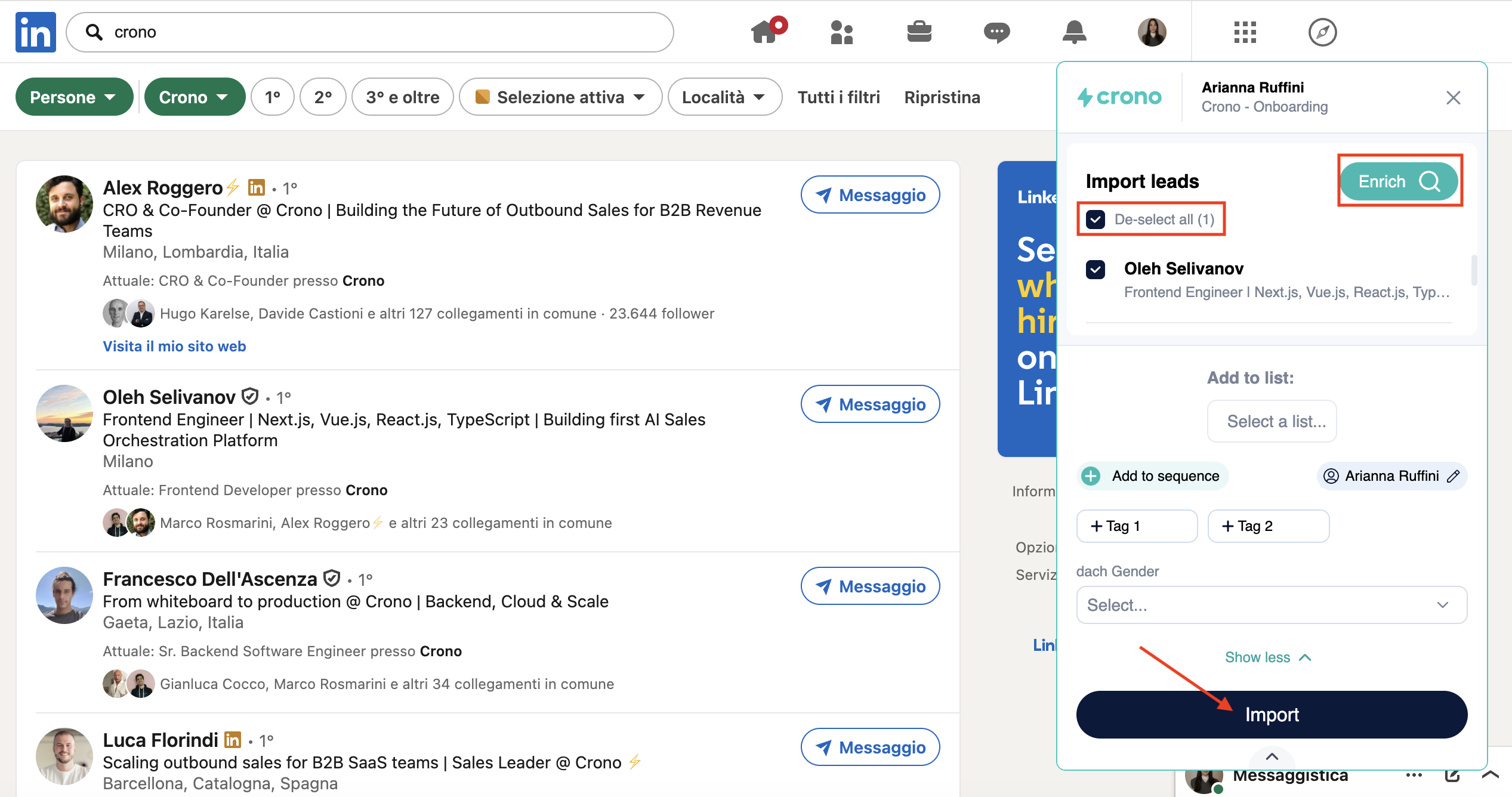
After selecting the desired actions, click Import.
The selected contacts or companies will then be imported into Crono and will appear in the Lists page.
Add a single contact or company from a profile
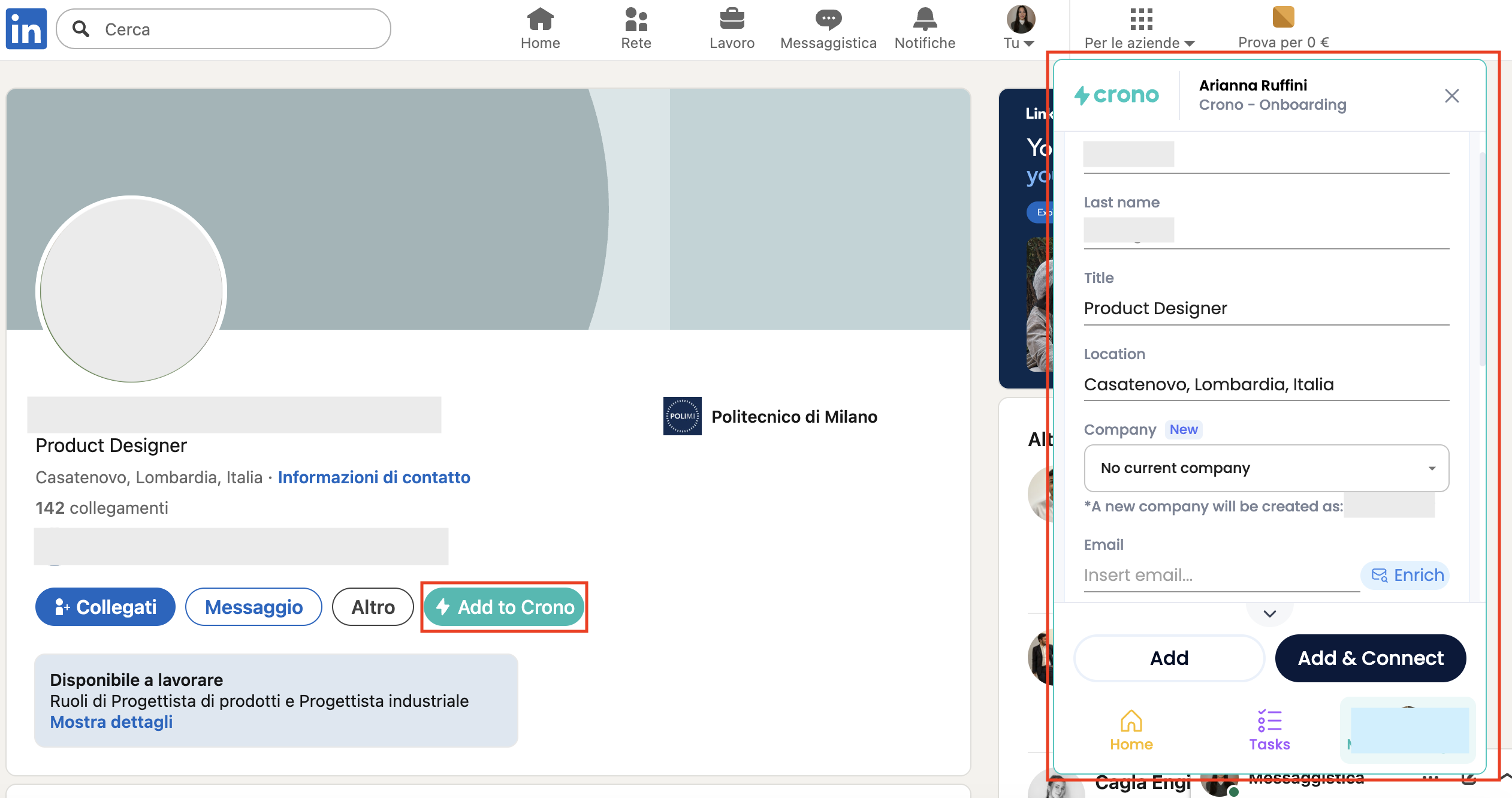
You can also add a single contact or company directly from a LinkedIn profile. When you open a profile page, you will see the Add to Crono button.
Clicking this button will open the contact or company card, where you can review the available information and perform additional actions before importing.
From this window you can:
Enrich contact or company information
Add tags
Add the contact or company to a list
Change ownership
Enroll the contact into a sequence (for contacts only)
To complete the process, click Add.
If the profile belongs to a person, you will also see the option Add & Connect, which allows you to add the contact to Crono and send a LinkedIn connection request at the same time.