Fields store structured information about Contacts, Companies and Deals — job title, industry, company size and so on. Alongside the default fields on every card, you can create your own from the Fields Management section, so your data model matches how your team actually works.
If you are integrated with a CRM, you can link a field to one of your CRM properties when you create it — covered further down.
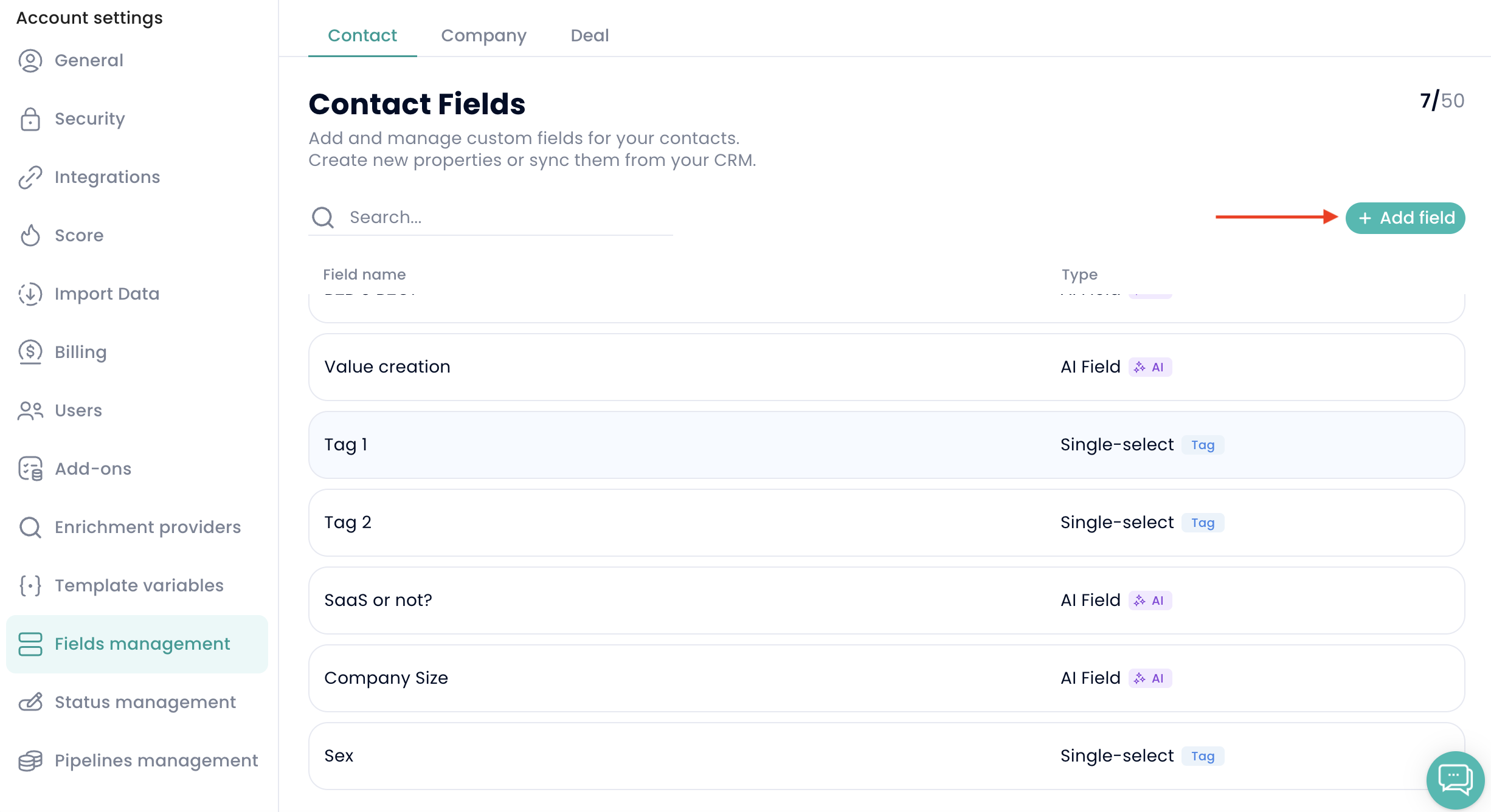
Go to Settings → Fields Management, where you can create and manage custom fields and tags for Contacts, Companies and Deals.
Only Managers can create and edit fields and tags
All users can view and use them across the platform
Click Add field
Enter a name
Choose the field type:
Single-select — one option from a predefined list. Example: Industry → SaaS / Finance / Healthcare
Multi-select — several options from a predefined list. Example: Regions → Europe / US / APAC
One Line Text — short free text. Example: Job title
Multi Line Text — longer free text. Example: Notes about a contact
HTML / Rich Text — text with formatting, links and lists. Example: Sales pitch
Number — numeric values only. Example: Deal value
Date and Date & Time — Example: Contract start date, meeting time
Boolean — a yes/no value. Example: Is active customer
Note: only Single-select and Multi-select fields can be used in Automations, whether as a trigger or as something a rule updates. If you are building a rule around a custom field, choose one of those two types.
On Single-select and Multi-select fields you can enable "Use as tags". Tags are simply select fields used to label and group records.
You can use tags to filter your lists, and to organise Contacts, Companies and Deals. The same tags can be applied to sequences and templates, keeping categorisation consistent across the workspace.
Fields = information about the record
Tags = labels to organise and group records
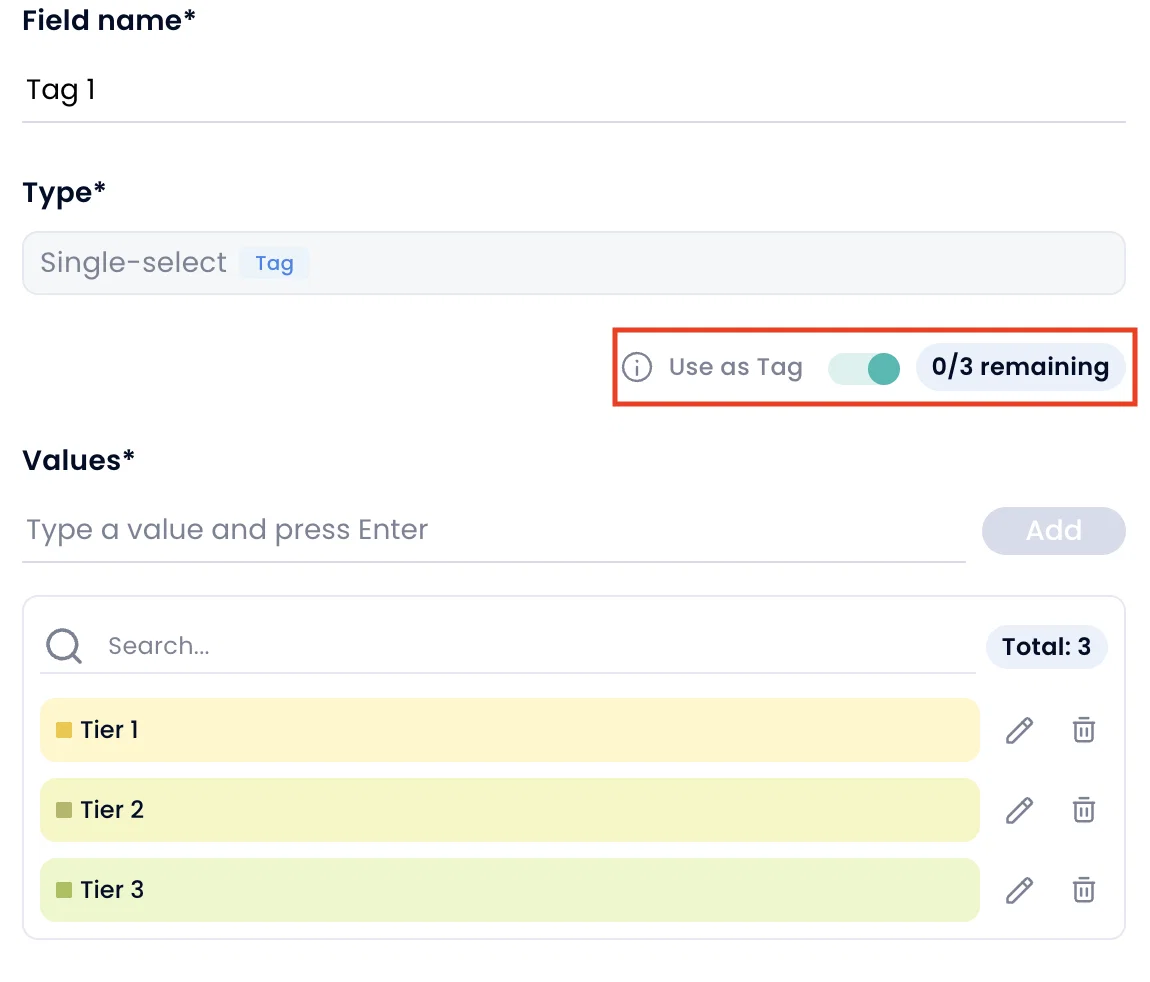
Add the values users can choose from, for select-type fields
Optionally set a default value, applied automatically to every new contact, company or deal
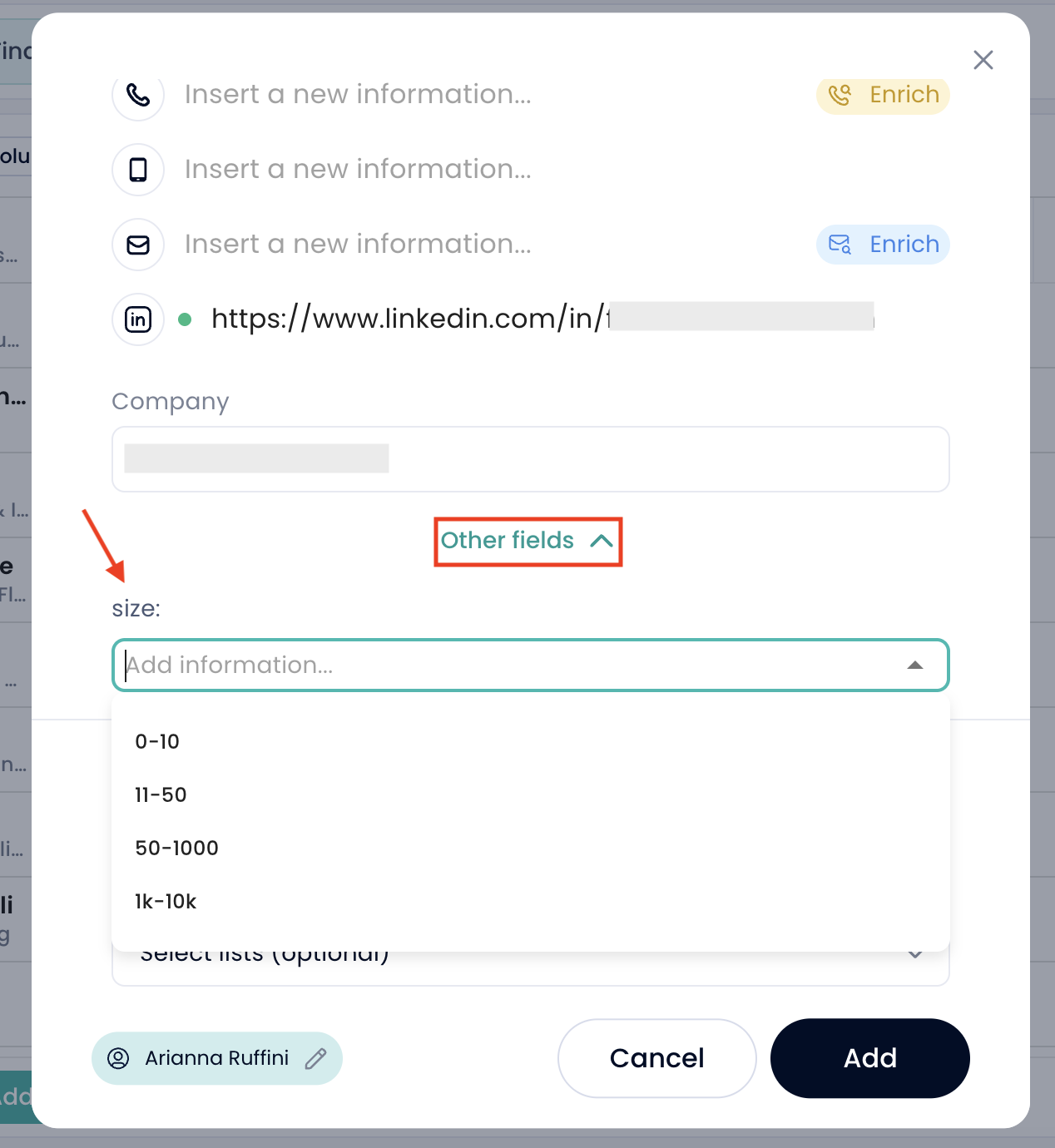
Enable Creation form to show the field when creating a record — it appears under Other Fields
Mark a field mandatory to require it before a record can be created
Alongside standard fields you can create AI Fields, which generate their own content. Give the field a name and a prompt describing what you want the AI to find, and it populates the field for you.
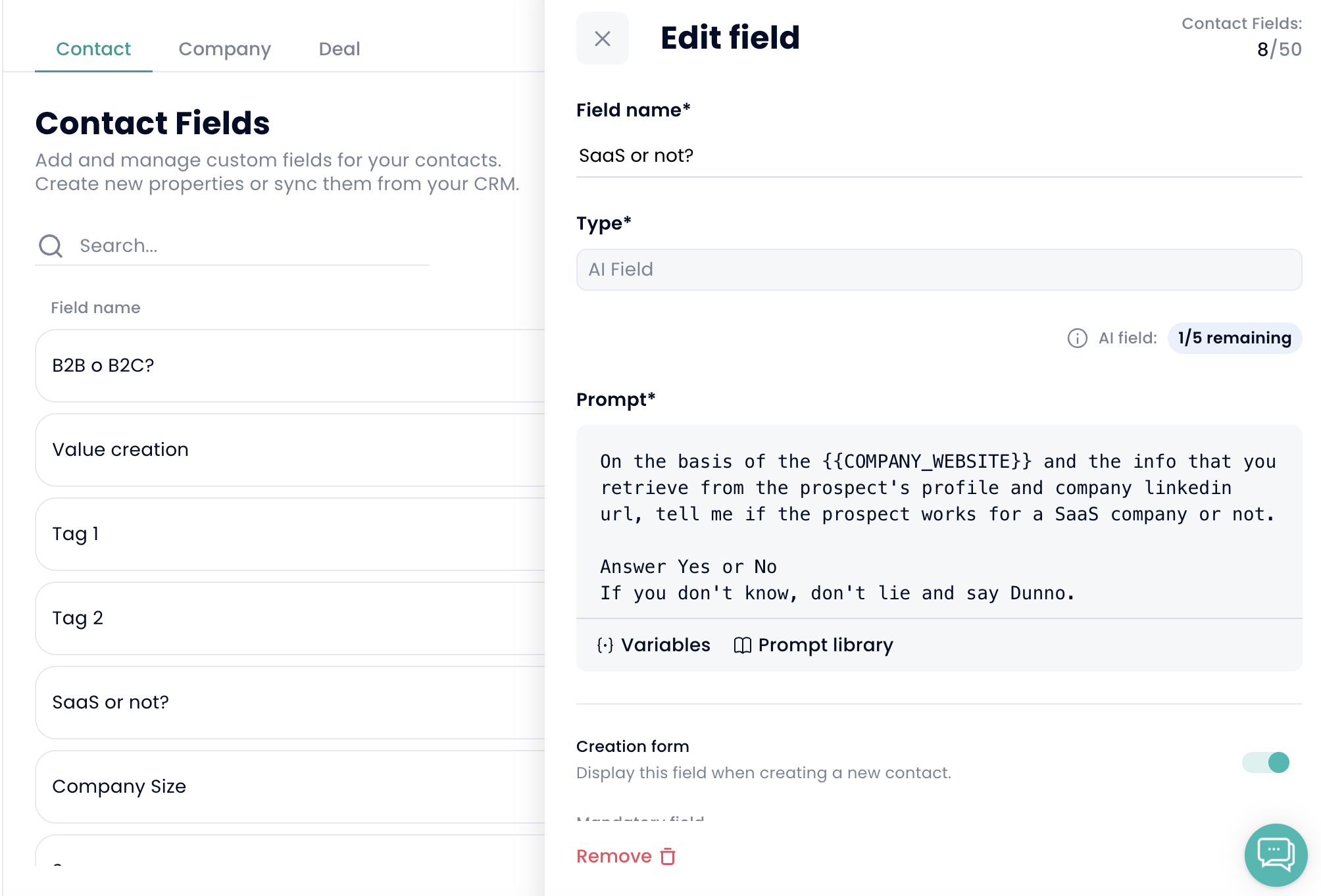
Values are not generated on their own — you run an AI Field enrichment, and each one costs 1 AI credit.
How many you can create: up to 5 AI Fields per object type, per workspace — 5 for Contacts, 5 for Companies, and 5 for Leads if you are integrated with Salesforce. The limit is shared across your team, not counted per user.
See How AI Fields are created and used for prompts, enrichment and using them in templates.
Your plan sets the limit:
Pro
10 Contact fields, of which up to 3 can be tags
10 Company fields, of which up to 3 can be tags
10 Deal fields, of which up to 3 can be tags
Ultra
50 Contact fields, of which up to 3 can be tags
50 Company fields, of which up to 3 can be tags
50 Deal fields, of which up to 3 can be tags
Click "Linked with CRM" to connect a custom field to a CRM property. Once linked, that CRM data becomes visible inside Crono.
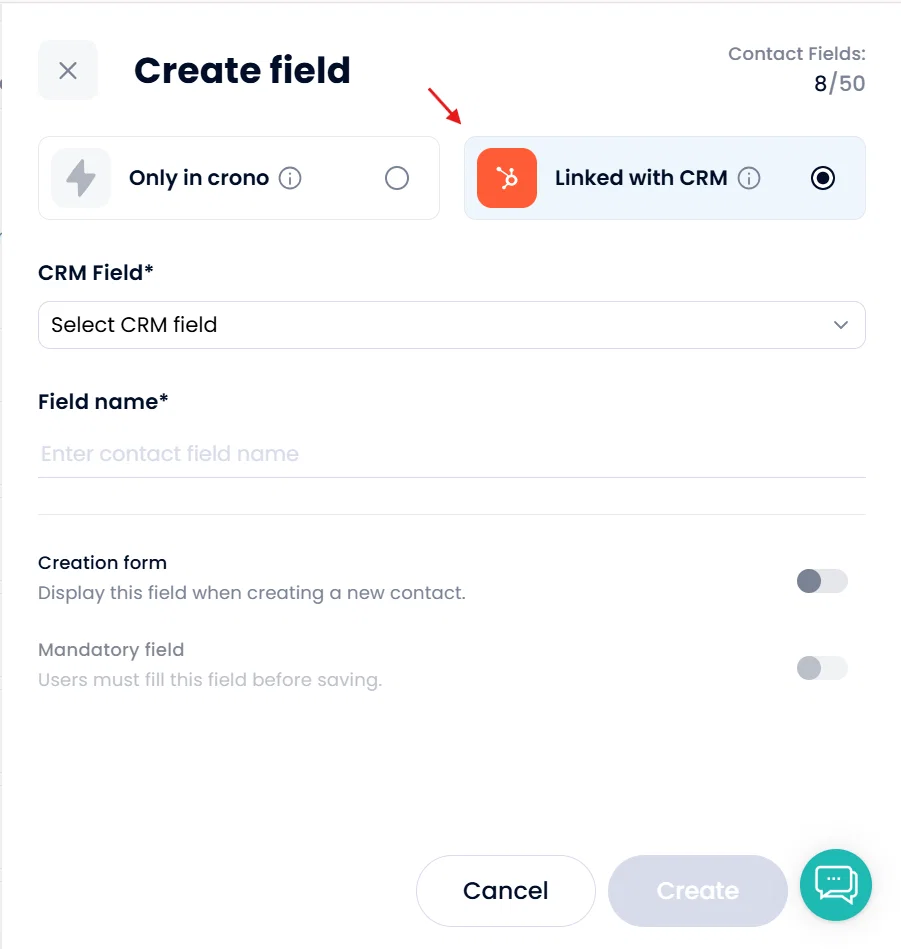
Linked fields sync in both directions: updates made in Crono are pushed to the CRM, and updates made in the CRM are reflected in Crono.
When people create linked fields independently, Crono reconciles them during the nightly sync, which:
Matches and aligns linked fields between Crono and the CRM
Imports and updates data from the CRM into Crono
Makes sure records present in both systems stay in step
